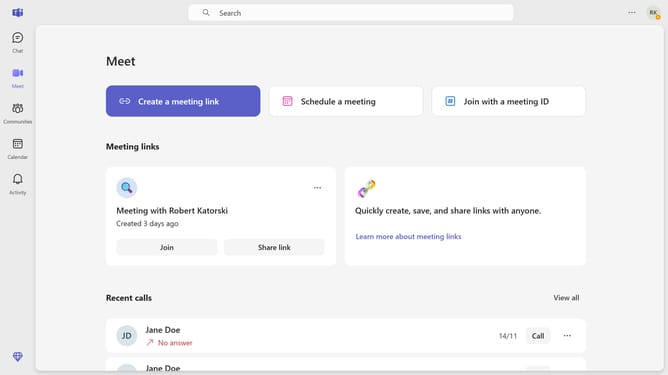
How to change the notification size to compact in Microsoft Teams
Here is how to change the notification size to compact in microsoft teams
- First click on the account menu icon in the top right corner of the screen
- Then click on "Settings" option in the dropdown menu
- In the Settings sidebar, click on "Notifications and activity" option
- Scroll down in the Notifications and activity settings
- Finally in the Size section of notification settings, select the "Compact" option
Why should you change the notification size to compact in Microsoft Teams
Microsoft Teams is a dynamic platform designed to streamline collaboration and enhance communication among teams.
By adjusting the notification size to compact in Microsoft Teams, users can enjoy a more streamlined visual experience. This feature allows notifications to take up less screen space, preventing distractions and letting you focus on what truly matters.
Embracing the compact notification setting not only aids in maintaining a cleaner interface but also ensures that vital alerts remain prominent without overwhelming your workspace. It’s an ideal way to enhance efficiency and maintain productivity throughout your day.
Last update