Here is how to change color of your charts from results in surveymonkey
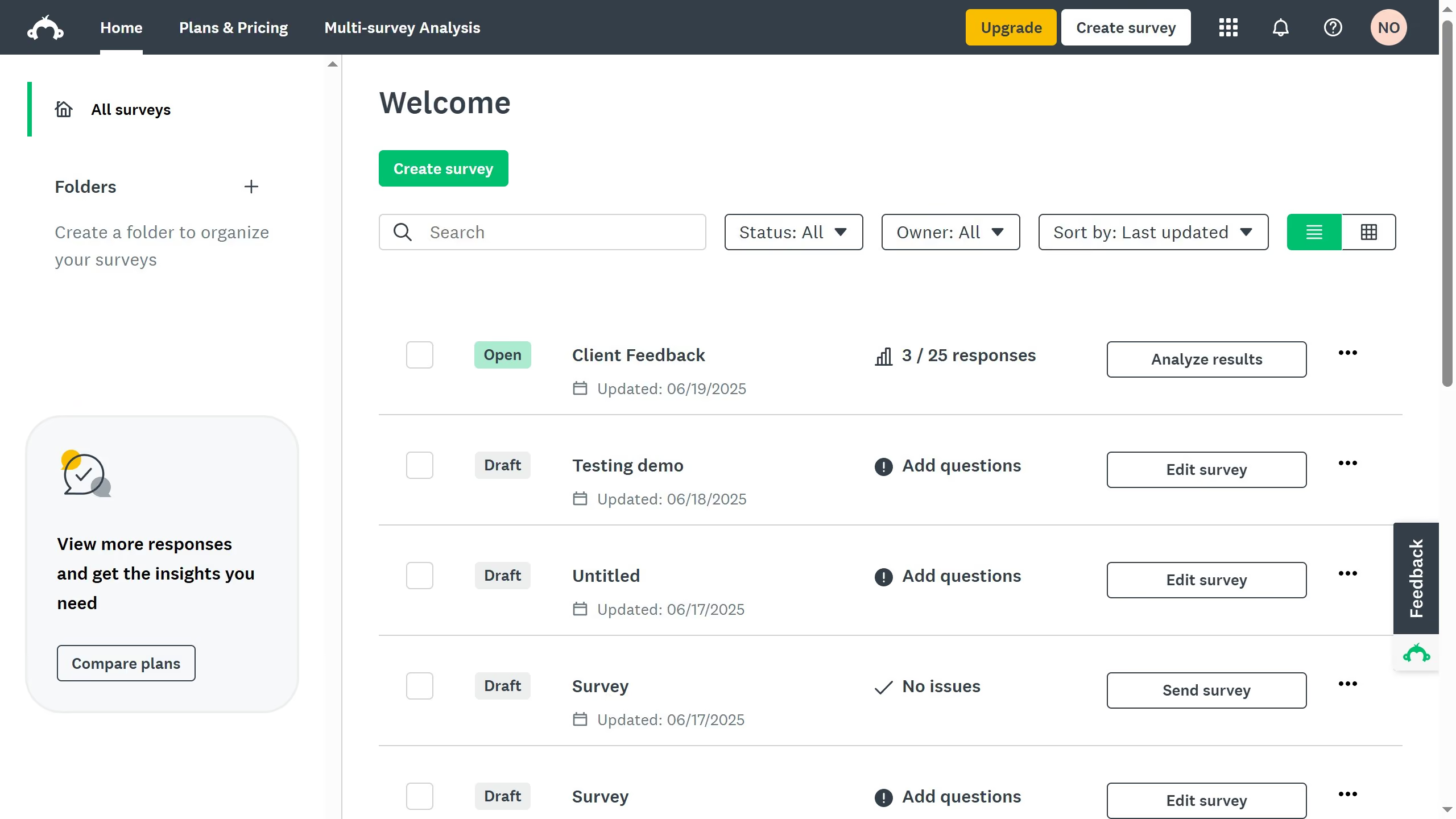
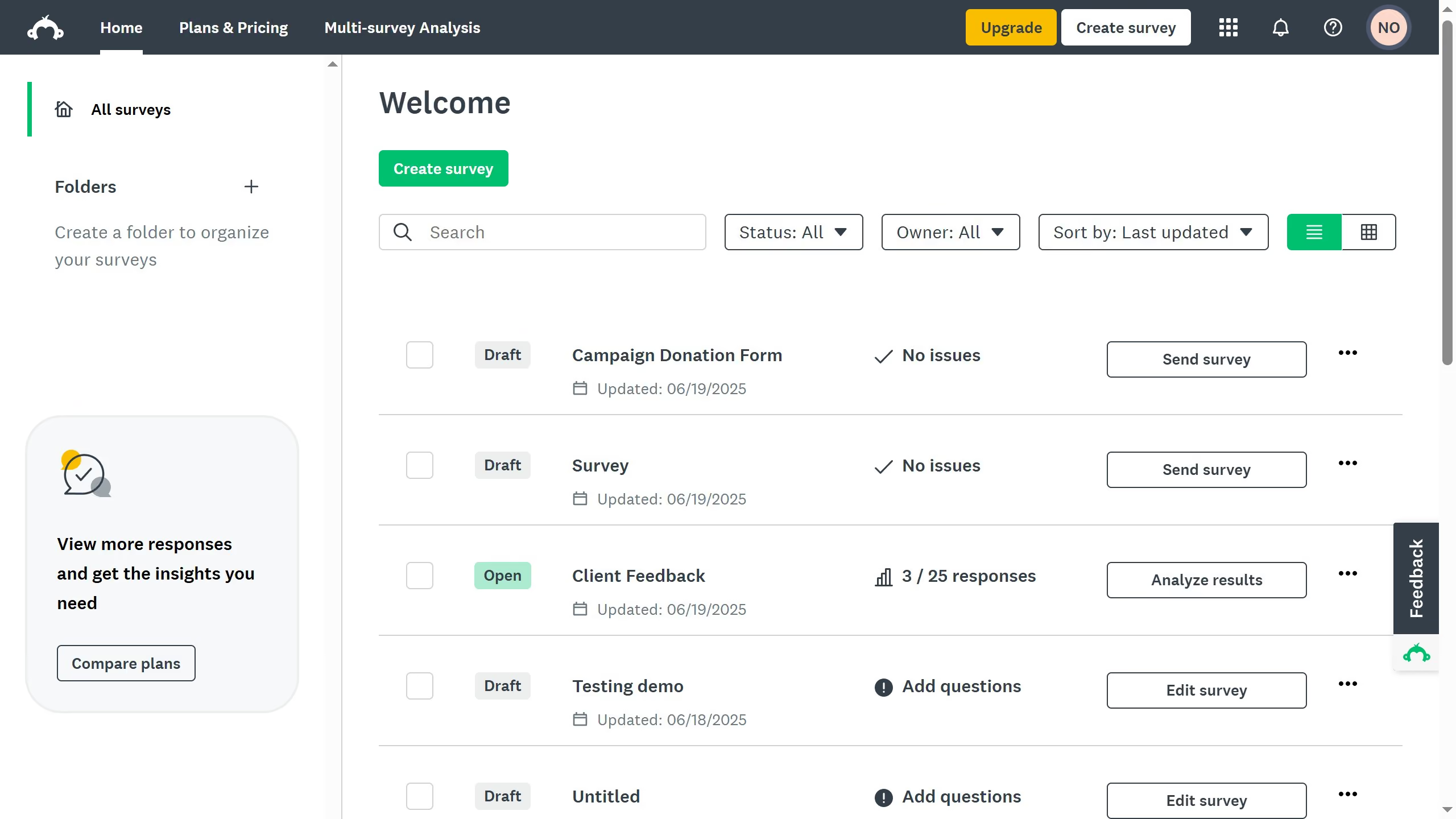
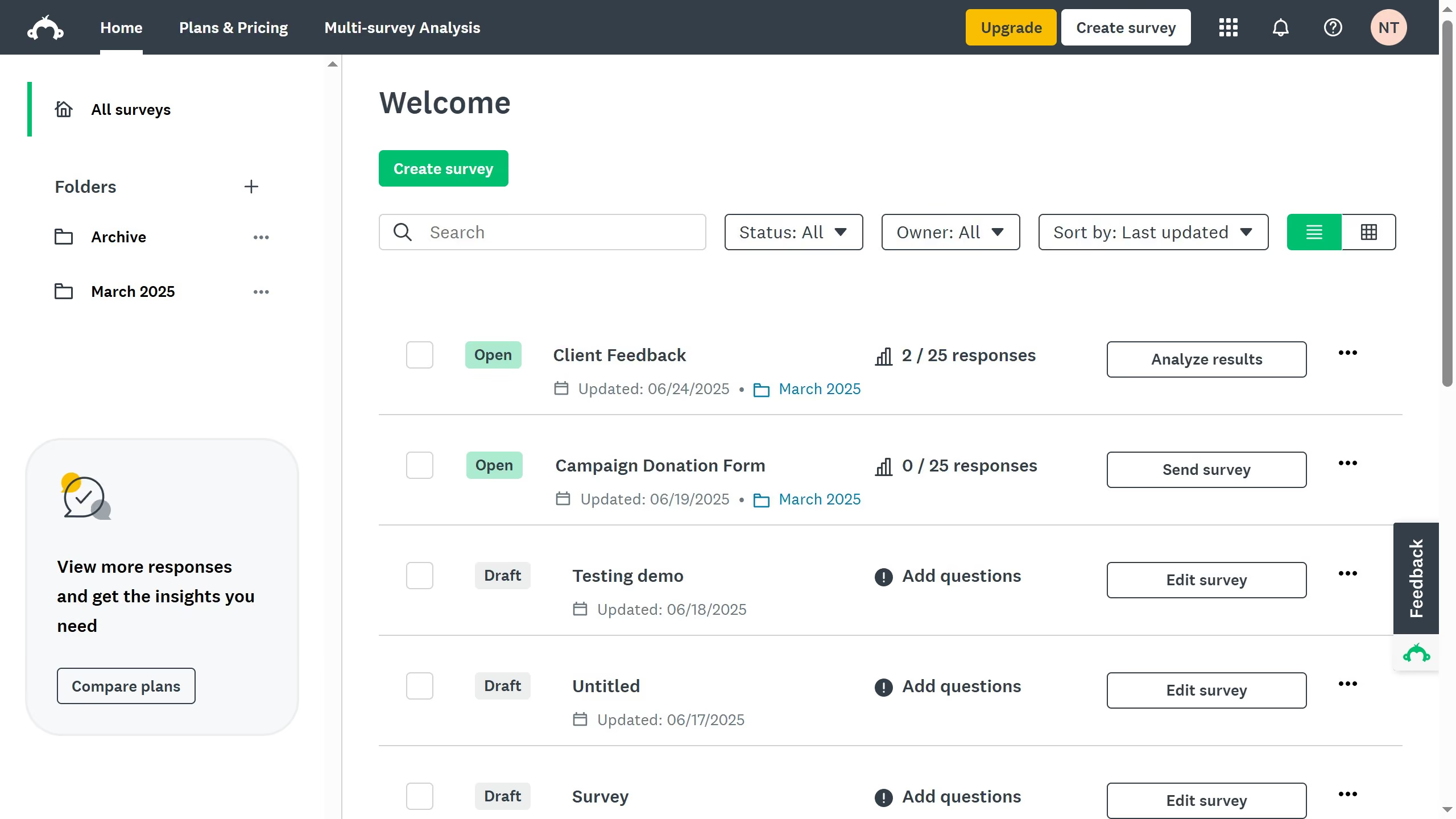
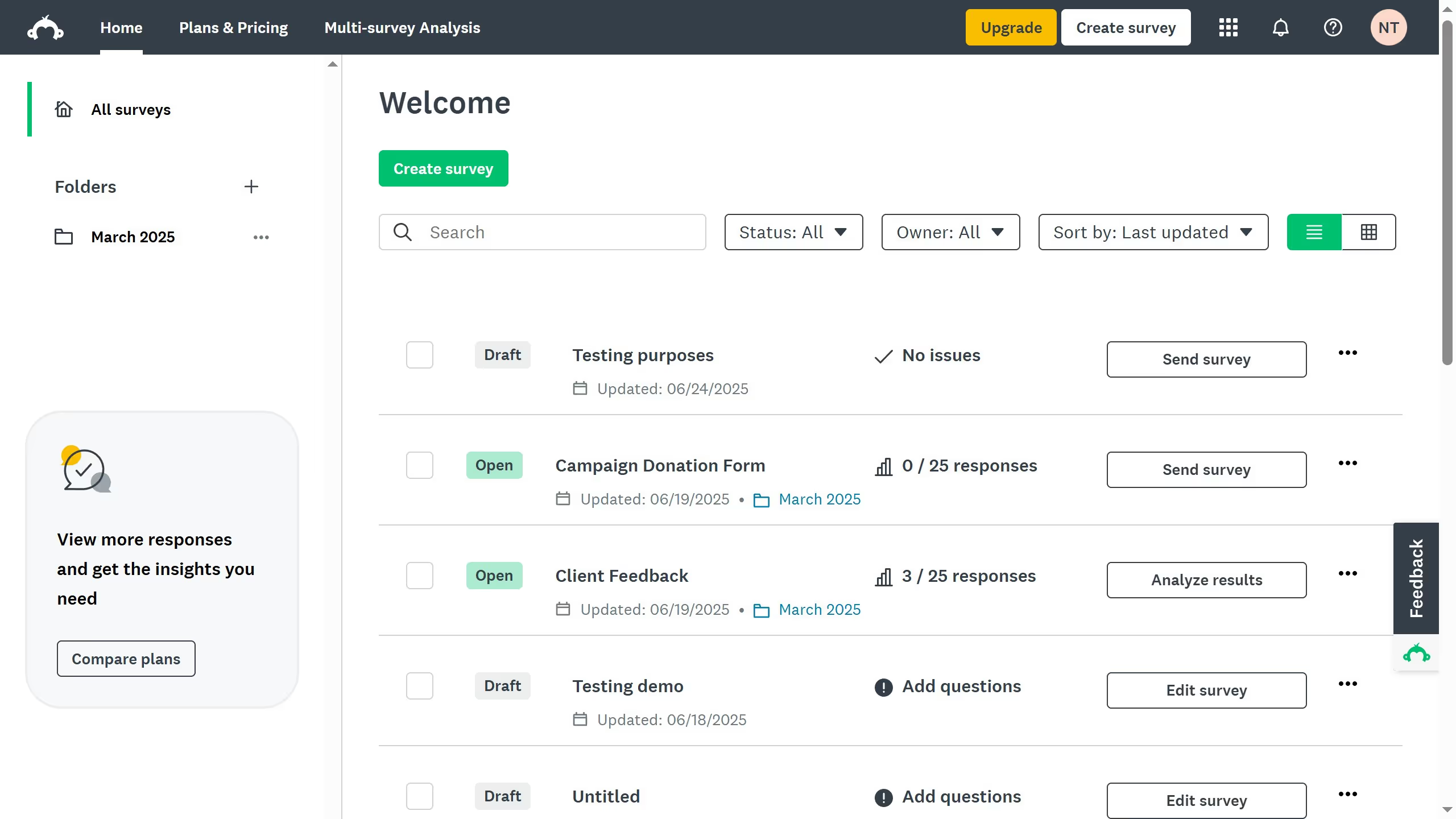
- On your SurveyMonkey dashboard, choose the survey you want to edit from your list
- Click the "ANALYZE RESULTS" tab at the top
- Stay on the "Question Summaries" view to see response data for each question
- Click "Customize" to select the chart type, color, and labels
- Click "Colors" to view color options
- Choose your preferred chart colors from the available options
- Pick your desired color
- Then click "Apply" to proceed
- Finally click "Save" to apply the new color scheme to your chart