Slack
Slack is a business communication platform that organizes team conversations into channels and direct messages.
Website
Industry
Collaboration
Share this article:

How to cancel a scheduled message in Slack

Here is how to cancel a scheduled message in slack

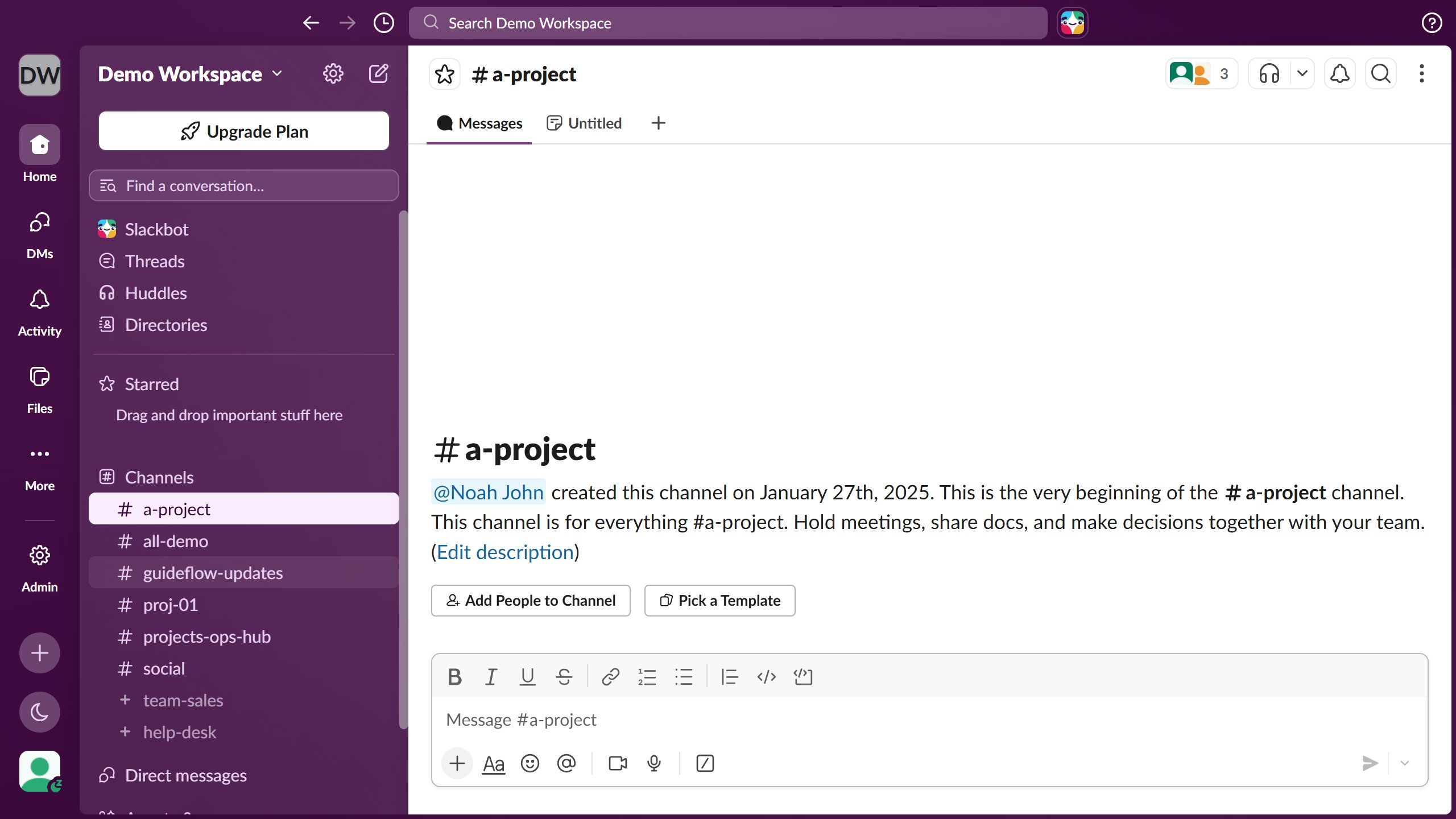
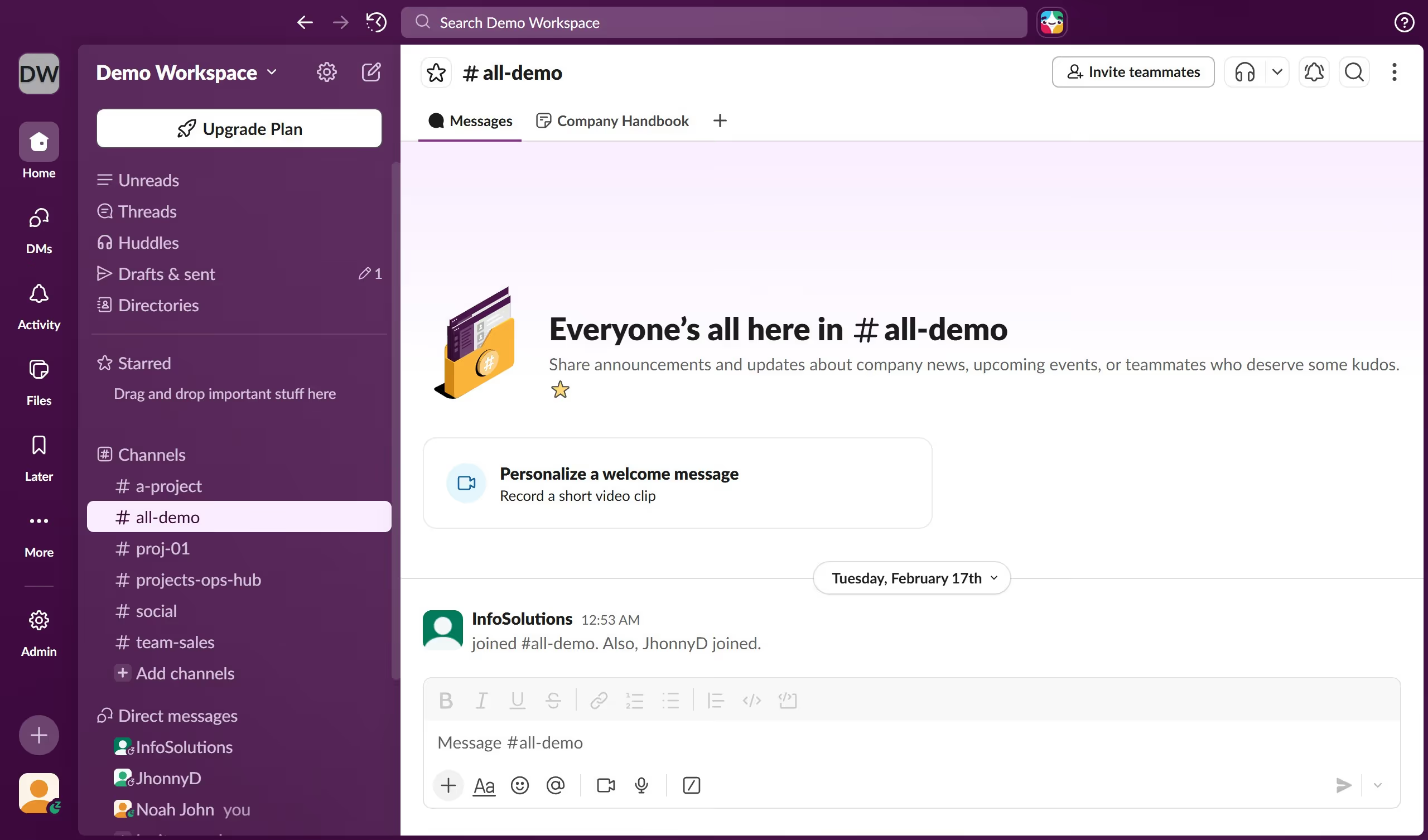
  1. First click on "Drafts & sent" in the sidebar
  2. Then click on "Scheduled" tab in the top navigation
  3. Next click on the "More options" button for the scheduled message
  4. Then click on "Delete message" option in the dropdown menu
  5. Finally click on "Delete" button in the confirmation dialog

Create your own interactive guide with Guideflow

Why should you cancel a scheduled message in Slack

Slack is a dynamic communication platform designed to streamline team collaboration and productivity.

The ability to cancel a scheduled message in Slack offers a convenient way to maintain control over your communications.

This feature allows users to adapt to changing circumstances, ensuring that outdated or irrelevant information isn't shared.

By providing flexibility in your messaging timeline, this feature helps in keeping team interactions timely and relevant, thereby enhancing overall communication efficiency.

Last update
March 16, 2026
Cursor MariaA cursor points to a button labeled "James."

Create your first demo in less than 30 seconds.