How to apply the Slide Right enter animation to a block on Pitch
Here is how to apply the slide right enter animation to a block on pitch
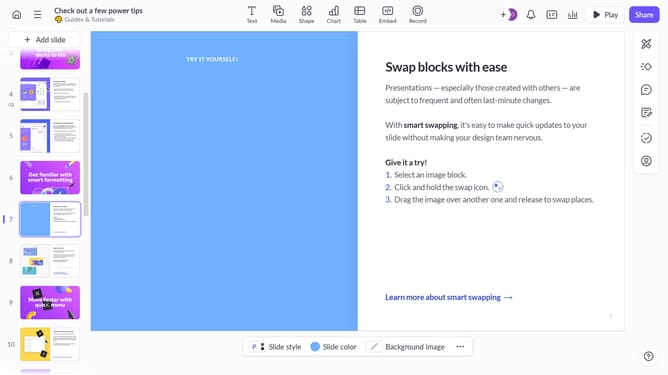
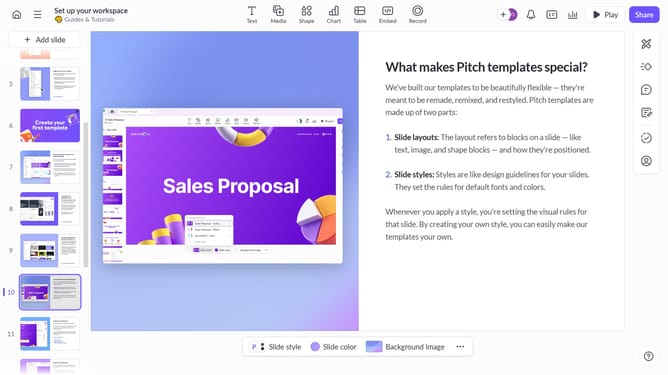
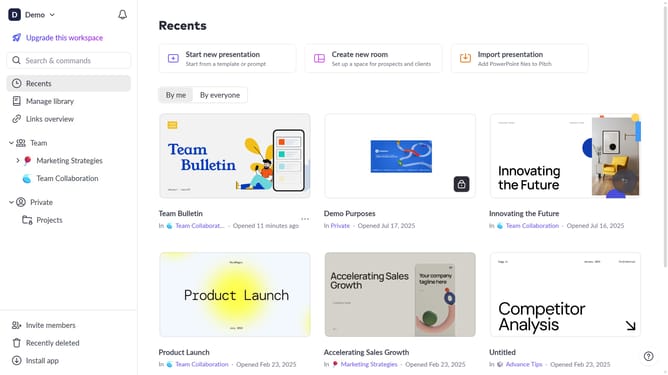
- First, open the presentation containing the block you want to animate
- From the left sidebar, select the slide containing the block
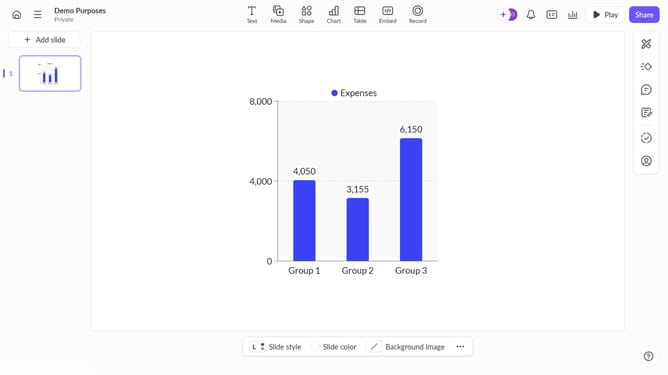
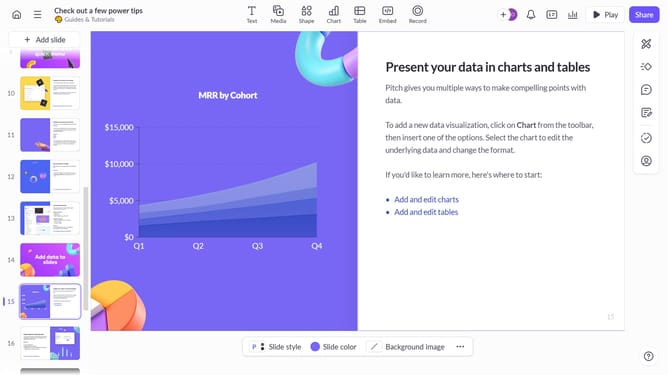
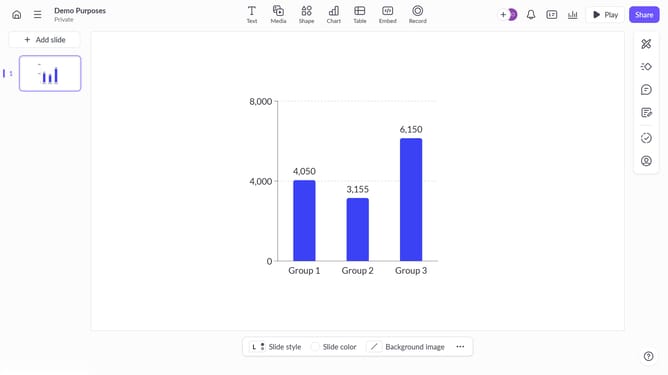
- Next, select the block you want to animate (such as a text block, image, shape, or other content block)
- In the right sidebar, click on the "Animate" option
- Then, select the "Enter" tab
- Finally, select "Slide right" from the available animation options
Why should you apply the Slide Right enter animation to a block on Pitch
Pitch is a dynamic platform designed to elevate your presentation game with sleek, customizable slides.
Applying the Slide Right enter animation to a block on Pitch enhances your presentation's flow, adding a touch of modernity and fluidity.
This animation can effortlessly guide your audience's attention, making your content more engaging and visually appealing.
By incorporating such animations, you not only improve audience retention but also make your message resonate amidst a sea of static presentations.
Last update