How to apply the Instant exit animation to a block on Pitch
Here is how to apply the instant exit animation to a block on pitch
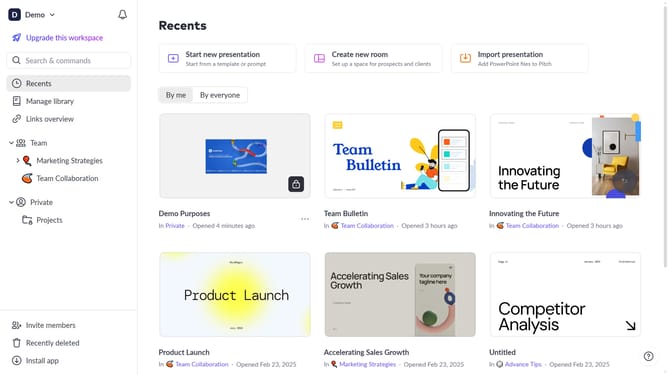
- First, open the presentation containing the block you want to animate
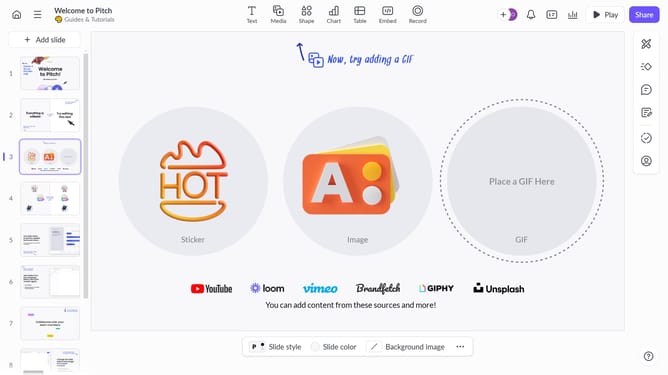
- From the left sidebar, select the slide containing the block
- Next, select the block you want to animate (such as a text block, image, shape, or other content block)
- In the right sidebar, click on the "Animate" option
- Then, select the "Exit" tab
- Finally, select "Instant" from the available animation options
Why should you apply the Instant exit animation to a block on Pitch
Pitch is a dynamic platform designed to elevate your presentation game, making communication effective and engaging.
The Instant exit animation feature offers a seamless way to captivate your audience by adding a graceful ending to your content blocks.
Utilizing this feature helps maintain the flow of your presentation, ensuring it ends on a visually appealing note. This smooth transition keeps your audience focused and enhances their viewing experience, leaving a lasting impression with minimal effort.
Last update