How to apply the Slide Right exit animation to a block on Pitch
Here is how to apply the slide right exit animation to a block on pitch
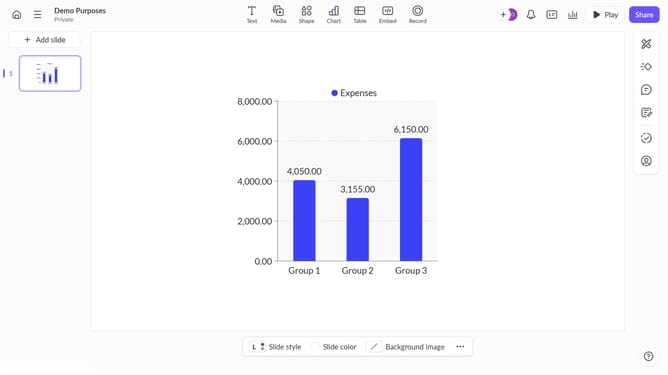
- First, open the presentation containing the block you want to animate
- From the left sidebar, select the slide containing the block
- Next, select the block you want to animate (such as a text block, image, shape, or other content block)
- In the right sidebar, click on the "Animate" option
- Then, select the "Exit" tab
- Finally, select "Slide Right" from the available animation options
Why should you apply the Slide Right exit animation to a block on Pitch
Pitch is an innovative platform designed for creating stunning presentations effortlessly.
Applying the Slide Right exit animation to a block within Pitch adds a dynamic touch to your presentations. This visually appealing effect subtly transitions content off-screen, creating a sense of movement and progression.
Using this animation enhances viewer engagement by making presentations more interactive. It also helps in drawing attention to the transition between points, ensuring a smooth and professional delivery.
Last update