How to align text inside table of an internal article on Intercom
Here is how to align text inside table of an internal article on intercom
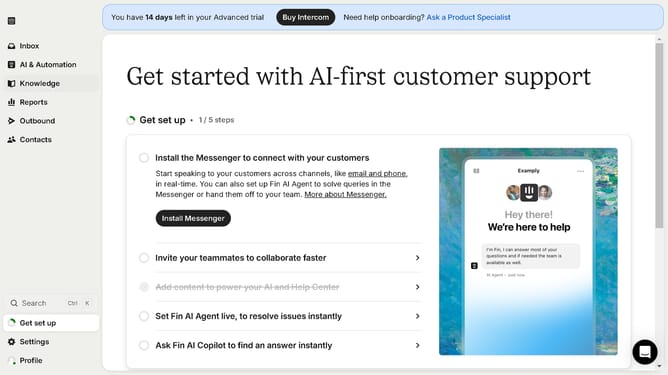
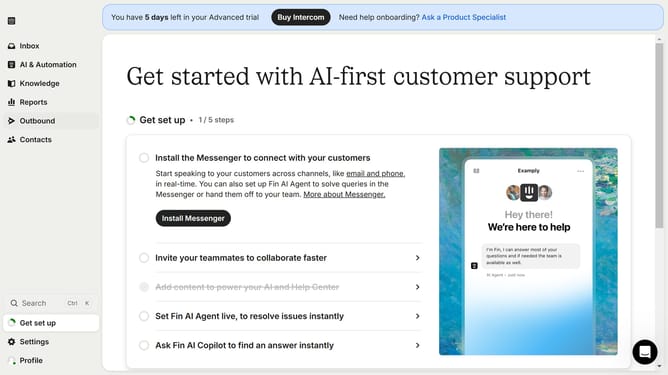
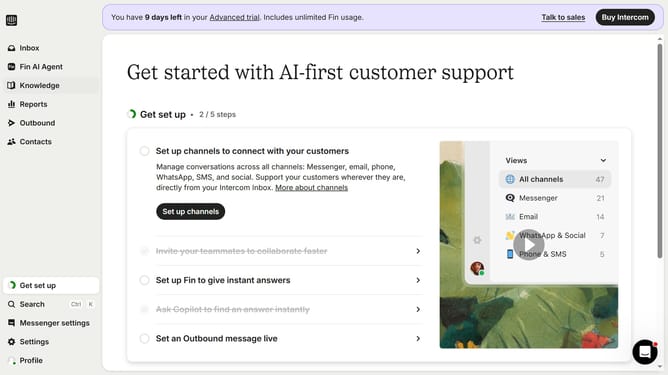
- First click on the "Knowledge" item in the left sidebar
- Then click on the "Articles" item in the left sidebar
- Next, click on the article title from the main content area
- Then click on the "Edit" button to modify the article
- After that, click on the text that you want to manage and highlight it
- Then click on the "Align Right" icon in the toolbar to format the text
- Finally click on the "Save" button to confirm the changes
Why should you align text inside table of an internal article on Intercom
Intercom is a powerful platform designed to enhance customer communication and engagement within businesses.
Aligning text inside a table when drafting an internal article on Intercom is a valuable feature that contributes to the clarity and professionalism of your content. This feature allows you to present information in a structured manner, ensuring that your message is easily digestible to readers.
Utilizing this alignment tool helps maintain uniformity across your documents, which is essential for effective communication and aids in the seamless flow of information across teams.
Overall, text alignment in tables enhances the visual appeal and readability of your articles, boosting both their effectiveness and professionalism.
Last update