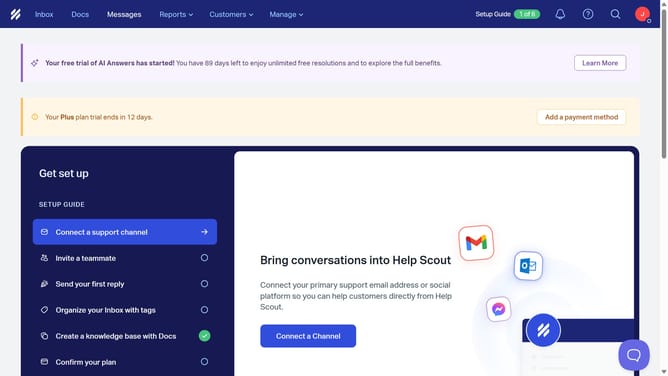
How to add more dropdown options in a custom field in Help Scout
Here is how to add more dropdown options in a custom field in help scout
- First, click on the "Manage" dropdown in the top menu
- Then, in the dropdown menu, click on "Inbox"
- Next, click on the inbox name in the inbox list
- After that, in the sidebar menu, click on "Custom Fields"
- Then, click on the "Dropdown" option for your dropdown custom field
- Next, click on the "Add" button
- Then, enter a new option in the text field and click on the "Add" button
- Finally, click on the "Save" button
Why should you add more dropdown options in a custom field in Help Scout
Help Scout is a customer service tool designed to enhance communication and streamline support operations.
Adding more dropdown options in a custom field is a feature that enhances the flexibility of your support tickets. This allows support agents to categorize and organize customer inquiries more efficiently.
With expanded dropdown options, agents can record more specific data, enabling quicker responses and better service. Customization is key in tailoring support experiences to meet diverse customer needs, improving satisfaction and team productivity.
Last update