Mural
Mural is a visual collaboration platform for brainstorming, planning, and running remote workshops on a shared canvas.
Website
Industry
Design
Share this article:

How to add content into the content library in Mural

Here is how to add content into the content library in mural

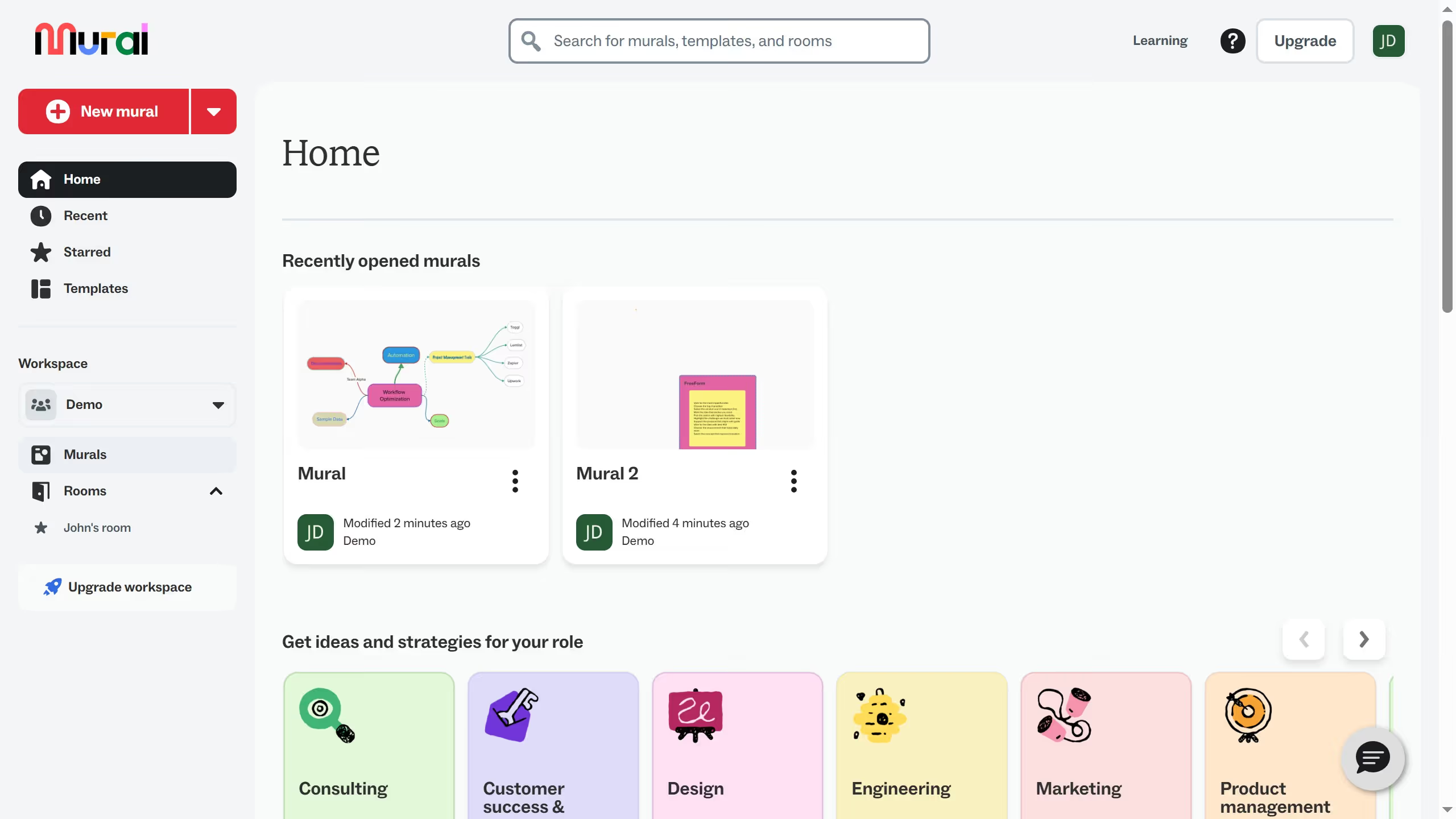
  1. First click on "Murals" in the left sidebar
  2. Then click on the mural filename that you want to manage to open it
  3. Then click on the element in the canvas area
  4. Then right-click on the selected form element to open the context menu
  5. Then hover over and click on "Add to" option in the context menu
  6. Then click on "Content library" option from the submenu
  7. Then click in the "Name" text field and enter "FreeForm"
  8. Finally click on "Save" button to save the item to content library

Create your own interactive guide with Guideflow

Why should you add content into the content library in Mural

Mural is a digital workspace designed to enhance creativity and collaboration.

Adding content to the content library in Mural empowers teams by providing a centralized location for storing and accessing valuable resources. This feature fosters efficiency, ensuring that essential elements are always at your fingertips.

By organizing your information in the content library, you promote consistency and continuity in projects, allowing your team to focus on innovation rather than logistics.

Overall, utilizing this feature fundamentally streamlines the creative process, enhancing productivity and teamwork.

Last update
March 16, 2026
Cursor MariaA cursor points to a button labeled "James."

Create your first demo in less than 30 seconds.