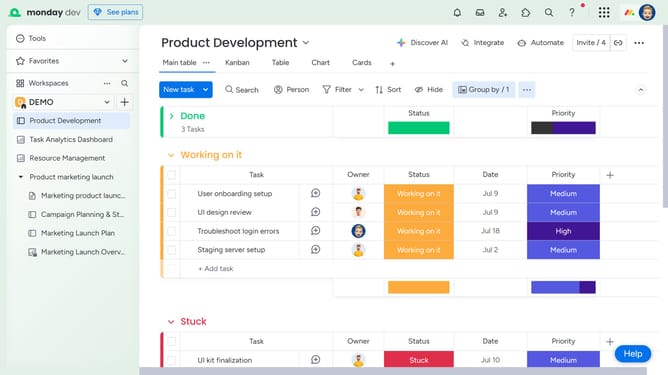
How to add column color on Monday
Here is how to add column color on monday
- First click on the "+ icon" button in the top right corner of the main table
- Click on "More columns" to view additional options
- Click on the search bar
- Type "Color Picker" in the search bar
- Click the "Add to board" button
- To change the color of the cell click on the empty cell in the first row of the table
- Select a color from the color picker palette that appears
- To change the color code click the menu button(three dots) in the header
- Click "Settings" from the dropdown menu
- Click "Customize Color picker column"
- Click the "RGB" or "HEX" option in the Color picker column settings based on your preferred format
Why should you add column color on Monday
Monday.com is a versatile work operating system designed to streamline and enhance team collaboration and project management.
A vibrant and dynamic feature on this platform is the ability to add column color, which infuses life into your data organization.
Utilizing colored columns, users can intuitively sort and prioritize tasks by visually differentiating information, significantly boosting productivity.
This visual enhancement simplifies team communication, ensuring clarity and focus on what truly matters.
Last update