Slack
Slack is a business communication platform that organizes team conversations into channels and direct messages.
Website
Industry
Collaboration
Share this article:

How to add automated message as an admin in Slack

Here is how to add automated message as an admin in slack

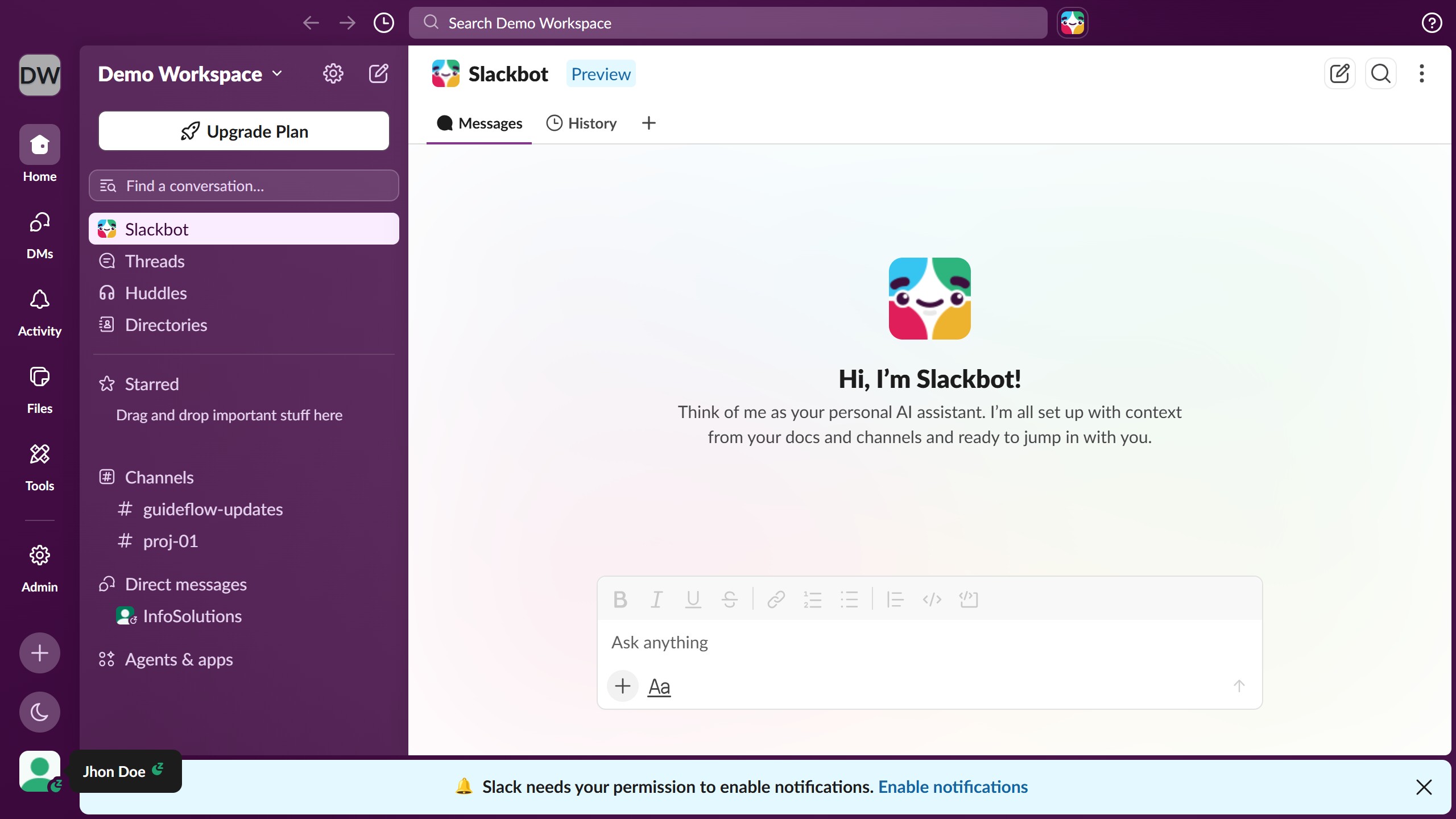
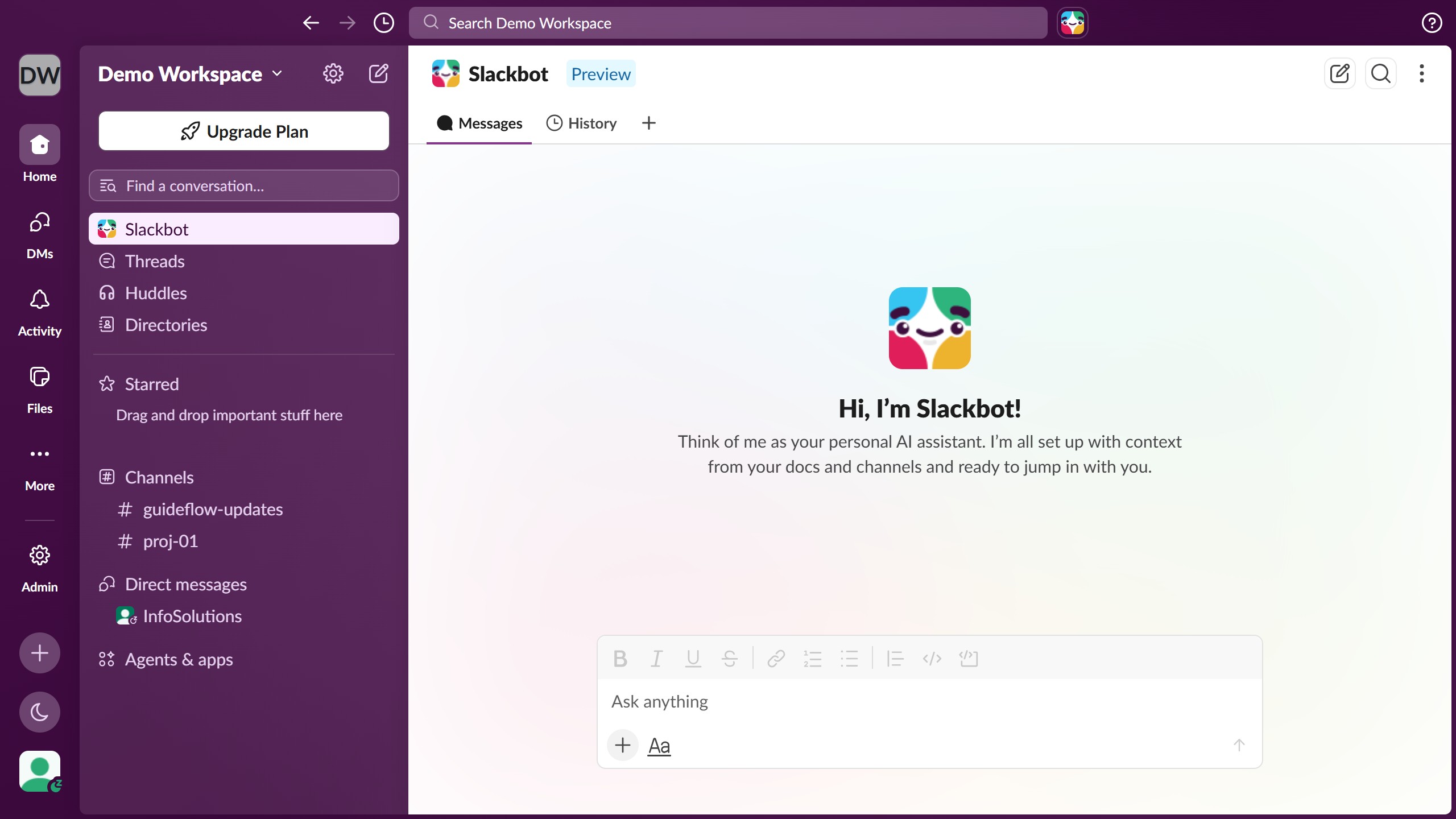
  1. First click on "Admin" button in the left sidebar
  2. Then click on "Workspace Settings" option in the Admin Tools menu
  3. Next click on "Customize" link in the left sidebar under Settings
  4. Then click on "Automated Messages" tab in the top navigation menu
  5. Next click on "Add Message" button in the upper right area
  6. Then click in the "Keyword or phrase" text field and enter a keyword
  7. Next click in the "Automated message" text field and enter message content
  8. Finally click on "Save" button at the bottom right of the dialog

Create your own interactive guide with Guideflow

Why should you add automated message as an admin in Slack

Slack is a powerful collaboration hub designed for seamless team communication.

As an admin, adding automated messages in Slack can enhance efficiency and consistency in team interactions. This feature allows you to schedule messages or set responses, ensuring everyone receives crucial updates at the right time.

Automated messages support a streamlined workflow by reducing repetitive tasks, fostering clarity, and maintaining engagement. It empowers teams to focus on key tasks while ensuring essential information is communicated effectively.

Last update
March 16, 2026
Cursor MariaA cursor points to a button labeled "James."

Create your first demo in less than 30 seconds.