How to add an emoji in a reply in HelpScout
Here is how to add an emoji in a reply in helpscout
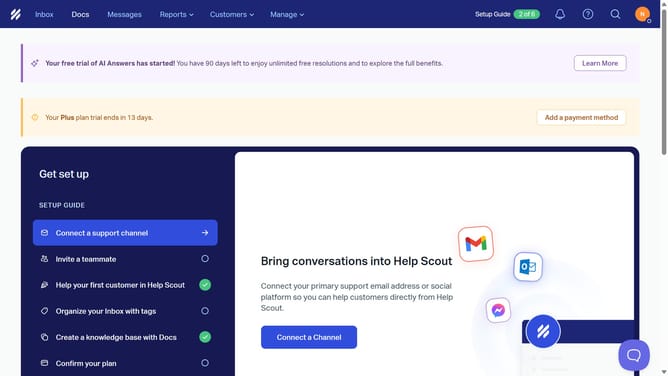
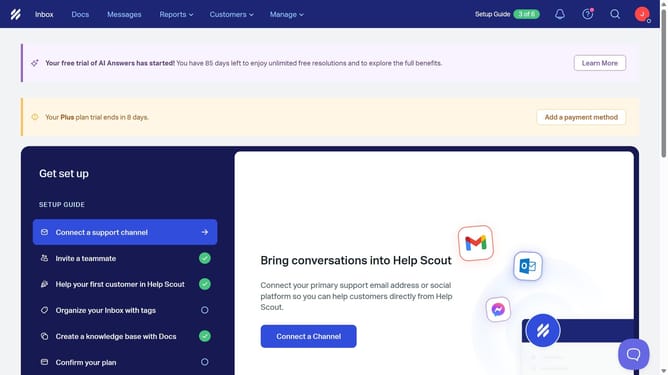
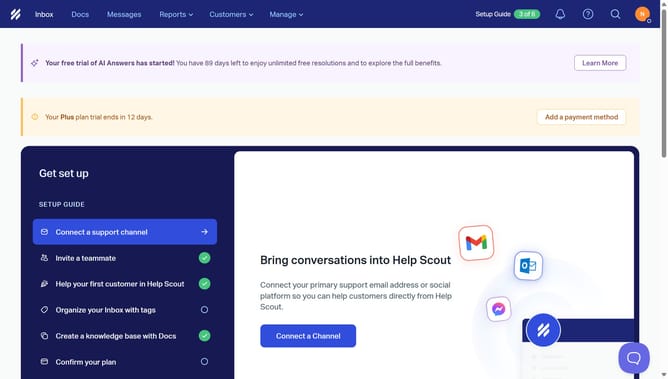
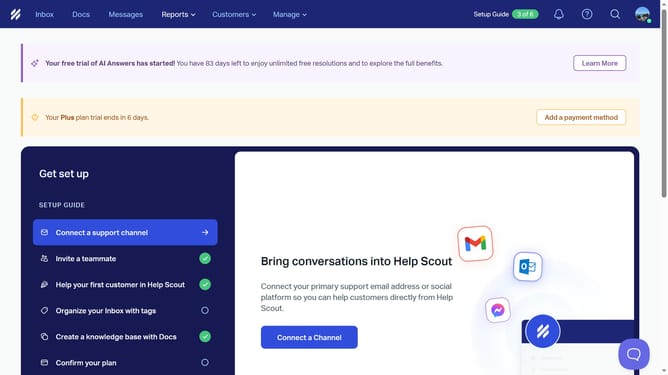
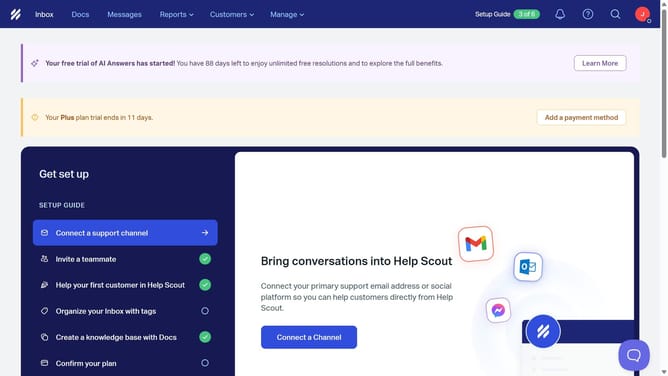
- First click on "Inbox" tab in the top navigation menu
- Then click on a conversation in the conversation list
- Next click on "Reply" button at the bottom of the message
- Then click on the emoji icon in the message editor toolbar
- Finally select an emoji from the emoji picker
Why should you add an emoji in a reply in HelpScout
Help Scout is a dynamic platform designed to enhance customer communication with seamless ease.
One delightful feature of Help Scout is the ability to add emojis in replies. Emojis offer a creative and efficient way to convey tone and emotion, adding a layer of human touch to text-based interactions.
By incorporating emojis, your responses can become more engaging and personable, fostering a friendly and empathetic customer experience. This simple feature can enhance clarity, build rapport, and make communication more memorable.
Last update