How to send a message and set into closed status in HelpScout
Here is how to send a message and set into closed status in helpscout
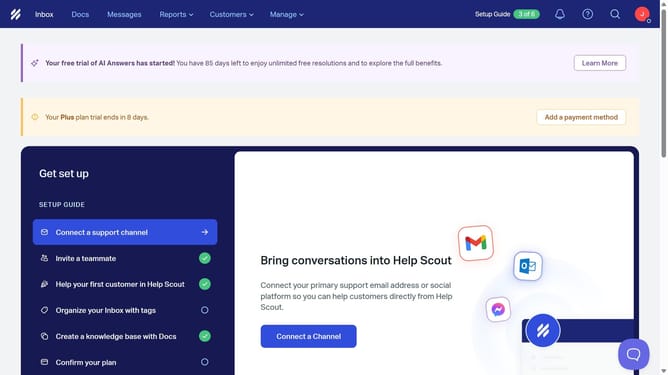
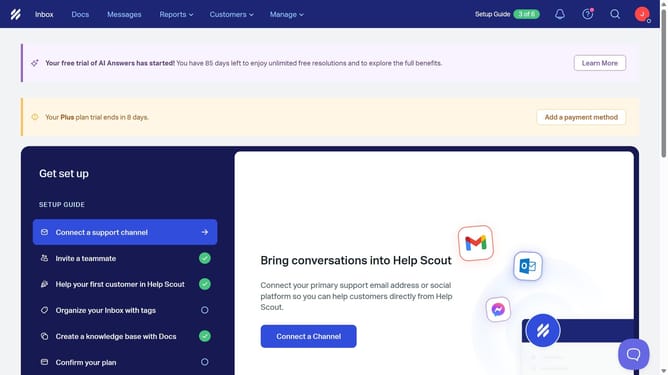
- First, click on the "Inbox" tab in the header menu.
- Then, click on the "New Conversation" button.
- Next, click on the subject input field and enter the email's subject.
- After that, click on the "To" recipient input field and enter the recipient email address.
- Then click on the message input field and enter your message.
- Next, click on the status dropdown menu.
- Then, select "Closed" from the dropdown options.
- Finally, click on the "Send" button.
Why should you send a message and set into closed status in HelpScout
Help Scout is a versatile customer service tool designed to manage conversations seamlessly.
Sending a message and setting it into closed status in Help Scout allows for efficient communication channels, ensuring all inquiries are addressed promptly. This feature promotes clear communication by wrapping up interactions effectively, offering both speed and a structured workflow.
Utilizing this functionality reduces response times and maintains an organized support environment. The benefits include streamlined processes and improved customer satisfaction.
Last update