How to add additional condition in an SLA in Help Scout
Here is how to add additional condition in an sla in help scout
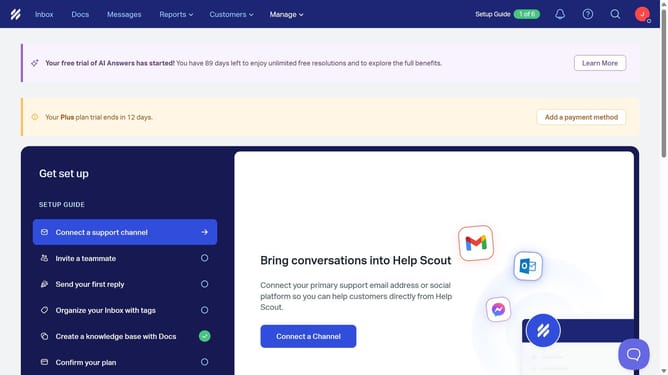
- First, click on the "Manage" dropdown in the header
- Then, click on the "Inbox" option in the dropdown menu
- Next, click on the name of the inbox in the list
- After that, click on "SLA" in the sidebar menu
- Then, click on the SLA policy
- Click on "+ Add condition group"
- Click on the "Company" condition
- Click the "Add Companies" button
- Then, select a company from the list of companies
- Click the "Add" button
- Finally, click the "Save" button
Why should you add additional condition in an SLA in Help Scout
Help Scout is a dynamic help desk software designed to enhance customer support.
Adding additional conditions in an SLA within Help Scout ensures that your team meets specific service standards that are aligned with your business goals.
This feature allows for greater flexibility and precision in defining response and resolution times, which can be tailored for different priorities or customer segments.
By using this feature, businesses can improve their service quality, ultimately boosting customer satisfaction and loyalty.
Last update