How to add a scenario description for LinkedIn in Make
Here is how to add a scenario description for linkedin in make
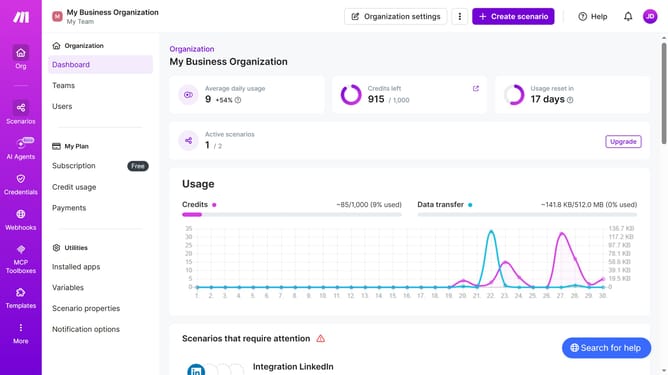
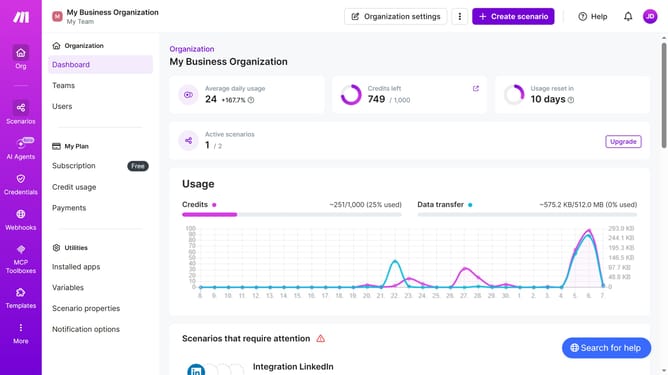
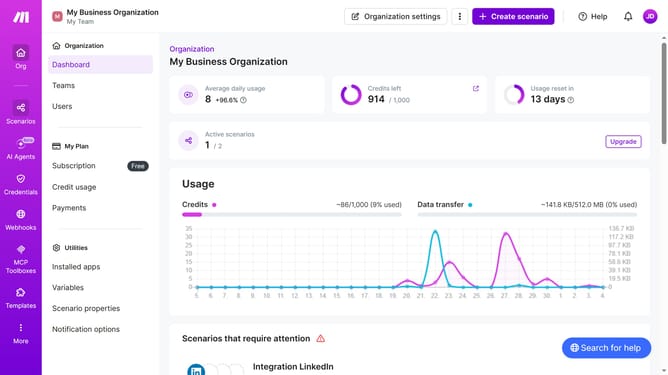
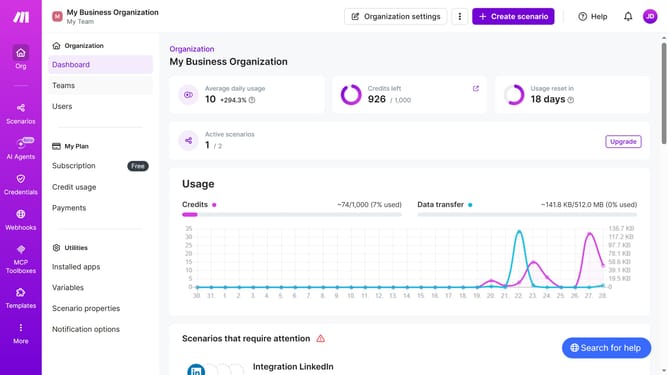
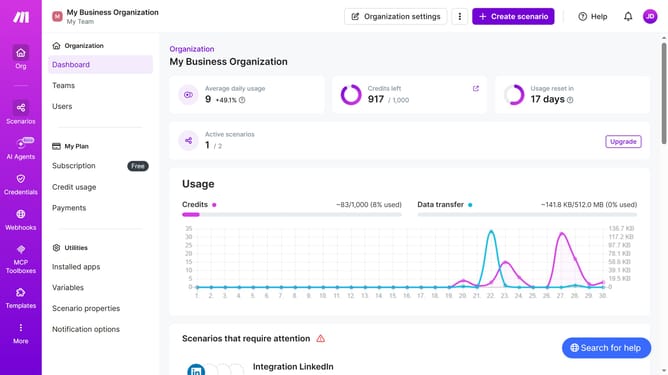
- First click on the "Scenarios" item in the left sidebar
- Then click on the LinkedIn scenario item
- Next, click on the "Options" dropdown in the top menu
- Then select "Edit description" from the dropdown menu
- Then, input the desired text into the "Description" input field
- Finally click on the "Save" button
Why should you add a scenario description for LinkedIn in Make
Make is a versatile platform that automates complex workflows and enhances productivity effortlessly.
Adding a scenario description for LinkedIn in Make helps streamline your professional storytelling. It provides a cohesive narrative to your scenario, making it easier to understand its purpose and objectives.
Using scenario descriptions not only clarifies the function for team collaboration but also improves communication with stakeholders. By adding concise descriptions, you enhance organization and create a more seamless and efficient workflow.
Last update