

How to add a OneDrive file in a document in Slite
Here is how to add a onedrive file in a document in slite
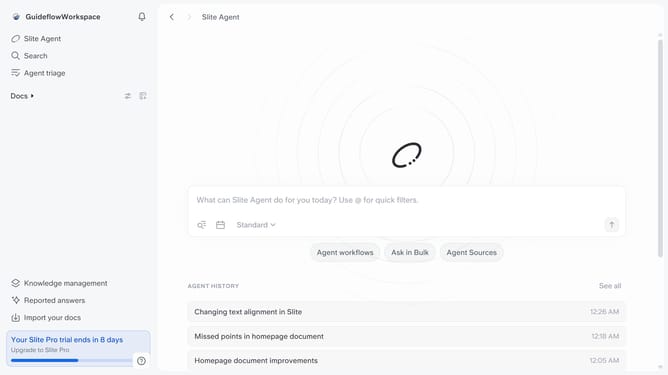
- First click on "Docs" item in the left sidebar
- Then open the Slite doc you want to edit
- Then click where you want to add the component and type "/" to open the formatting menu
- After that, select "OneDrive" from the dropdown menu
- Then, paste the OneDrive link into the link input field
- Finally, click on the "Embed" button to apply changes
Why should you How to add a OneDrive file in a document in Slite
Slite transforms team collaboration with its intuitive platform designed for note-taking and knowledge sharing.
Seamlessly integrating OneDrive files into a Slite document enhances productivity by centralizing information. This feature allows users to effortlessly include files stored in OneDrive directly into team notes without leaving the Slite environment.
This integration fosters streamlined workflows by providing instant access to relevant documents, ensuring teams remain organized and focused. With key resources readily available, collaboration becomes more fluid and efficient, enhancing team synergy and decision-making.
Last update