SurveyMonkey
SurveyMonkey is an online survey and feedback collection platform for customer insights.
Website
Industry
Marketing
Share this article:

How to add a disqualification page in SurveyMonkey

Here is how to add a disqualification page in surveymonkey

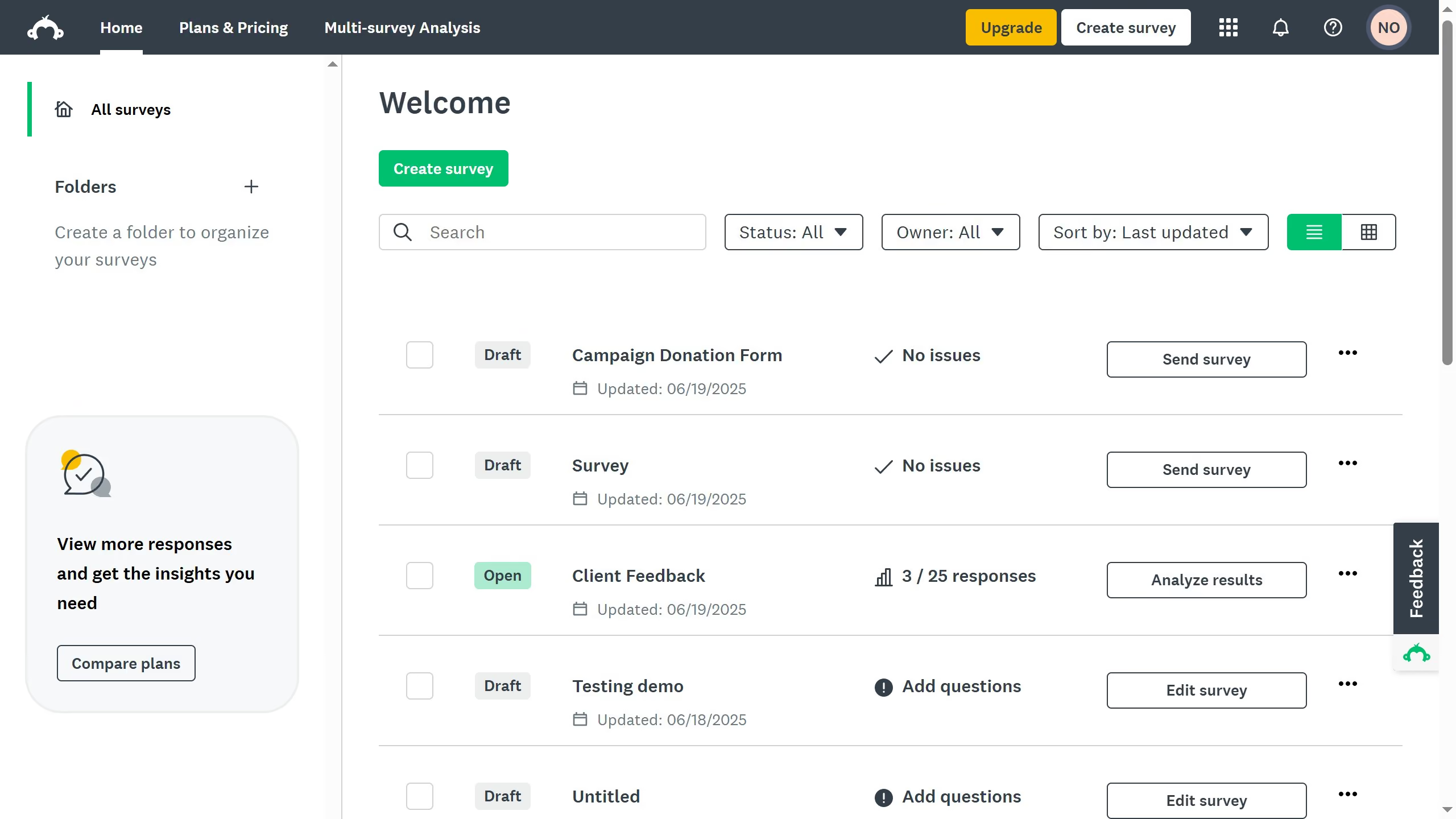
  1. First in your dashboard select an existing survey and click the three-dots (...)
  2. Then select "Edit survey" from the dropdown menu
  3. Navigate to "Design Survey" and select a screening question you created
  4. Click "Logic"  in the question settings 
  5. Select the response that should direct the respondent to the Disqualification Page
  6. Click "Disqualification Page" from the menu
  7. Then click "Save" to apply changes
  8. Click "Preview Survey" to ensure if it works correctly
  9. You have succesdully added a disqualification page to your survey, allowing only eligible respondents to move forward

Create your own interactive guide with Guideflow

Why should you add a disqualification page in SurveyMonkey

SurveyMonkey is a versatile tool designed for creating and analyzing online surveys with ease.

One of its useful features is the addition of a disqualification page, which helps streamline the survey process by politely redirecting respondents who do not meet certain criteria.

Incorporating a disqualification page enhances the user experience by respecting participants' time and ensuring that data collected is relevant and actionable.

This feature can ultimately lead to more accurate results and increased efficiency in gathering targeted insights.


Last update
June 23, 2026
Cursor MariaA cursor points to a button labeled "James."

Create your first demo in less than 30 seconds.