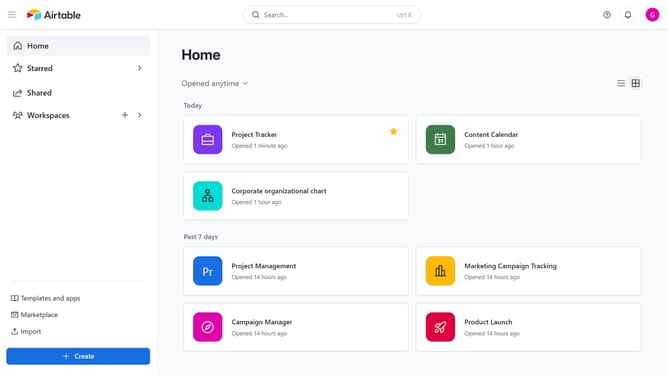
How to add a color palette extension to a base in Airtable
Here is how to add a color palette extension to a base in airtable
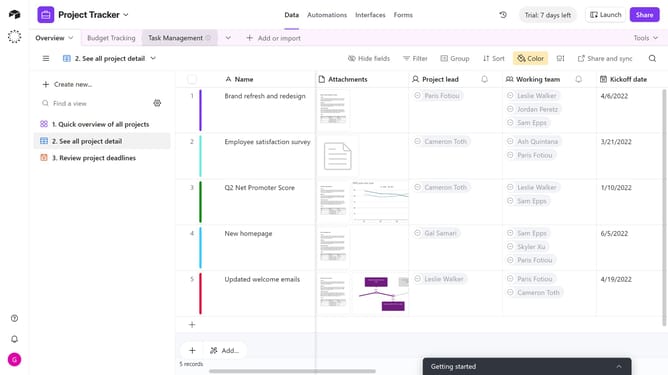
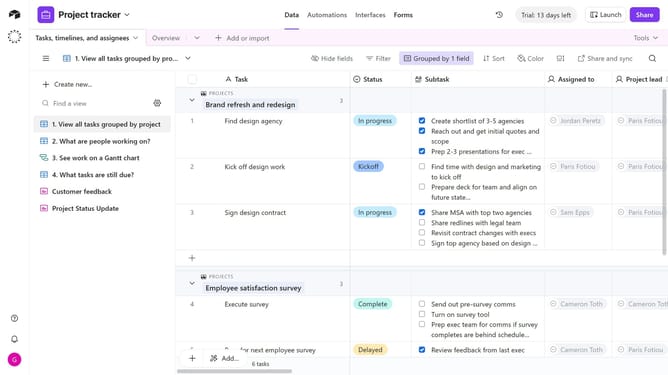
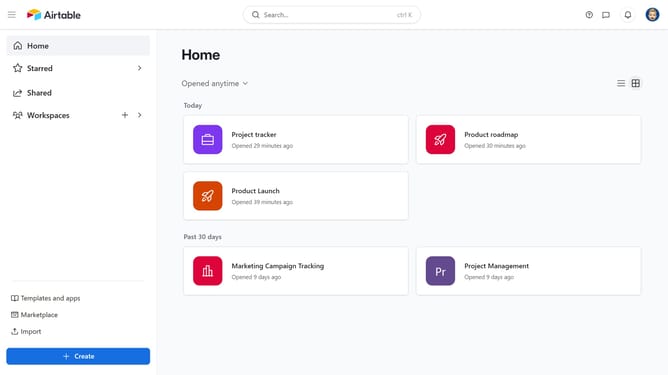
- First, open the base where you want to add a color palette extension
- Next click on the "Tools" dropdown menu in the top-right corner
- Click on "Extensions" from the dropdown options
- Then click the "Add an extension" button in the extensions panel
- In the Marketplace Extensions page, click on the search field and type "Color palette"
- Click on the "Add" button next to the Color palette extension
- When prompted, click the dropdown menu and select which dashboard to add the extension to
- Finally click on the "Add extension" button to confirm installation
- The Color Palette extension has been added to your base. You can now set it up and use it to create and manage custom color palettes
Why should you add a color palette extension to a base in Airtable
Airtable is a versatile platform that blends a spreadsheet's simplicity with a database's power.
Adding a color palette extension to a base in Airtable enhances visual organization and boosts productivity. It allows users to customize the appearance, making data more accessible and aesthetically appealing.
This feature provides quick visual cues, aiding in the efficient categorization of information at a glance. Not only does it improve data management, but it also creates a more engaging workflow environment.
Last update