How to add a button in Salesforce Lightning
Here is how to add a button in salesforce lightning
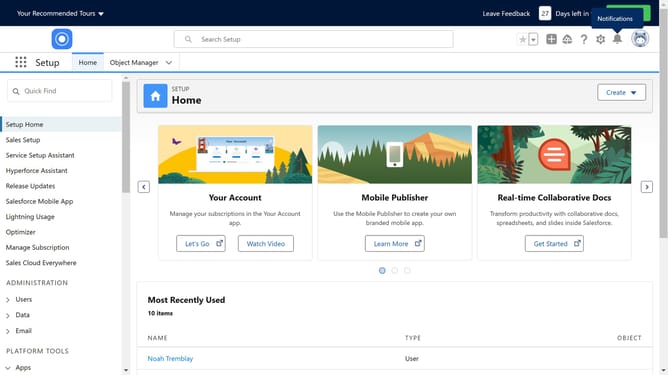
- First click on "Object Manager" tab in the top navigation menu
- Locate and click on the specific object where you want to add the button
- Click on "Buttons, Links, and Actions" in the left sidebar menu
- Click "New Button or Link" button in the top right
- Fill in the required information for your new button
- You can check for syntax errors while inputing your link and formula as well
- Click on "Save" to verify the new button/link settings
- Click on "Page Layouts" in the left sidebar menu
- Click on the existing layout
- Click on "Buttons" in the left panel of the page layout editor
- Click and hold the newly created button in the buttons section
- Then drag and drop it to the desired section of the page layout
- Finally click the "Save" button in the layout editor toolbar
Why should you add a button in Salesforce Lightning
Salesforce is a powerful customer relationship management (CRM) platform designed to streamline business processes.
Adding a button in Salesforce Lightning allows users to customize their interface for enhanced efficiency and user-friendliness.
This feature empowers teams to perform tasks more quickly, accessing key actions with a single click. By streamlining workflows and facilitating seamless navigation, it boosts productivity and improves user satisfaction.
Ultimately, custom buttons ensure that users can perform crucial operations more intuitively and effectively.
Last update