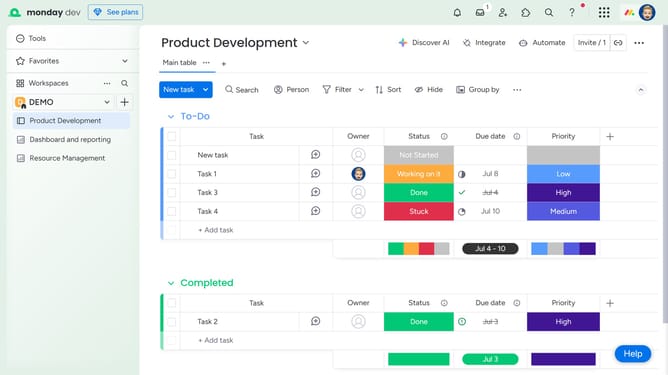
How to upload a file in the Files column in Monday.com
Here is how to upload a file in the files column in monday.com
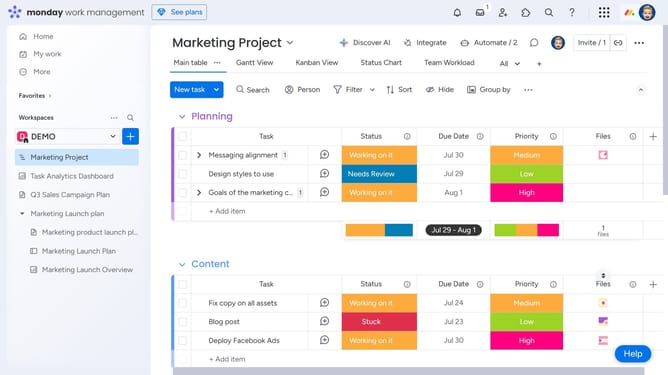
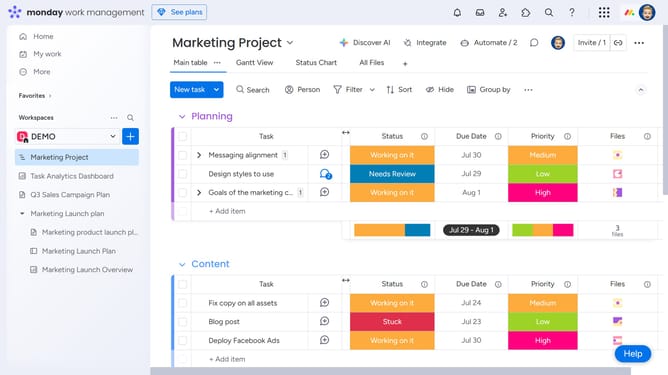
- First, locate the item where you want to upload the file
- Next click the "+" button in the Files column for that item
- From the file upload dropdown menu, select the file you would like to upload from your computer, Google Drive, Dropbox, Box, OneDrive or another source
- The file will upload and be attached to that cell in the Files column
- Now the file will appear as small icons within the column and hovering over it will display a preview of the file
Why should you upload a file in the Files column in Monday.com
Monday.com is a versatile work operating system designed to enhance team collaboration and productivity.
Uploading a file in the Files column on Monday.com streamlines document management within your team workspace. This feature allows you to keep all necessary files easily accessible alongside relevant tasks and projects.
By centralizing documents, it ensures seamless communication and quick access for all team members, ultimately boosting efficiency and reducing the time spent searching for important files.
Last update