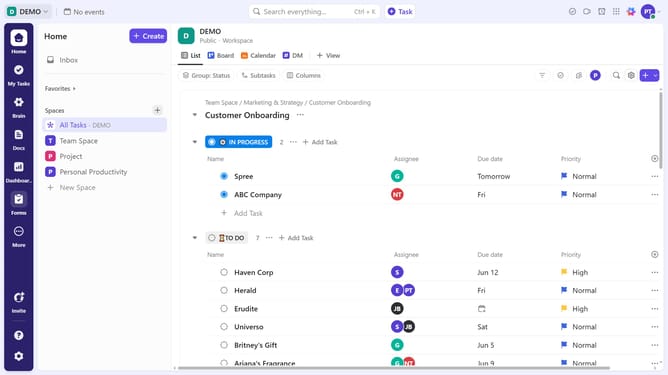
How to update a List template in ClickUp
Here is how to update a list template in clickup
- First apply a List template to an existing or new List
- Make changes to tasks, views, and Automations as needed
- Once done, click the "More options" menu next the list in the left sidebar
- Select "Templates" option from the dropdown menu
- Click on "Update existing Template" option in the submenu
- In the template selection dialog, select the existing template you want to update
- Click the "Next" button to continue
- You can rename the template if needed
- Finally click the "Save Template" button to complete the process
Why should you update a List template in ClickUp
ClickUp is a versatile project management tool designed to foster productivity and streamline workflows.
Updating a List template in ClickUp offers significant advantages for maintaining organized, consistent project management practices.
This feature allows you to refine and adapt list structures to suit evolving needs, ensuring that your tasks and priorities remain aligned with current objectives.
Consistently updating your templates promotes efficiency and accuracy, contributing to a seamless, collaborative work environment.
Last update