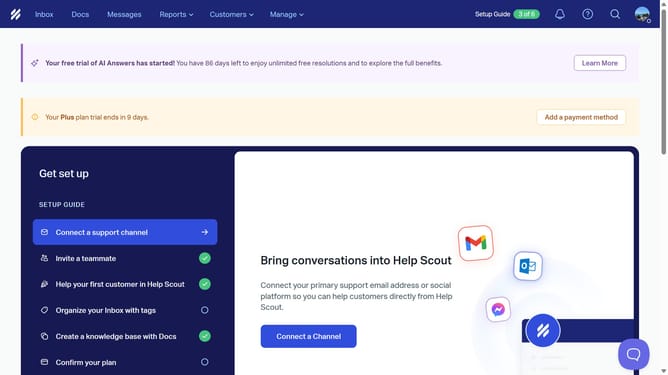
How to underline words in a reply in HelpScout
Here is how to underline words in a reply in helpscout
- First click on "Inbox" button in the top navigation menu
- Then click on a conversation item in the conversation list
- Next click on "Reply" button at the bottom of the conversation
- Then click in the reply message text area to begin composing
- Next type the reply message in the compose area
- Then highlight the words that you want to add an underline
- Finally, click on "Underline" formatting button in the text editor toolbar
Why should you underline words in a reply in HelpScout
Help Scout is an intuitive platform designed to seamlessly enhance customer communication.
One of its noteworthy features is the ability to underline words in a reply, a tool that significantly amplifies message clarity.
Utilizing underlines in your responses ensures that critical information and instructions stand out, leading to fewer misunderstandings and more effective communication.
This feature not only elevates the professionalism of your replies but also boosts customer satisfaction by providing clear and direct support.
Last update