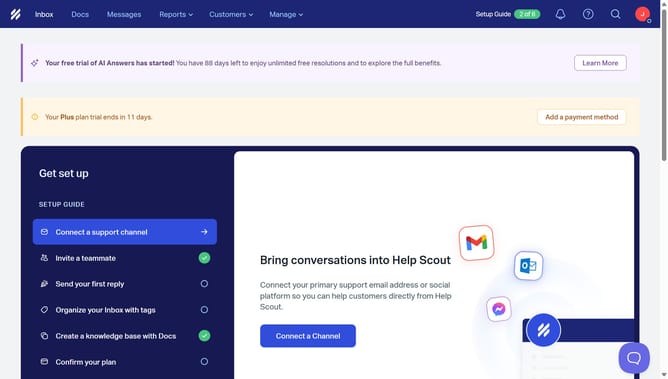
How to edit a scheduled reply in HelpScout
Here is how to edit a scheduled reply in helpscout
- First click on "Inbox" link in the navigation menu
- Then click on a conversation item in the list
- Next click on the more options menu icon for the scheduled message
- Then select "Edit" option from the dropdown menu
- Then click on the message text field in the conversation area and edit your reply
- Finally click on "Save" button to save the edited message
Why should you edit a scheduled reply in HelpScout
Help Scout is a powerful platform designed to enhance customer support efficiency.
Editing a scheduled reply in Help Scout allows you to maintain flexibility in communication, ensuring messages are timely and relevant. This feature is crucial when circumstances change or additional information needs to be incorporated into a reply, allowing support teams to stay agile and responsive.
By editing scheduled replies, customer interactions remain personalized and updated, significantly boosting satisfaction and fostering stronger client relationships.
Last update