How to switch between views on a board in Monday.com
Here is how to switch between views on a board in monday.com
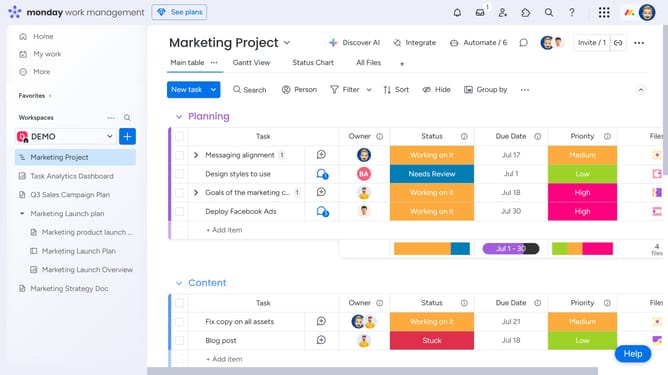
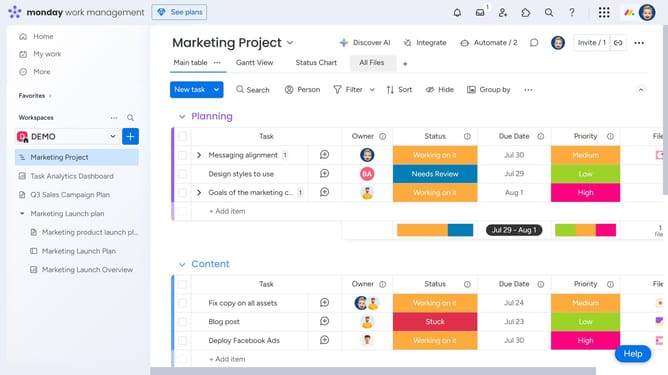
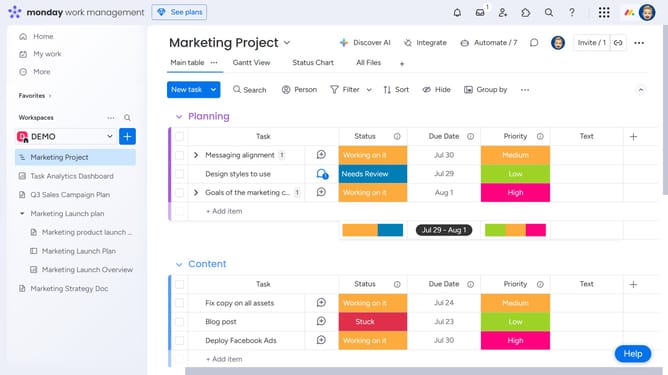
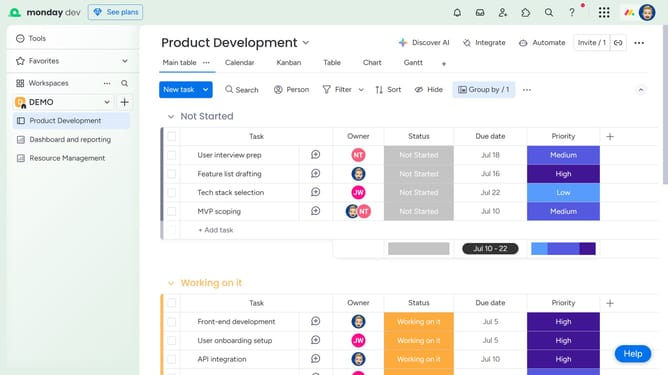
- First navigate to the board with multiple views
- Next if the board views are collapsed, click the dropdown arrow next to the current view name
- Then, from dropdown menu select the view you want to switch to
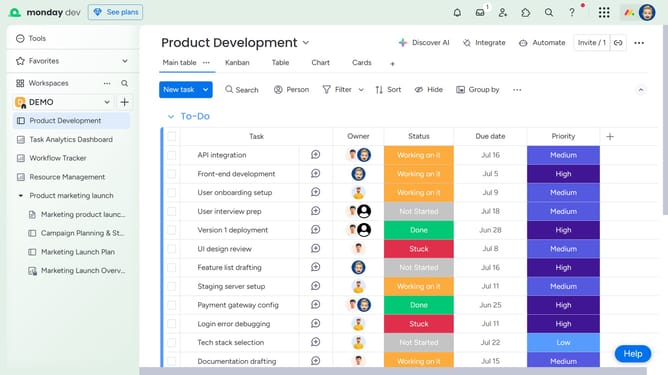
- If you want to expand the board header and show views as tabs, click the "Small arrow" icon to the right of the board header
- Then simply click on any tab to instantly switch to that view
Why should you switch between views on a board in Monday.com
Monday.com is a versatile work operating system designed to streamline workflow and enhance team collaboration.
Switching between views on a board in Monday.com allows users to personalize their working experience according to their needs. By using different views, such as Kanban, Gantt chart, or Calendar, team members can visualize data in a more intuitive way, making project management more efficient.
This flexibility means that each team member can choose the most effective view for their tasks, enhancing productivity and improving the overall project tracking process.
Last update