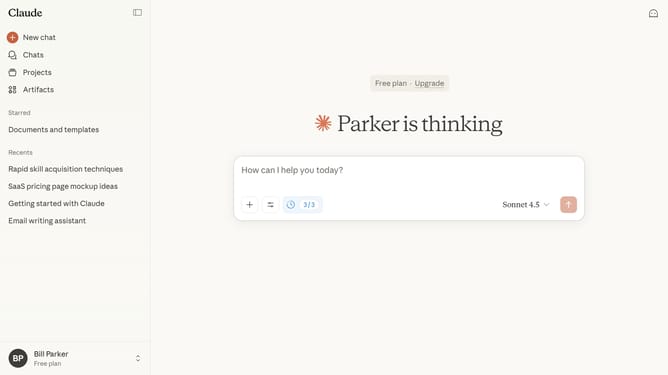
How to switch between light and dark mode in Claude.ai
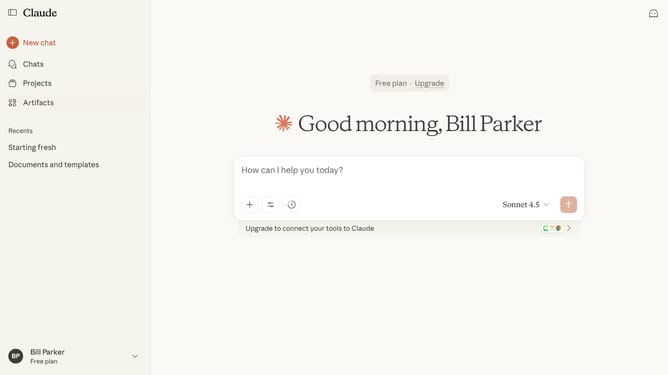
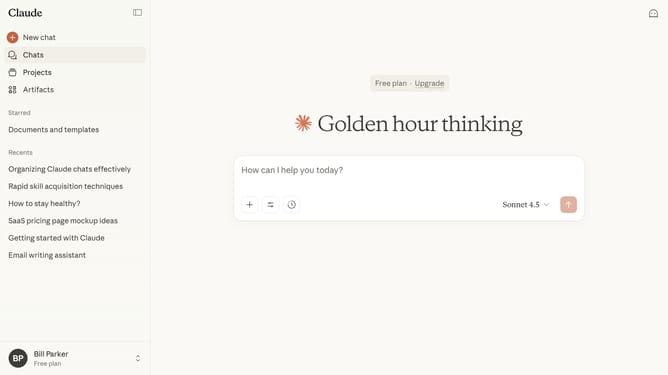
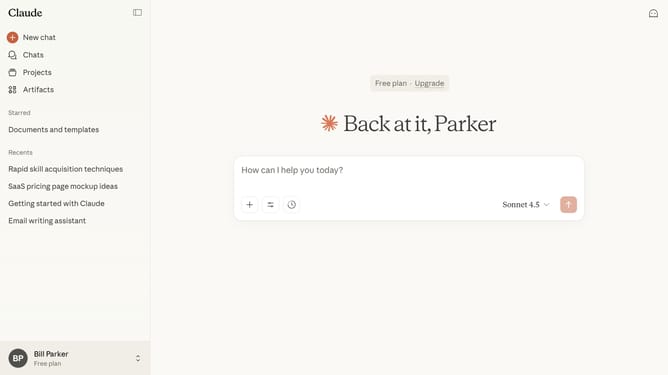
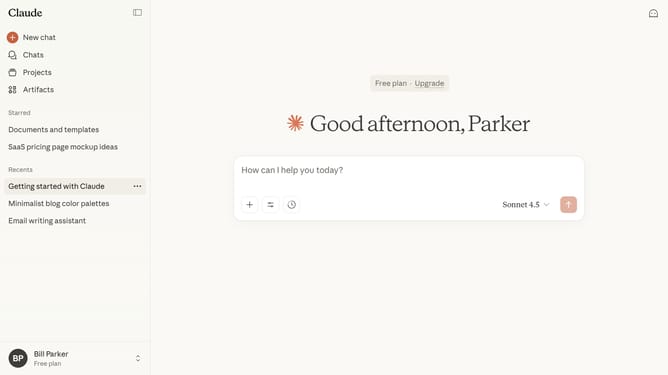
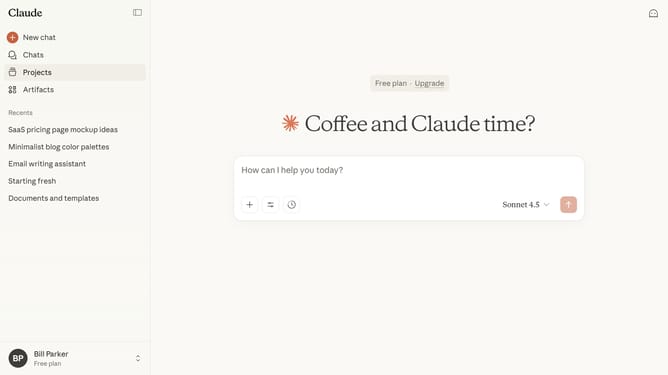
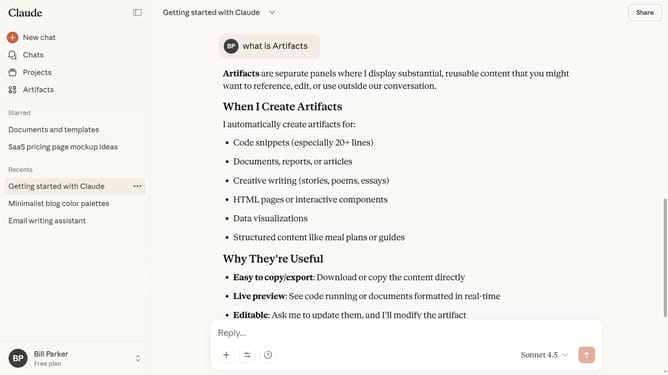
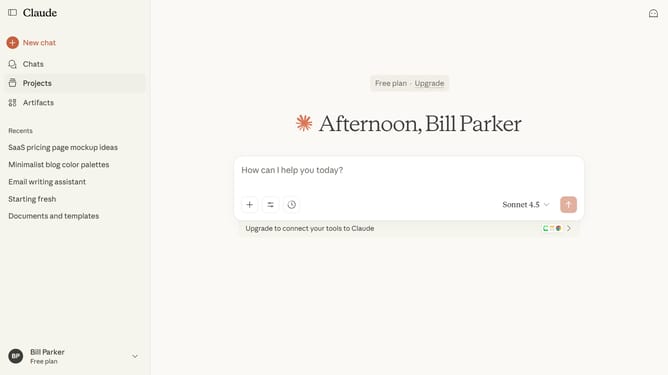
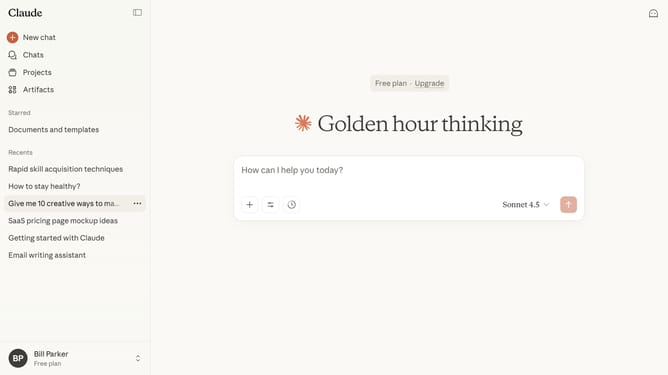
Here is how to switch between light and dark mode in claude.ai
- First click on the user profile section in the bottom left sidebar
- Next click on the "Settings" option in the sidebar menu
- Navigate to the "General" tab
- Then scroll down to view the "Appearance" section
- Finally click on the desired mode to switch between light and dark themes
Why should you switch between light and dark mode in Claude.ai
Claude.ai serves as your intelligent virtual assistant, equipped to enhance productivity and streamline queries.
The ability to switch between light and dark mode in Claude.ai ensures a personalized visual experience, offering you both comfort and flexibility at your fingertips. This feature adjusts to your lighting preferences, enhancing readability in various environments.
Embracing this feature promotes eye comfort and energy efficiency, especially during long hours of usage. Choose the mode that best suits your mood and environment for an optimized, seamless interaction.
Last update