How to set up your chat widget in HubSpot
Here is how to set up your chat widget in hubspot
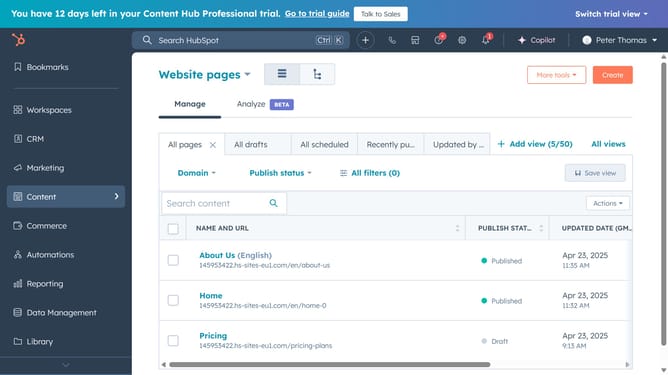
- First click on Automations in the left sidebar and select "Chatflows"
- Then click "Create chatflow" button in the top right corner
- Select "Website" option in the channel selection screen
- Next click on "Set up chat" button in the setup dialog to start setting up your chat widget
- In the chat styling section, adjust the chat widget color to match your brand
- Click "Next" button to proceed to the next step
- Then set the "Chat heading" to define the title visitors see and configure the "Visitor fallback" for when the primary assignee is unavailable
- Customize the welcome message to greet visitors
- Once everything is set, click on the "Next" button
- Then, in the "Chat availability" settings, choose the channel availability (based on team availability or working hours)
- Check the "Chat is available 24/7" box if you want the chat to be accessible every day of the week
- Configure the availability behavior
- Then click "Next"
- Click "Next" again to continue
- In the install code settings, click on the "Skip for now" button
- Your chat widget is now succesfully customized and live
Why should you set up your chat widget in HubSpot
HubSpot offers a comprehensive platform designed to enhance customer relationships and streamline business growth.
Setting up your chat widget in HubSpot is remarkably straightforward, enabling seamless communication between you and your website visitors. This feature supports real-time engagement, allowing you to address customer inquiries quickly and efficiently.
Utilizing the chat widget, businesses can boost customer satisfaction and drive conversions by offering immediate assistance and personalized interaction right on their website.
Last update