How to set a start and end date for a weekly running schedule for Trello scenario in Make
Here is how to set a start and end date for a weekly running schedule for trello scenario in make
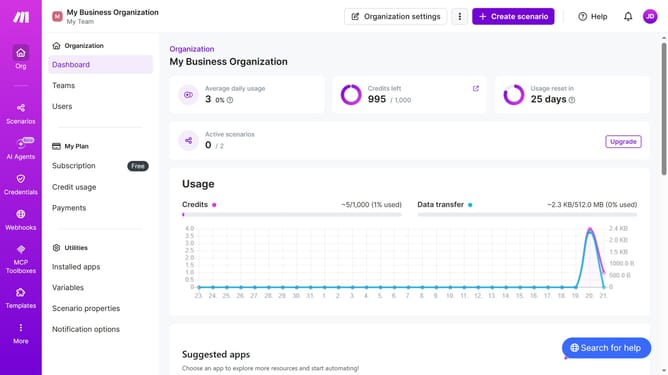
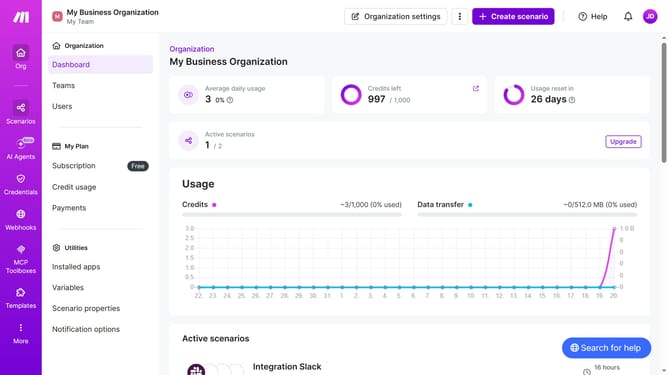
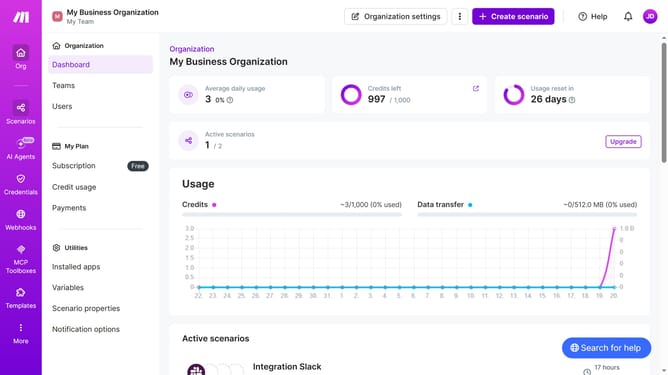
- First, click on "Scenarios" in the left sidebar
- Then, click on the "Integration Trello" task
- Next, click on the "Options" button
- After that, click on the "Scheduling" option
- Then, click on the start date input field
- Next, select the date from the calendar
- Then, click on the end date input field
- Next, select the date from the calendar
- Finally, click on the "Save" button
Why should you set a start and end date for a weekly running schedule for Trello scenario in Make
Make is a versatile automation platform designed to streamline your workflow and boost productivity.
Setting a start and end date for a weekly running schedule in Trello using Make optimizes your task management. By defining specific time frames, you ensure tasks kick off and wrap up efficiently, reducing the risk of overlapping or missed deadlines.
Using this feature enhances planning, providing clarity and focus, enabling teams to prioritize their workload effectively. Ultimately, it fosters a well-organized, seamless operational flow within your Trello scenarios.
Last update