Zoom
Zoom is a unified communications platform for video, phone, chat, and webinars. It helps teams connect, collaborate, and boost productivity with powerful, intuitive tools.
Website
Industry
Collaboration
Share this article:

How to reset to default task columns in Zoom

Here is how to reset to default task columns in zoom

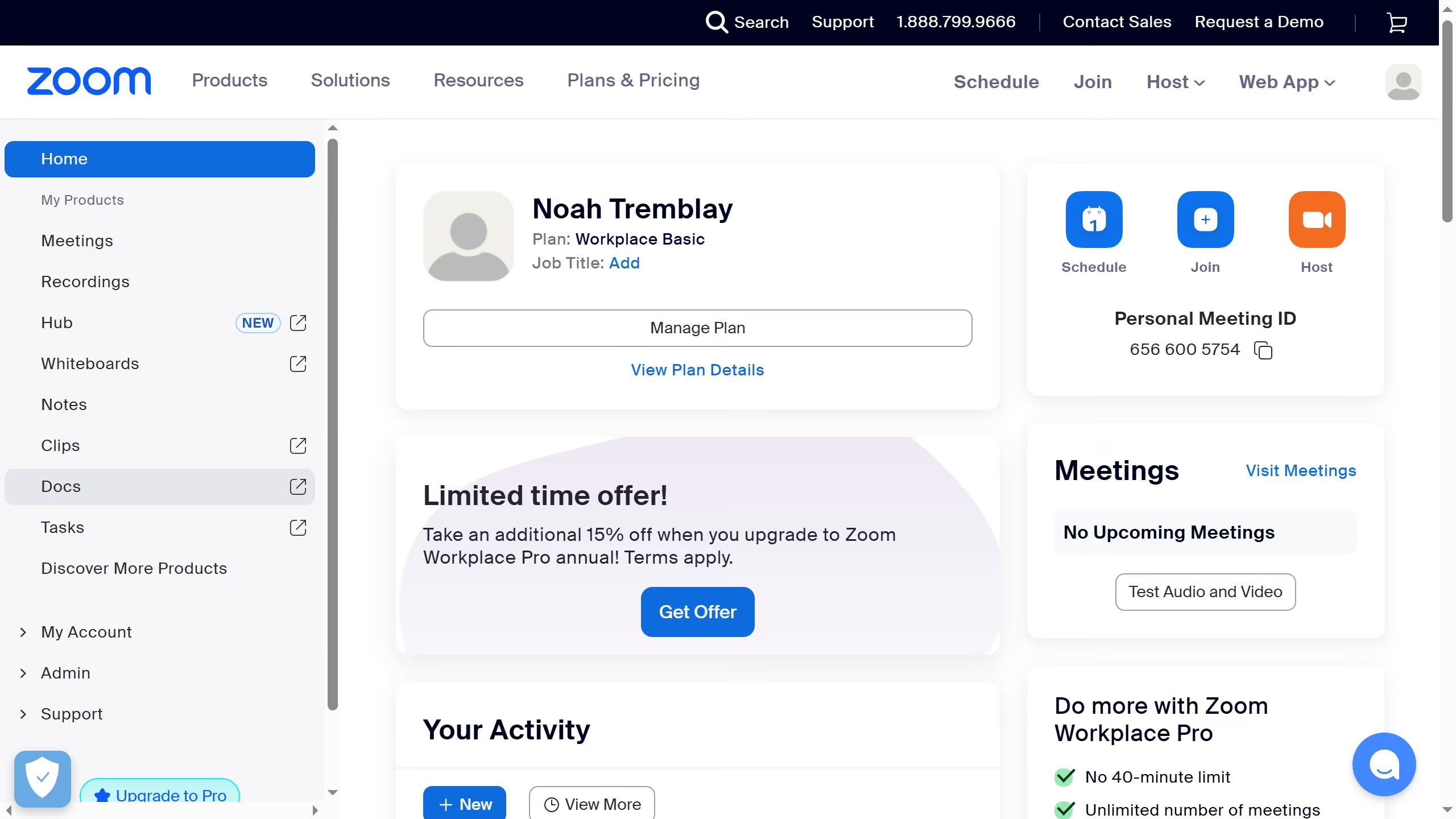
  1. First click on the "Tasks" item in the left sidebar navigation menu
  2. Then click on the "My tasks" section in the left sidebar menu
  3. Next click on the "Column settings" button in the top-right corner of the task list
  4. Finally click the "Reset" button in the columns configuration popup menu

Create your own interactive guide with Guideflow

Why should you reset to default task columns in Zoom

Zoom is a versatile platform designed to foster seamless communication and collaboration across distances.

Resetting to default task columns in Zoom is a beneficial feature that enhances user experience by restoring original configurations with ease. This feature is particularly useful for users who have altered their task column settings and wish to quickly revert back to the system's streamlined defaults.

The primary benefit of this feature lies in its ability to save time and prevent confusion, promoting a more organized and effective workflow. By allowing users to easily reset their task columns, Zoom ensures a consistent interface that supports focused collaboration and productivity.


Last update
February 3, 2026
Cursor MariaA cursor points to a button labeled "James."

Create your first demo in less than 30 seconds.