Zoom
Zoom is a unified communications platform for video, phone, chat, and webinars. It helps teams connect, collaborate, and boost productivity with powerful, intuitive tools.
Website
Industry
Collaboration
Share this article:

How to set document permissions to "Commenter" in Zoom Docs

Here is how to set document permissions to "commenter" in zoom docs

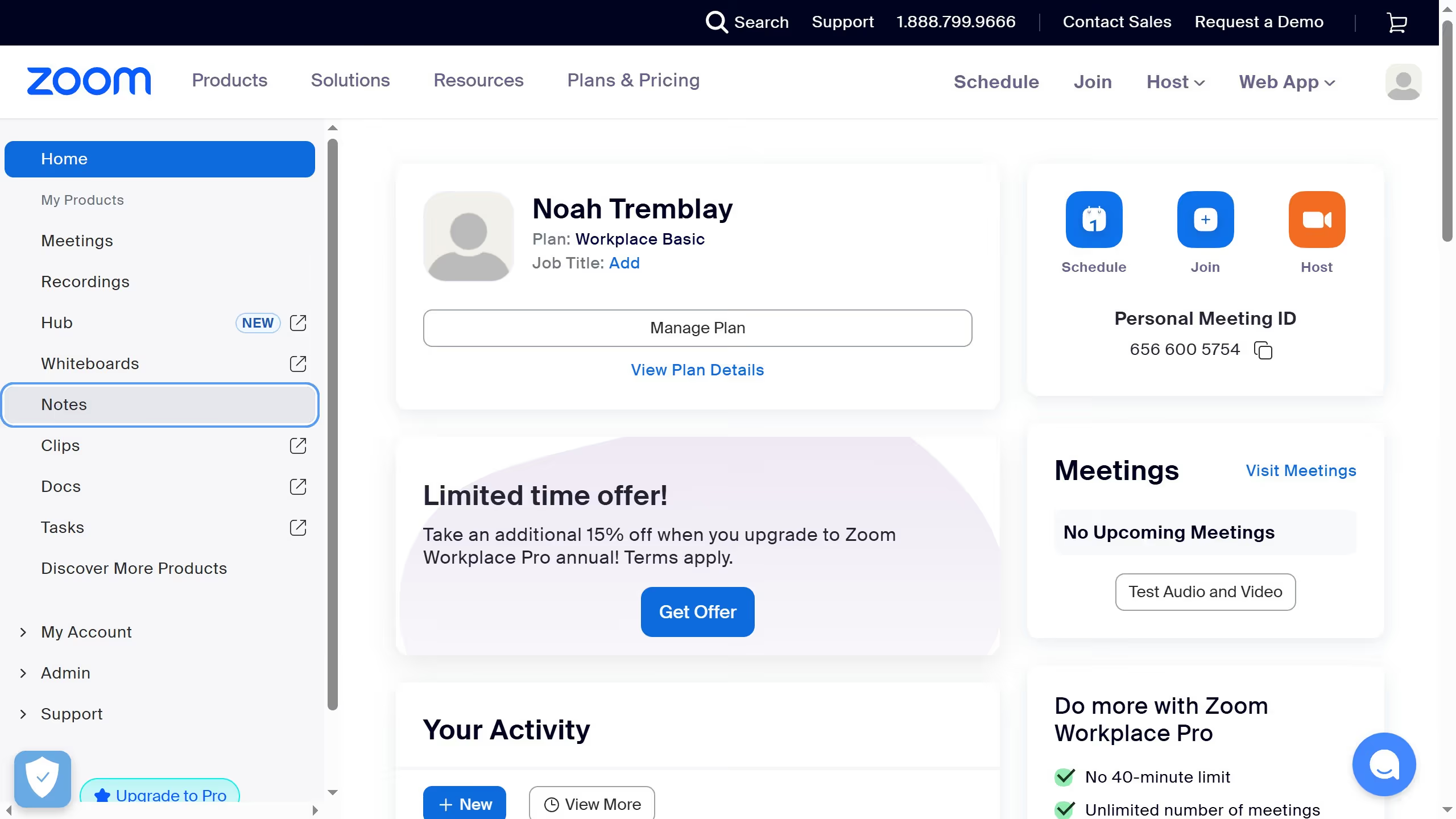
  1. First click on the "Docs" option in the left sidebar menu
  2. Then open the document you want to set permissions for
  3. Next click on the "Share" button in the top toolbar
  4. Next click on the permission option dropdown in the sharing dialog
  5. Finally select "Commenter" option from the access level dropdown menu

Create your own interactive guide with Guideflow

Why should you set document permissions to "Commenter" in Zoom Docs

Zoom is a leading platform for video conferencing and collaboration.

Setting document permissions to "Commenter" in Zoom Docs is a powerful feature that enhances collaborative efforts. It allows team members to add valuable feedback without altering the original content, preserving the document's integrity.

Using the "Commenter" permission streamlines the review process, encouraging engagement by offering a voice to everyone involved. This fosters a more inclusive and interactive environment that boosts productivity and creativity.


Last update
February 3, 2026
Cursor MariaA cursor points to a button labeled "James."

Create your first demo in less than 30 seconds.