Zoom
Zoom is a unified communications platform for video, phone, chat, and webinars. It helps teams connect, collaborate, and boost productivity with powerful, intuitive tools.
Website
Industry
Collaboration
Share this article:

How to delete objects in Zoom whiteboard

Here is how to delete objects in zoom whiteboard

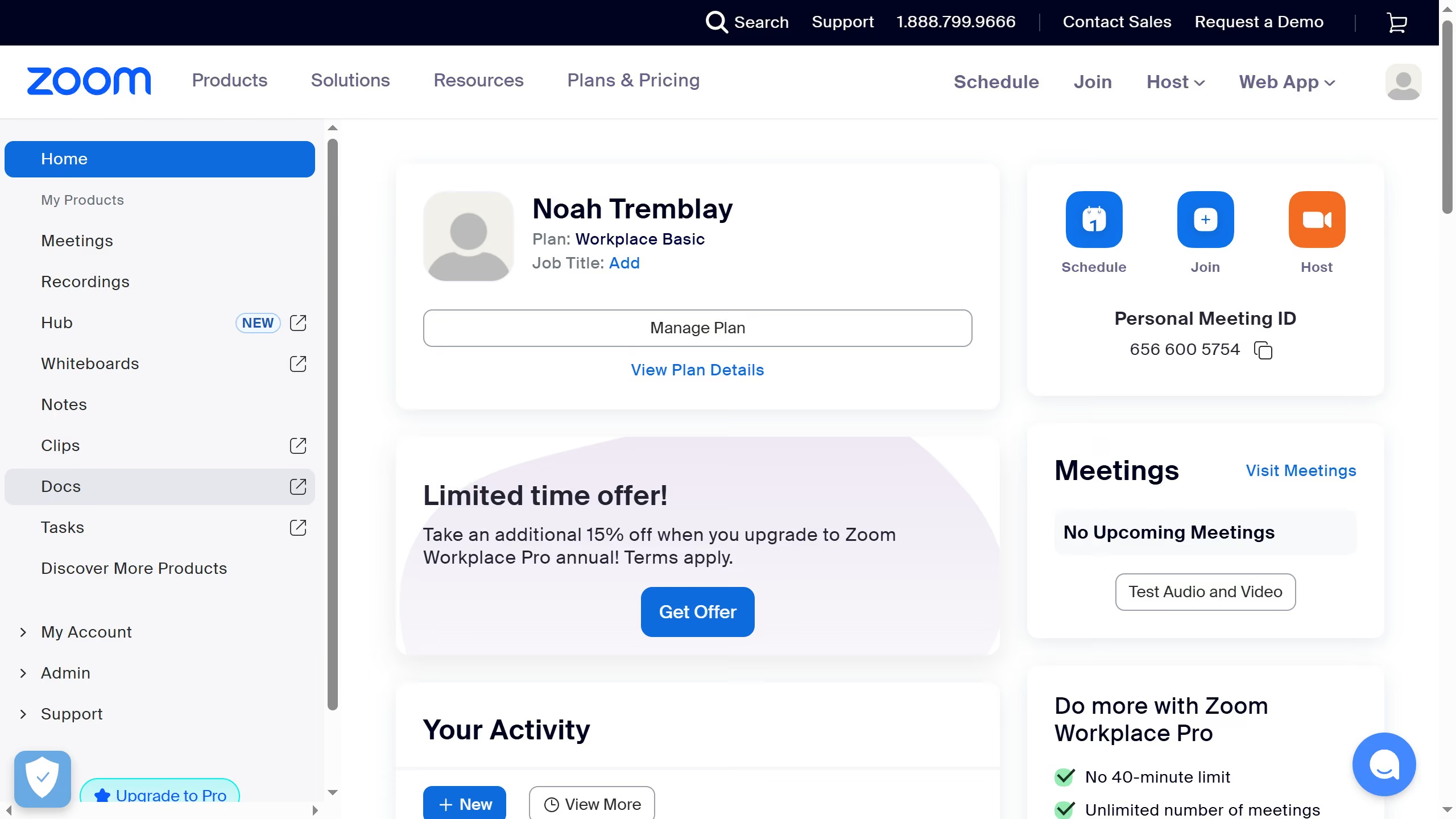
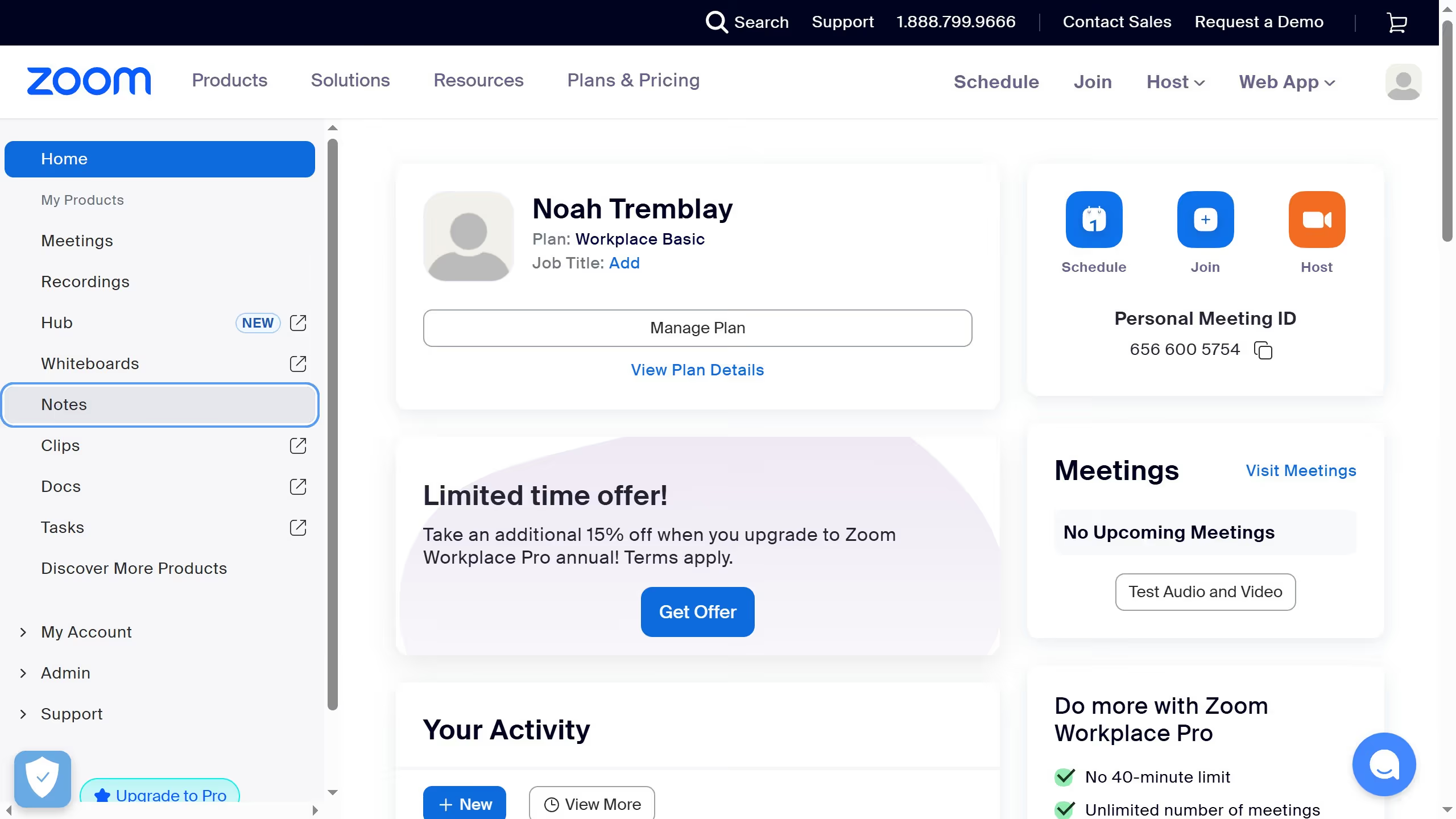
  1. First click on the "Whiteboards" button in the top navigation menu
  2. Then open the whiteboard containing the object you want to duplicate
  3. Next right-click the object you want to duplicate
  4. Finally click on the "Delete" option in the context menu

Create your own interactive guide with Guideflow

Why should you delete objects in Zoom whiteboard

Zoom is a leading platform for virtual meetings, designed to connect people across the globe seamlessly.

One of its standout features, the Zoom Whiteboard, offers a dynamic space for collaborative brainstorming and idea sharing.

Being able to delete objects in Zoom Whiteboard enhances your productivity by keeping your collaborative canvas clutter-free. This capability allows for swift edits during fast-paced discussions, ensuring that only the most pertinent information remains in focus.

Ultimately, maintaining an organized whiteboard enhances team efficiency and keeps group creativity flowing smoothly.


Last update
February 3, 2026
Cursor MariaA cursor points to a button labeled "James."

Create your first demo in less than 30 seconds.