How to replace an image on Pitch.com
Here is how to replace an image on pitch.com
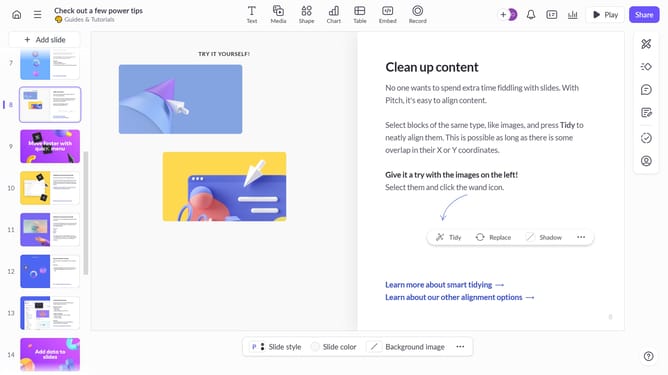
- First, navigate to the slide containing the image you want to replace
- Then, select the image and click on the "Replace" button in the top toolbar
- Next select a new image or upload one
- The new image will replace the old one while maintaining its position on the slide
- Alternatively, click "More options" (three dots) to open the design panel
- Click on "Replace media" option in the right sidebar
- Then, choose a new image or upload one
- Use the design panel, to adjust size, position, apply filters, adjust appearance and more, as needed
Why should you replace an image on Pitch.com
Pitch.com is an innovative platform designed to make collaborative presentation creation seamless and efficient.
Replacing an image on Pitch.com is simple and intuitive, allowing for seamless updates to your presentation without hassle.
This feature ensures that your presentation remains visually dynamic and up-to-date, reflecting the most current information and maintaining audience engagement.
By enabling quick image swaps, it ensures your presentation stays fresh and visually appealing, enhancing communication and professionalism.
Last update