How to reload an extension on a base in Airtable
Here is how to reload an extension on a base in airtable
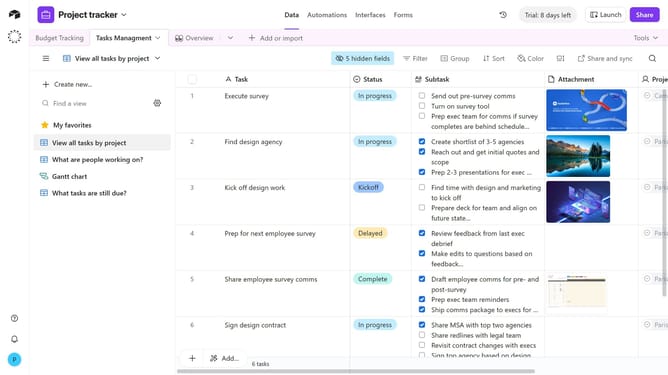
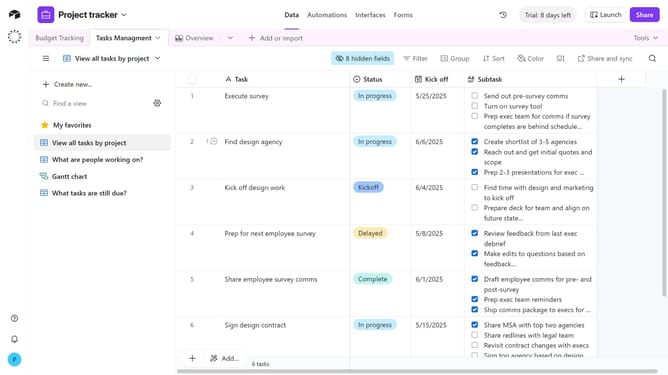
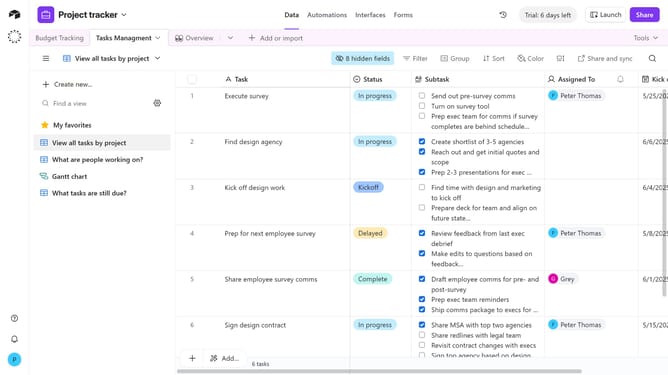
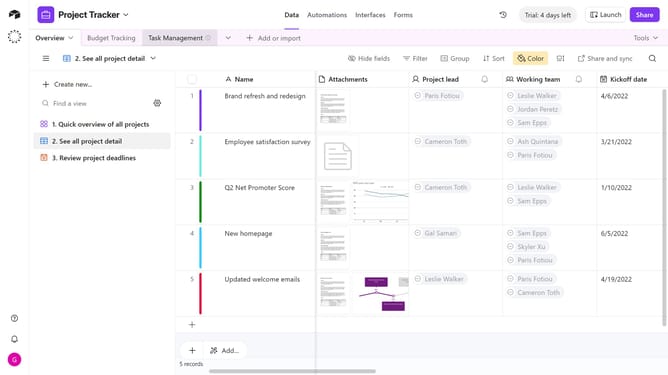
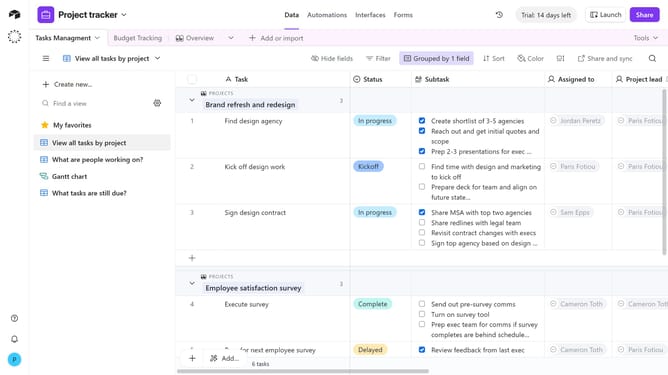
- First, open the base where the extension is located and click on the "Tools" button in the top-right corner
- Next click on the "Extensions" option in the dropdown menu
- In the extensions panel, locate the extension you want to reload
- Click on the extension name to open the dropdown menu
- Then click on "Reload" from the menu options
- Wait a few moments for the extension to reload and refresh its data
Why should you reload an extension on a base in Airtable
Airtable is a versatile platform that transforms the way you organize and collaborate on data.
Reloading an extension on a base in Airtable is a feature that enhances your data-fueled projects by ensuring the most updated version is readily available. This feature seamlessly integrates fresh data without interrupting your workflow.
By reloading extensions, you maintain data accuracy, allowing you to harness real-time insights and make informed decisions promptly.
This boosts productivity and ensures your team's collaboration is always in sync with the latest data developments.
Last update