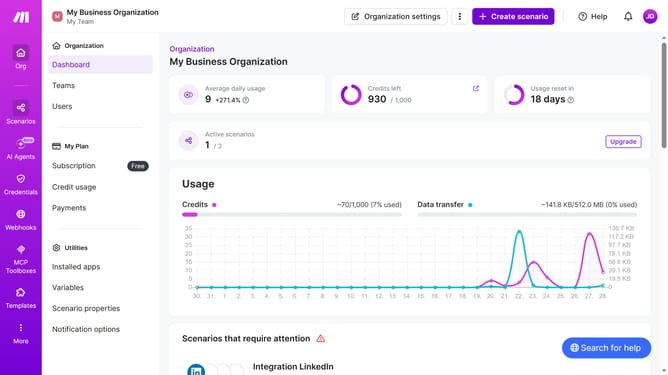
How to manage weekly running schedule for a Zapier scenario in Make
Here is how to manage weekly running schedule for a zapier scenario in make
- First click on "Scenarios" item in the left sidebar.
- Then click on the Zapier scenario to open it
- Next click on "Options" button in the top menu.
- Then select "Scheduling" from the dropdown menu.
- Next click on the "Run scenario" dropdown in the "Schedule settings" field
- Then select "Weekly" from the Run scenario dropdown.
- Next click on the "Days" dropdown.
- Then select a day's checkbox from the list of days
- Finally click on the "Save" button.
Why should you manage weekly running schedule for a Zapier scenario in Make
Make is a powerful tool designed to streamline and automate your workflows effortlessly.
Managing a weekly running schedule for a Zapier scenario in Make allows you to automate your tasks with precision and efficiency. By scheduling scenarios weekly, you ensure your automated processes run consistently, reducing manual work and increasing productivity.
This feature is perfect for businesses looking to optimize their operations by automating routine tasks on a regular schedule, freeing up time for more critical activities.
Last update