How to set time for a weekly running schedule for Gmail scenario in Make
Here is how to set time for a weekly running schedule for gmail scenario in make
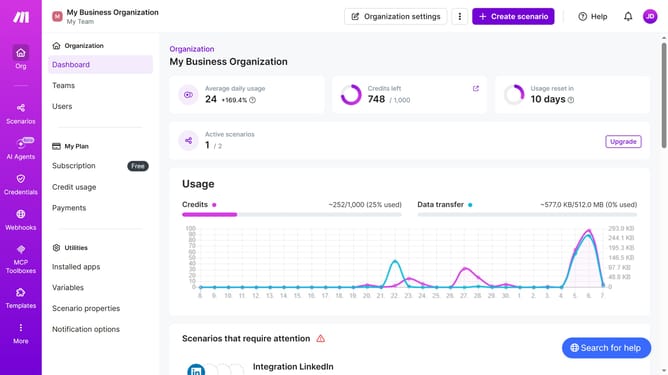
- First click on "Scenarios" from the left sidebar menu
- Then click on the Gmail scenario from the list of scenarios
- Next, click on the "Options" dropdown button in the scenario header
- After that, select "Scheduling" from the dropdown menu
- Then click on the time input field and change the time
- Finally, click on the "Save" button to confirm the schedule settings
Why should you set time for a weekly running schedule for Gmail scenario in Make
Make empowers users by streamlining processes through seamless automation.
Setting a weekly running schedule for a Gmail scenario in Make ensures that your tasks are accomplished efficiently without manual intervention. This feature eliminates the need to remember every task, providing a structured approach to managing your emails.
By automating routine actions, you save valuable time that can be redirected towards more strategic activities, enhancing productivity and consistency. Ultimately, Make transforms how you interact with Gmail, bringing order to your workflows effortlessly.
Last update