Slack
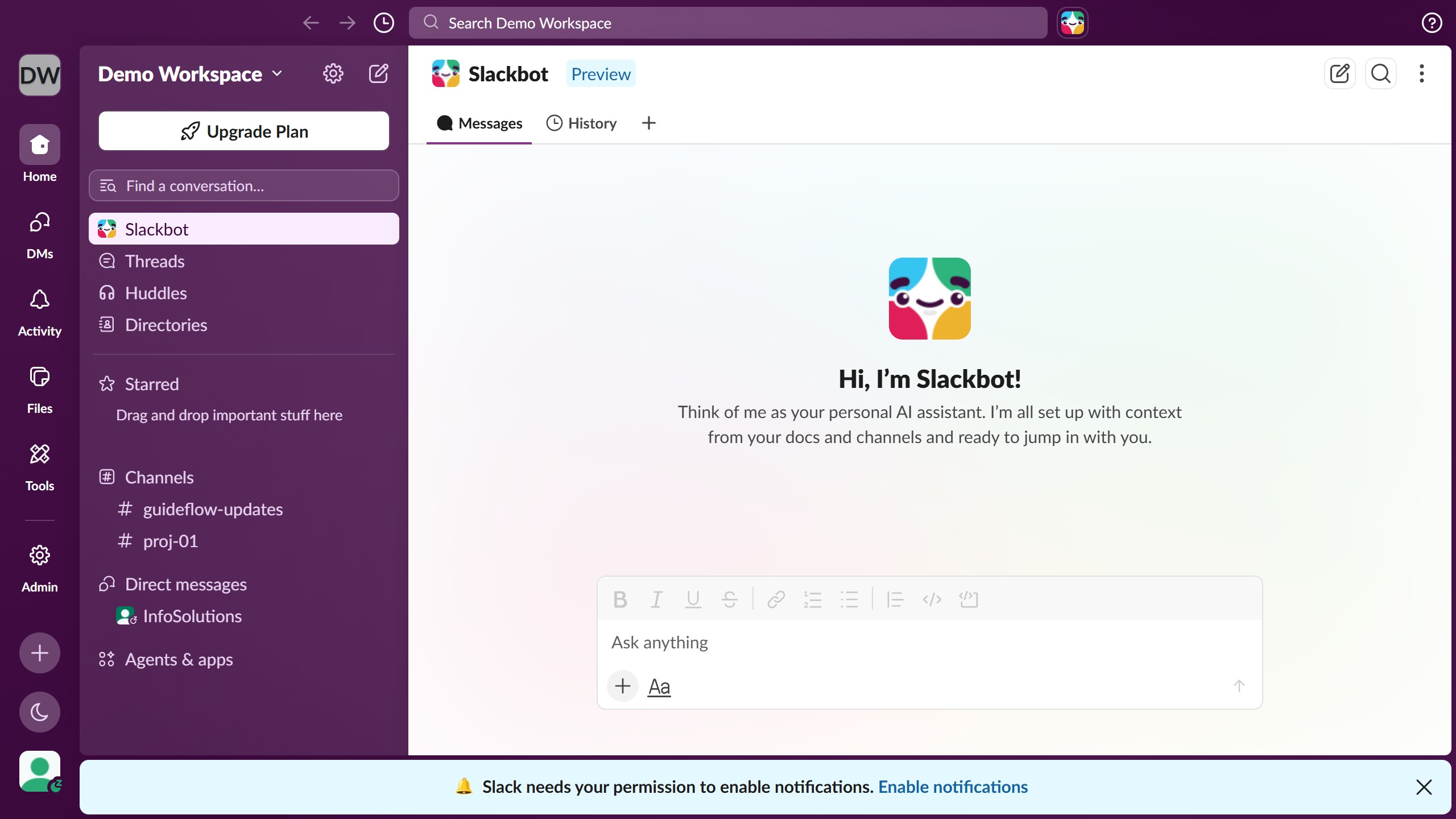
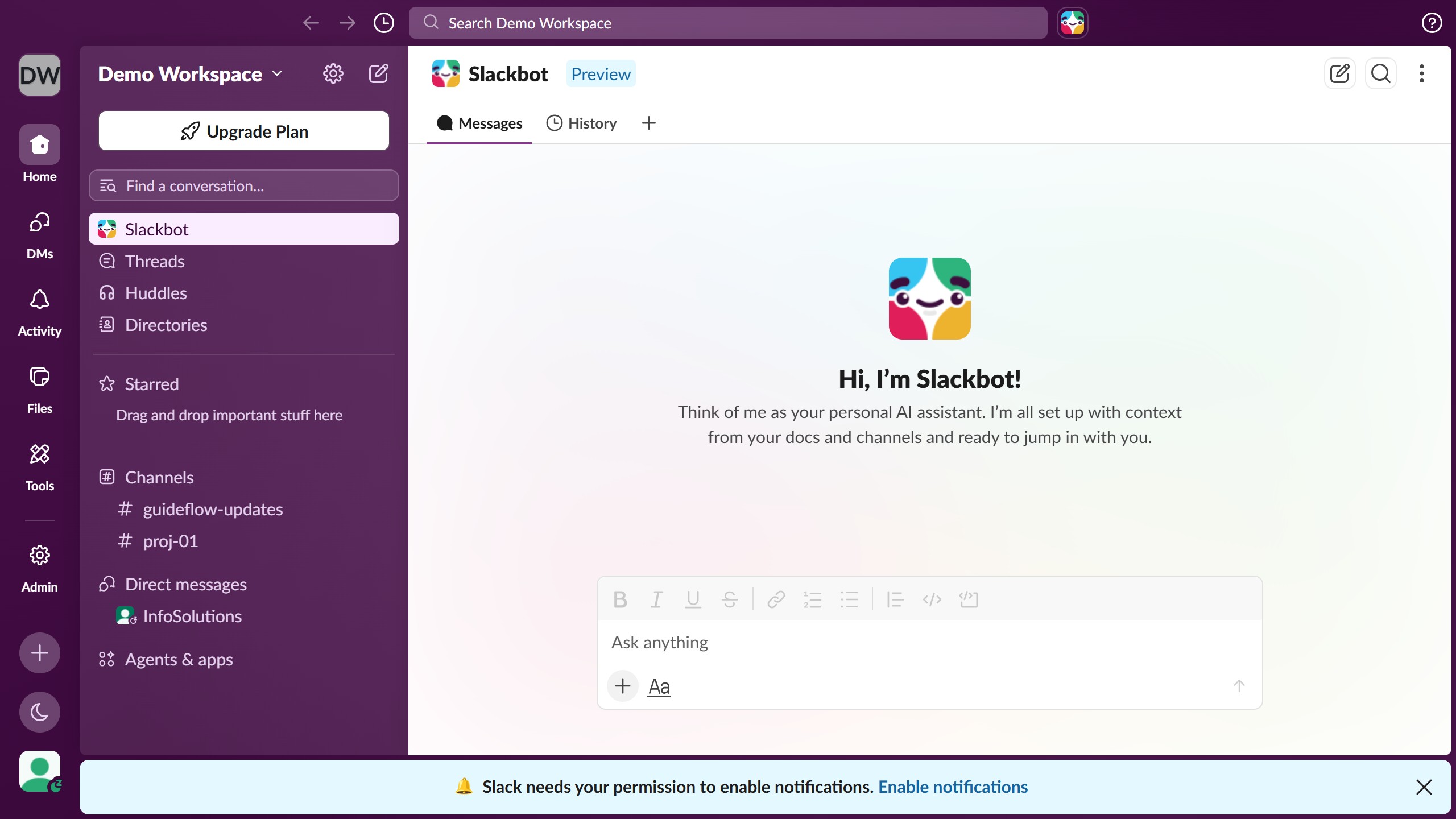
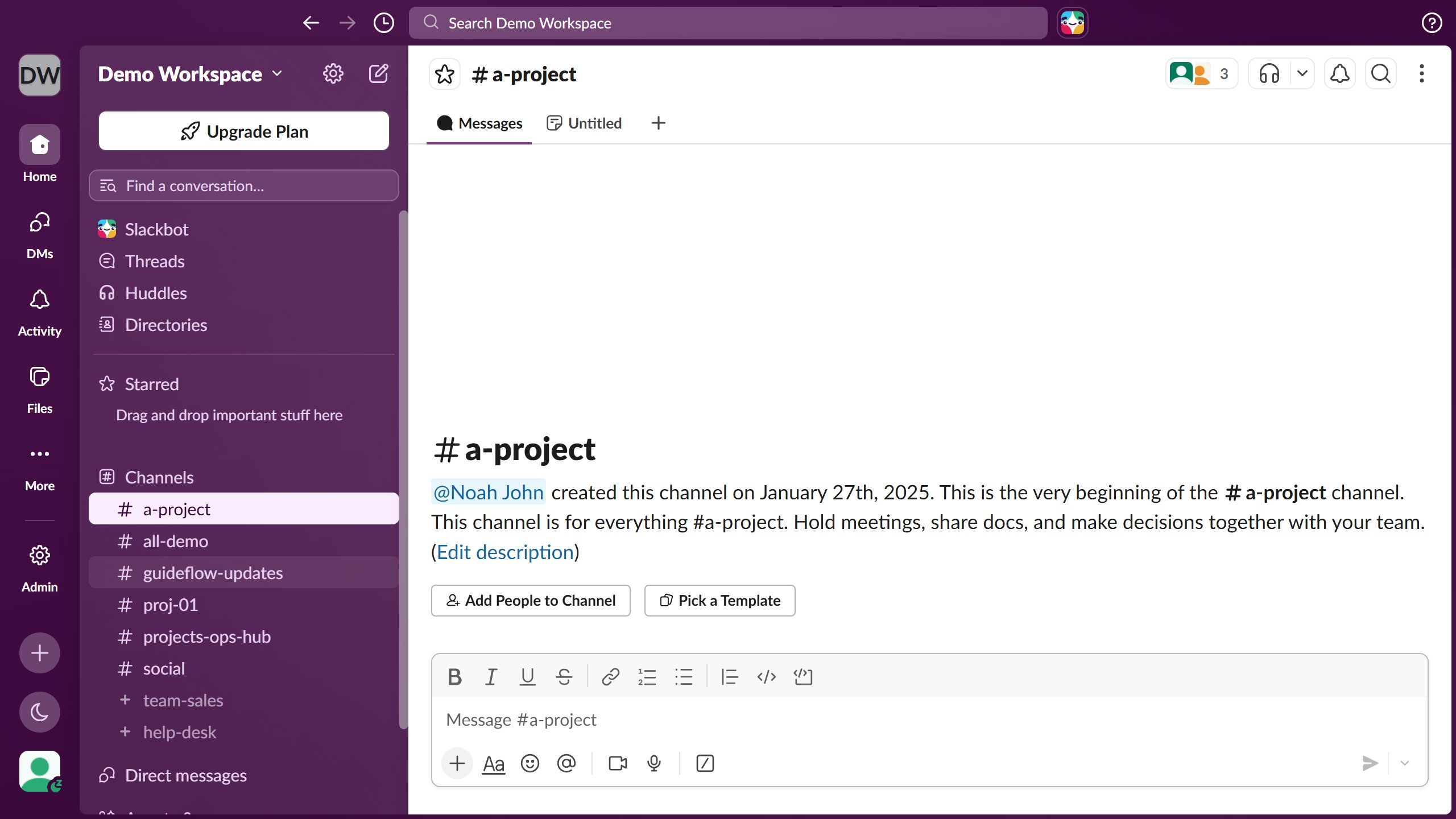
Slack is a business communication platform that organizes team conversations into channels and direct messages.
Website
Industry
Collaboration
Share this article:

How to manage invitation settings as an admin in Slack

Here is how to manage invitation settings as an admin in slack

  1. First click on the "Admin" button in the left sidebar
  2. Then click on "Workspace Settings" option from the Admin Tools menu
  3. Next click on the "Permissions" tab in the Settings & Permissions header
  4. Then click on the "Expand" button next to the Invitations section
  5. Next click on the "Require admin approval" checkbox to enable it
  6. Then select the "All admins, via Slackbot" radio button option
  7. Finally click on the "Save" button to save the changes

Create your own interactive guide with Guideflow

Why should you manage invitation settings as an admin in Slack

Slack is a dynamic collaboration hub designed to streamline team communication and boost productivity.

As an admin, managing invitation settings is a powerful feature that allows for maintaining control over who joins your organization's workspace. With a few adjustments, admins can ensure the right balance between accessibility and security, providing peace of mind while expanding their team.

This control ensures only authorized users gain access, enhancing the security of sensitive information and maintaining workplace integrity.

Last update
March 16, 2026
Cursor MariaA cursor points to a button labeled "James."

Create your first demo in less than 30 seconds.