SurveyMonkey
SurveyMonkey is an online survey and feedback collection platform for customer insights.
Website
Industry
Marketing
Share this article:

How to manage comment settings in shared data views in SurveyMonkey

Here is how to manage comment settings in shared data views in surveymonkey

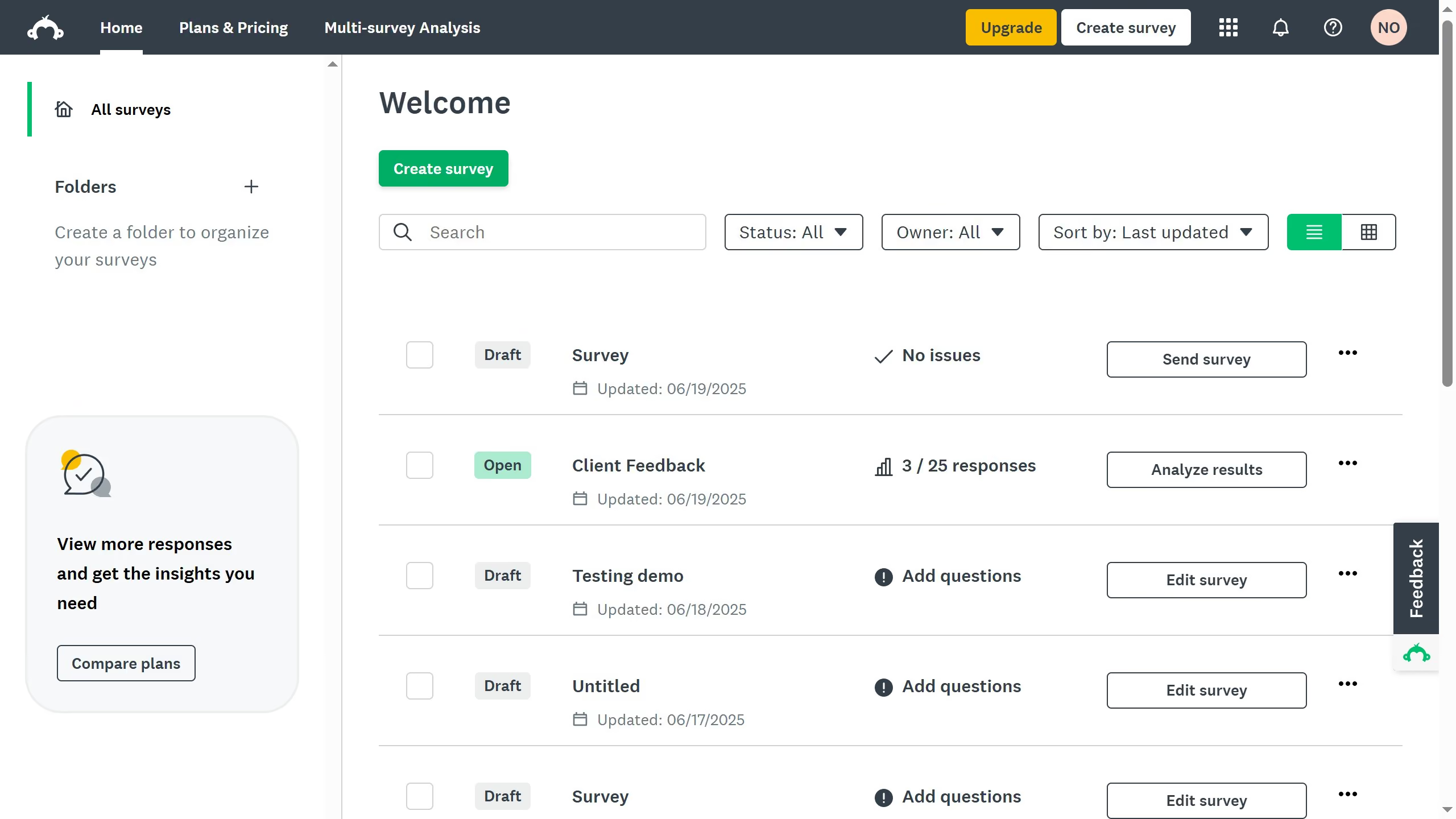
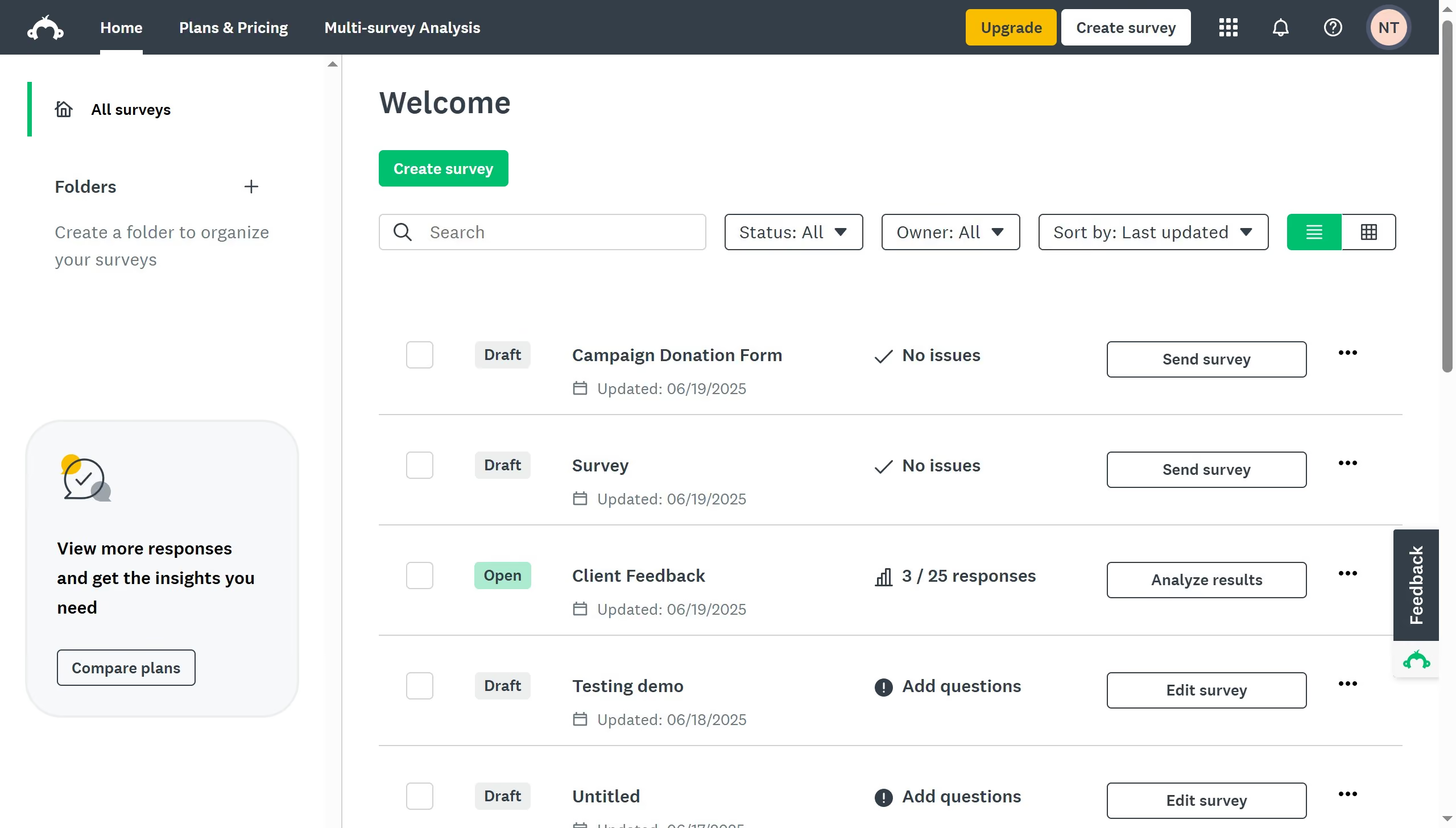
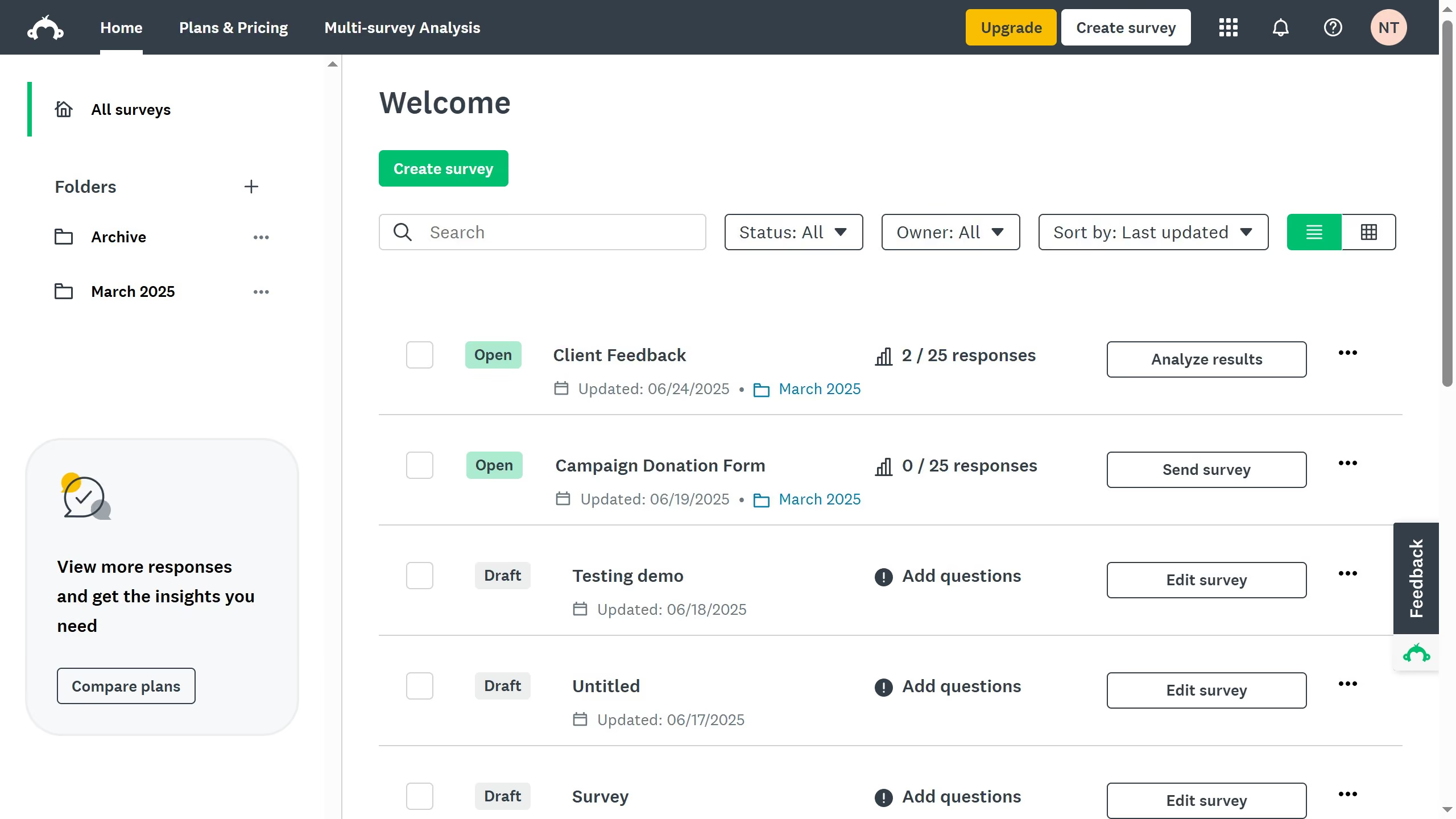
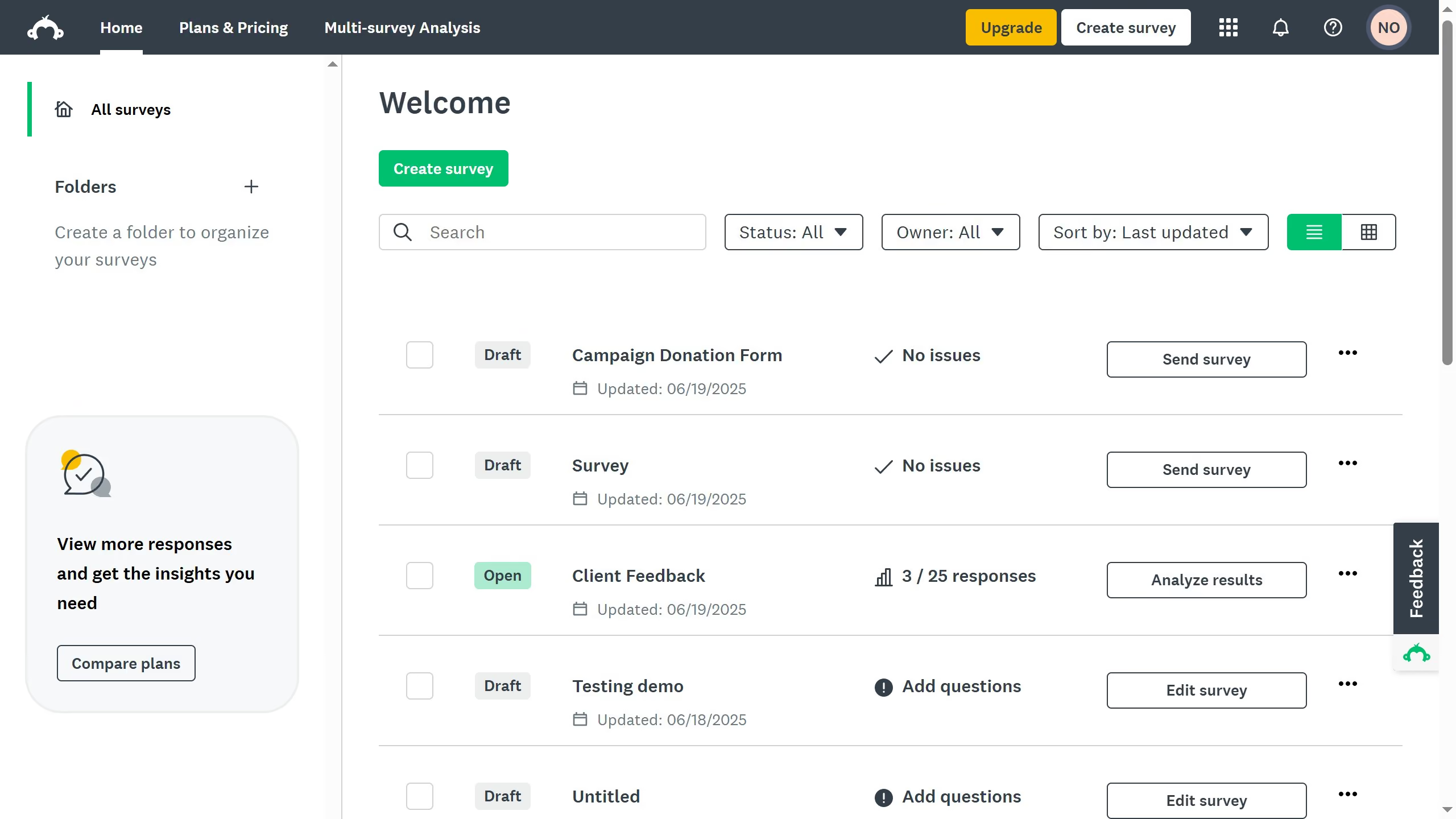
  1. First click the survey title you want to open in the survey list
  2. Then click on the "ANALYZE RESULTS" tab in the top navigation menu
  3. Next click on the "Shared data" link in the analysis toolbar
  4. Then click on the menu button (three dots) next to the shared data link
  5. Next click on "Manage Comments Settings" in the dropdown menu
  6. Then click on the comment icon in the question header
  7. Here you can either reply, edit, or even delete the comments

Create your own interactive guide with Guideflow

Why should you manage comment settings in shared data views in SurveyMonkey

SurveyMonkey is a powerful tool designed to simplify the process of collecting and analyzing feedback.

One standout feature is the ability to manage comment settings in shared data views. This feature ensures you have control over how comments are displayed and accessed, providing flexibility and focus.

Using this feature enhances collaboration. It allows you to streamline feedback by filtering out noise and highlighting the most pertinent insights, leading to more productive discussions and decision-making.


Last update
June 23, 2026
Cursor MariaA cursor points to a button labeled "James."

Create your first demo in less than 30 seconds.