How to hide the knowledge base title in Aha!
Here is how to hide the knowledge base title in aha!
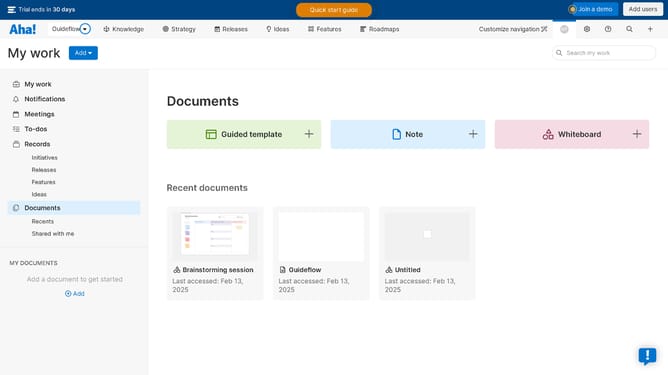
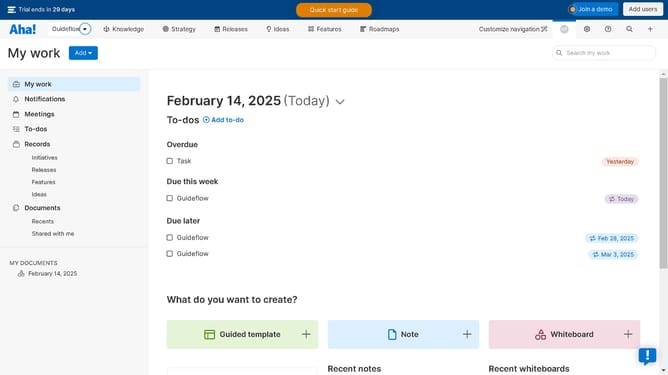
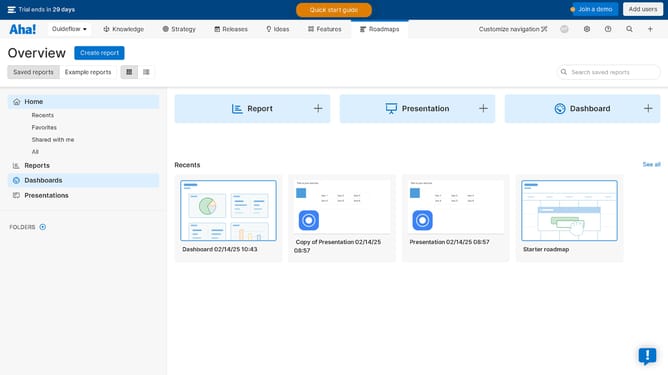
- First click on the dropdown arrow next to "Aha!" in the header
- Then click on your workspace in the menu
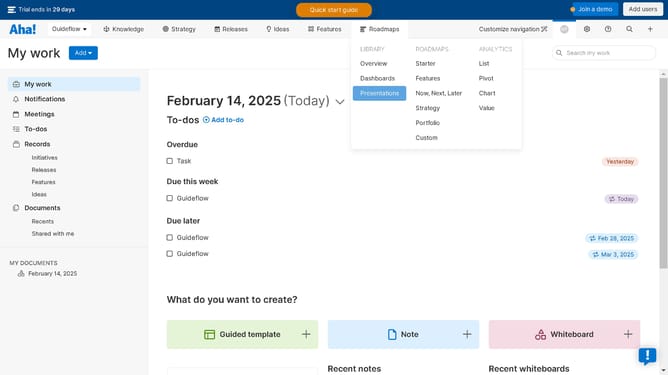
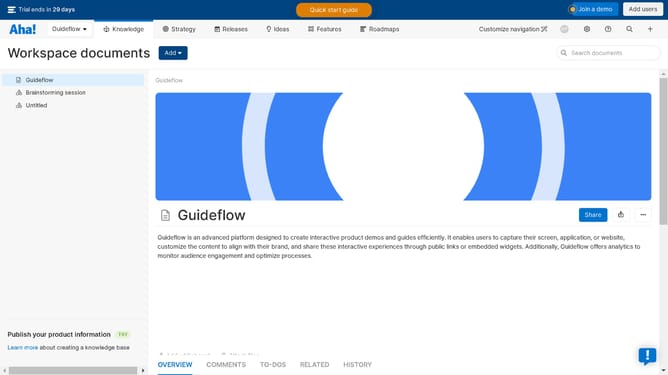
- Next, click on the "Knowledge" tab in the header
- Then click on the "Overview" option under the "KNOWLEDGE BASE" section
- Next, hover your mouse cursor over a knowedge base
- Then click on the three-dots icon next to the knowledge base
- Next, click on the edit option from the dropdown menu
- Then click on the "Homepage" in the header
- Next, scroll down in the main content area
- Finally, uncheck the "Show knowledge base title" checkbox
Why should you How to hide the knowledge base title in Aha!
Aha! is a leading product roadmap software that empowers teams to build what matters.
Hiding the knowledge base title in Aha! enhances the clarity and cleanliness of your workspace, providing a more streamlined and distraction-free experience. By customizing the presentation of information, you gain more control over how your content is displayed, ensuring it aligns with your unique style and organization needs.
This feature is particularly beneficial when creating internal documentation or customer-facing content, as it allows for a polished and professional appearance.
Ultimately, using this feature can lead to improved focus for viewers as they engage with your material, reinforcing the value and efficiency that Aha! aims to deliver.
Last update