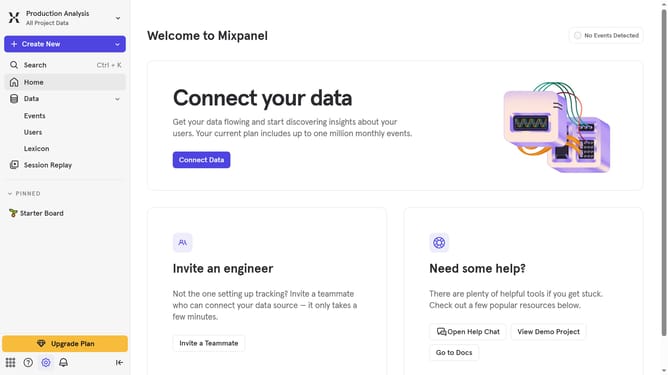
How to filter audit logs by user added to organization in Mixpanel
Here is how to filter audit logs by user added to organization in mixpanel
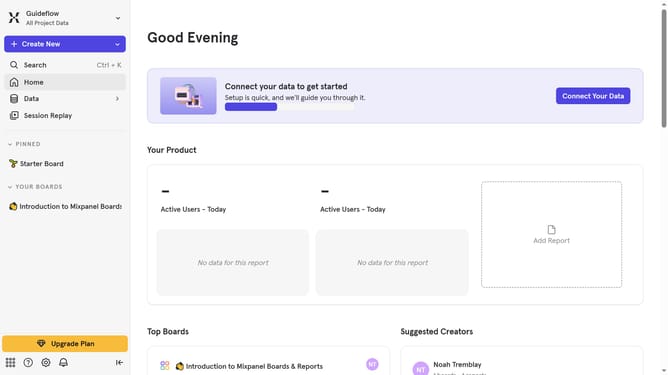
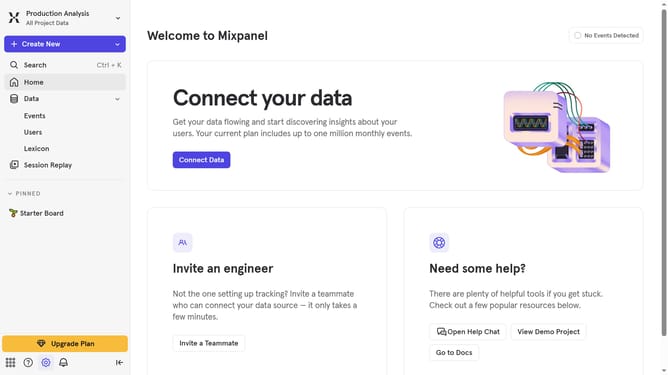
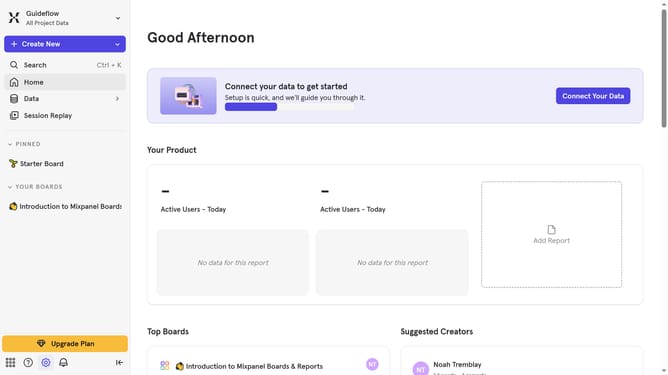
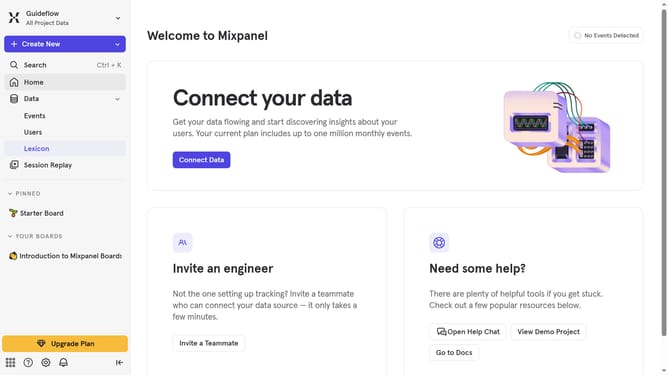
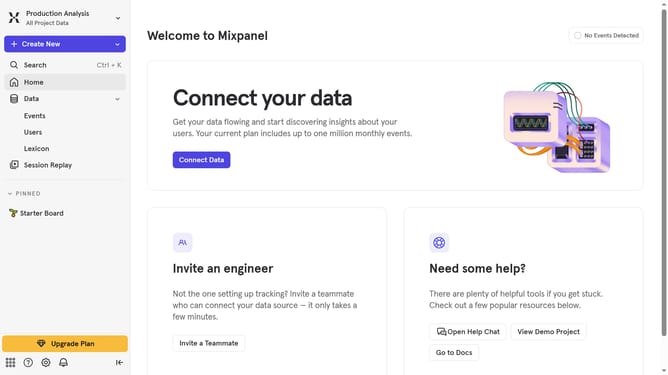
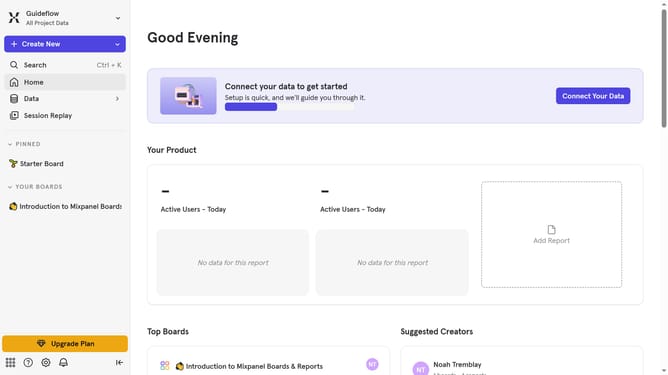
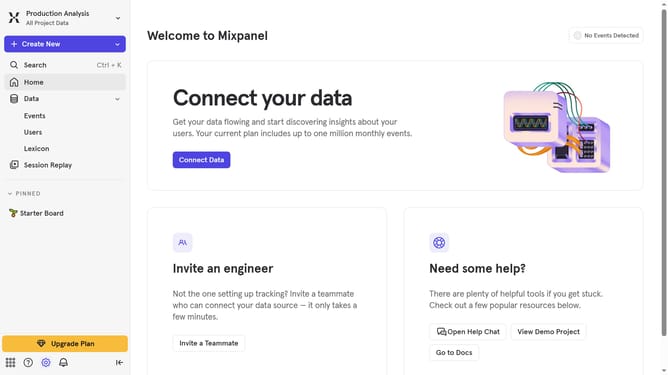
- First click on the settings icon in the left sidebar
- Then hover your mouse cursor the "Settings" option in the revealed menu
- Next click on "Organization Settings" to navigate to the organization settings page
- Then, in the left navigation pane, click on "Audit Log"
- After that, click on the "Action" dropdown menu
- In the displayed list, scroll down to view more option
- Finally, click on the checkbox next to "User Added to Organization" in the audit log
Why should you filter audit logs by user added to organization in Mixpanel
Mixpanel is a powerful analytics platform designed to help businesses understand user behavior.
The ability to filter audit logs by user added to your organization in Mixpanel offers streamlined oversight. This feature simplifies tracking changes by focusing on contributions from specific users.
Utilizing this feature enhances transparency, allowing team leads to efficiently monitor user activity and maintain data integrity. It ensures accountability, crucial for informed decision-making and optimizing team performance.
Last update