How to disable the Brainstorming blueprint in Confluence
Here is how to disable the brainstorming blueprint in confluence
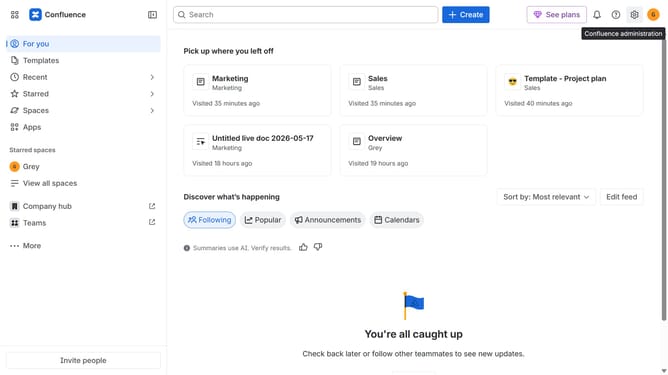
- First click on the gear icon in the top right header
- Click on "Configuration" in the left sidebar under Settings
- Next, select "Global templates and blueprints"
- After that, locate the "Global blueprints" section
- Then locate the "Brainstorming" blueprint in the Global blueprints list
- Finally, turn off the toggle next to the blueprint to disable it
Why should you disable the Brainstorming blueprint in Confluence
Confluence is a powerful collaboration tool that helps teams share, organize, and manage content seamlessly.
Disabling the Brainstorming blueprint in Confluence can streamline your workspace by removing unnecessary templates that don't fit your current workflow. This can enhance focus by allowing you to tailor the environment to your team's specific needs.
By disabling unused features, you minimize distractions and optimize performance, ensuring that team members concentrate on the most relevant tasks and improving overall productivity.
Last update