How to copy a link to a specific version of content in Confluence
Here is how to copy a link to a specific version of content in confluence
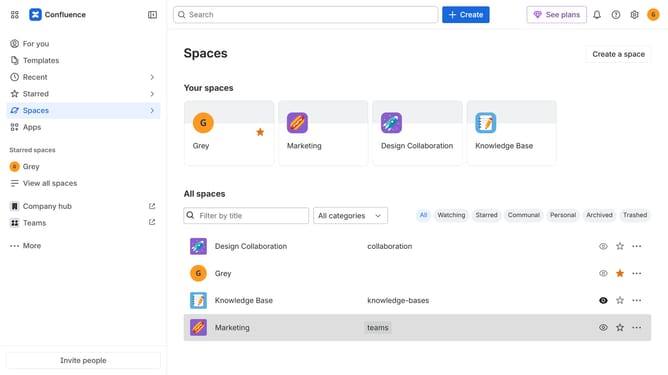
- First, navigate to the Spaces list and open the space that contains the content
- In the left sidebar, open the content whose version history you want to share
- Next click on the "More actions" button in the top right corner
- Select "Version history" from the dropdown menu
- Then locate the version you want to copy the link
- Next click on the "More actions" button next to the version
- Finally click on "Copy link" from the dropdown menu
Why should you copy a link to a specific version of content in Confluence
Confluence is a collaborative hub for teams to create, organize, and discuss work in a single place.
One powerful feature of Confluence is the ability to copy a link to a specific version of content. This allows you to share or reference the exact iteration of a document, ensuring clarity and precision in communication.
By linking to a specific version, teams can effectively track changes, maintain transparency and enhance collaboration by keeping everyone on the same page. This functionality fosters a more structured and efficient workflow, reducing misunderstandings and aligning efforts seamlessly.
Last update