How to delete a text box in Canva
Here is how to delete a text box in canva
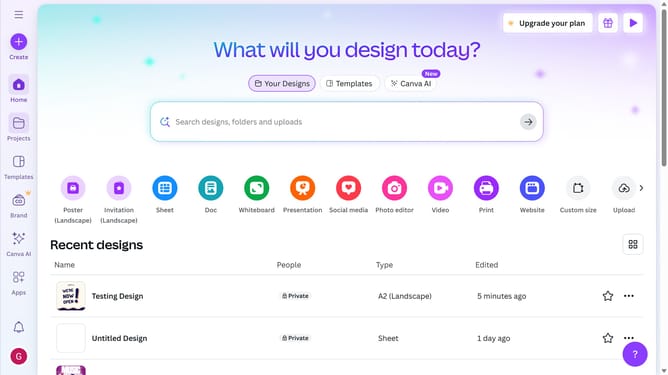
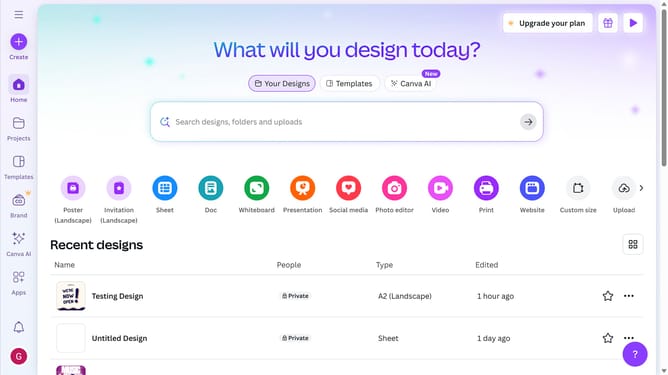
- First click on the "Projects" button in the left sidebar
- Then click on the "Design" tab in the content filters
- Next click on the "Testing Design" item in the designs list
- Next click on the text element labeled "YOUR PARAGRAPH TEXT" in the main canvas area
- Finally click on the "Delete" icon button on the text pop-up window panel
Why should you delete a text box in Canva
Canva is a versatile online design tool that empowers users to create stunning visuals effortlessly.
One of Canva's practical features is its ability to delete a text box with ease. This function streamlines the editing process, allowing you to refine your design quickly by removing any unnecessary elements.
Eliminating a text box in Canva not only helps maintain focus on your primary message but also enhances overall design aesthetics by reducing clutter.
By mastering this feature, you ensure your visuals remain clear, concise, and visually appealing.
Last update