How to customize navigation colors in Confluence
Here is how to customize navigation colors in confluence
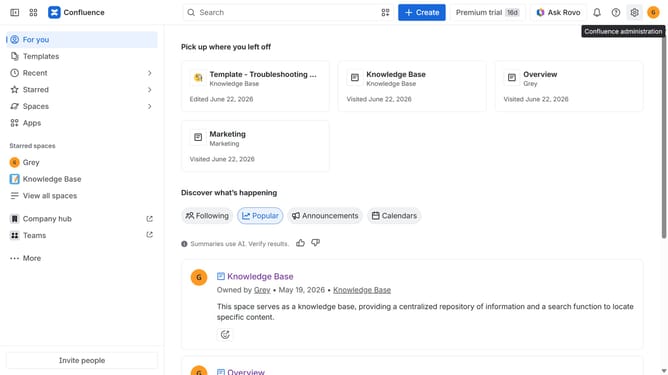
- First, click on the gear icon in the header to open Confluence administration
- Click on "Look and feel" in the settings menu
- Next click on "Customize navigation" in the submenu
- Locate the "Select navigation colors" section
- Next click the dropdown menu for Highlight color
- Then enter a color code or use the color picker to select your desired color
- Next click the dropdown menu for Background color
- Then enter a color code or use the color picker to select your desired color
- Finally click on the "Save" button to apply the changes
Why should you customize navigation colors in Confluence
Confluence is a powerful collaboration tool designed to help teams work smarter and more efficiently.
Customizing navigation colors in Confluence allows users to tailor the application's appearance to better align with their team's branding or individual preferences.
This feature enhances the user experience by making navigation visually appealing and promoting a sense of identity.
Moreover, a personalized interface can increase user engagement and satisfaction, creating a workspace that truly feels like your own.
Last update