How to create a task from Calendar view in ClickUp
Here is how to create a task from calendar view in clickup
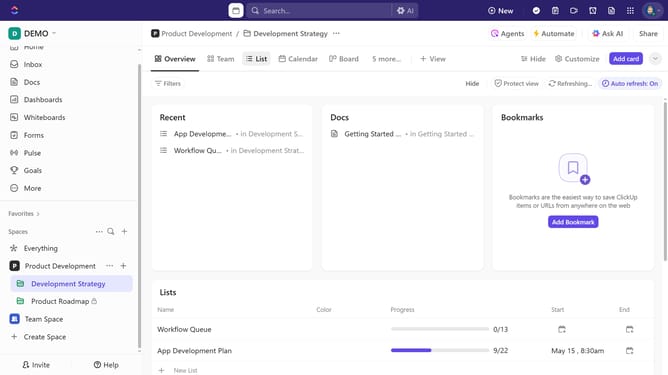
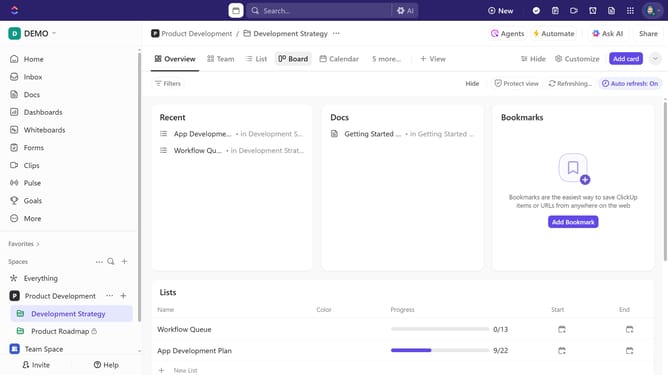
- First navigate to Calendar view from the views bar at the top
- If you're using the Day, 4 days, or Week time period, click the day and time to set the task due date
- Next enter a name for the task in the task name field
- Add additional details such as status, assignees, due date, and priority
- Then click the "Save" button to create the task
- If you're using the Month time period, hover over the specific day you want to set as the due date and click the plus icon
- Next enter a name for the task in the task name field
- Add additional details such as status, assignees, due date, and priority
- Finally click the "Save" button to create the new task
Why should you create a task from Calendar view in ClickUp
ClickUp is an all-in-one productivity platform designed to streamline your workflow and elevate team collaboration.
Creating a task directly from the Calendar view in ClickUp is a seamless feature that enhances planning efficiency. This intuitive process allows you to visualize your schedule and effortlessly add tasks, ensuring nothing slips through the cracks.
By using the Calendar view, you can effectively manage deadlines, prioritize tasks, and maximize productivity. This feature empowers teams to align their goals and stay on track for success.
Last update