How to create a LinkedIn ratio metric chart in Folk
Here is how to create a linkedin ratio metric chart in folk
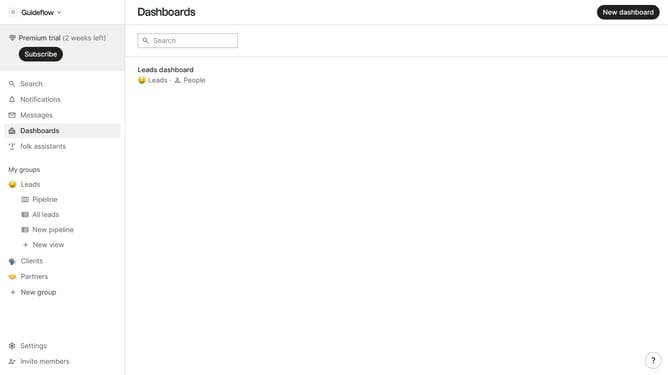
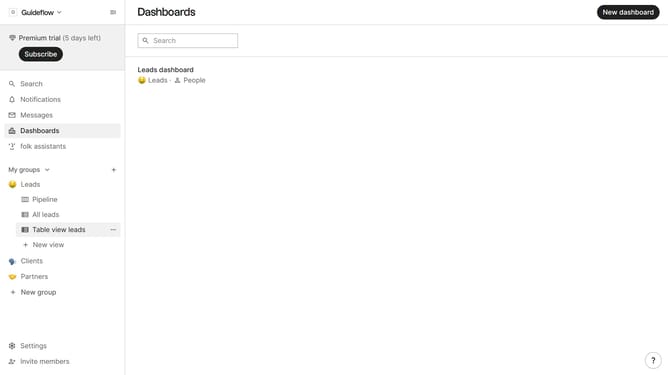
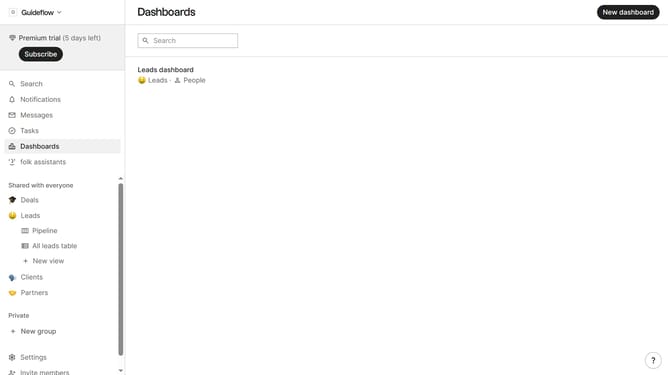
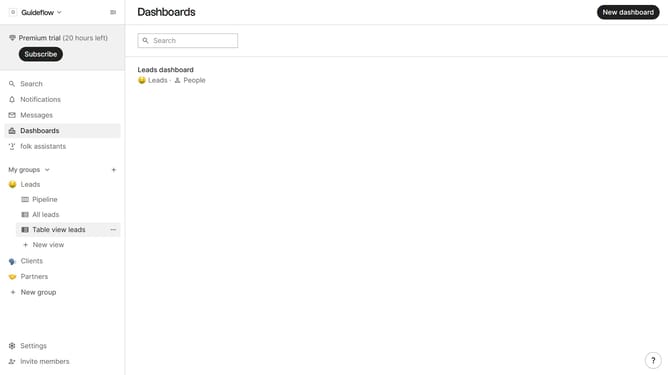
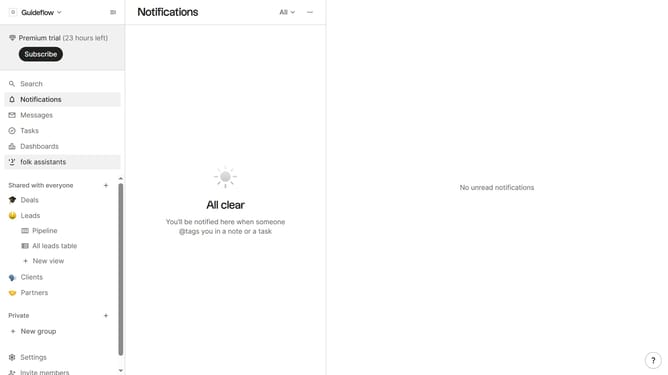
- First click on "Dashboards" in the sidebar menu
- Then click on the dashboard where you want to create a LinkedIn ratio metric chart
- Click on the "Add chart" button
- Next click on the "Measure" dropdown option
- Then hover your mouse cursor over the "Ratio" option
- After that, hover your mouse cursor over the "Channel" option
- Then select "LinkedIn" from the options
- Finally click on the "Save" button
Why should you create a LinkedIn ratio metric chart in Folk
Folk is an innovative tool designed to streamline and enhance your networking and relationship management efforts.
Creating a LinkedIn ratio metric chart in Folk allows you to visually analyze and optimize your LinkedIn connections and engagement metrics. This feature provides clarity in viewing how your LinkedIn interactions translate into potential opportunities and professional growth.
Using such a chart in Folk allows you to assess your networking strategies effectively, aiding in better-informed decision-making. Consequently, it strengthens your professional relationships by identifying key areas for focus and improvement.
Last update