

How to change the rectangle fill style in a sketch in Slite
Here is how to change the rectangle fill style in a sketch in slite
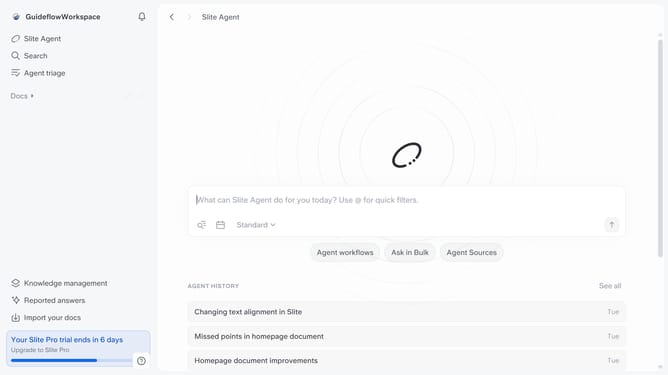
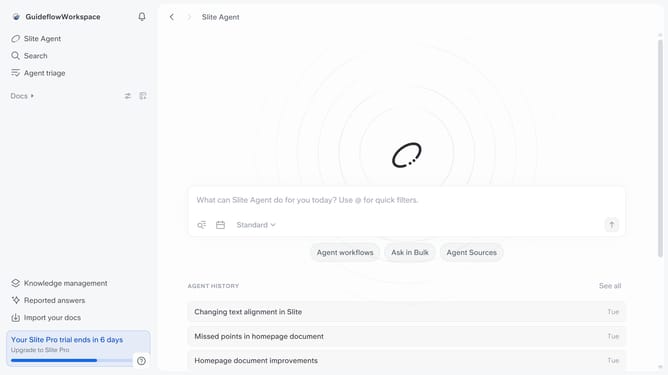
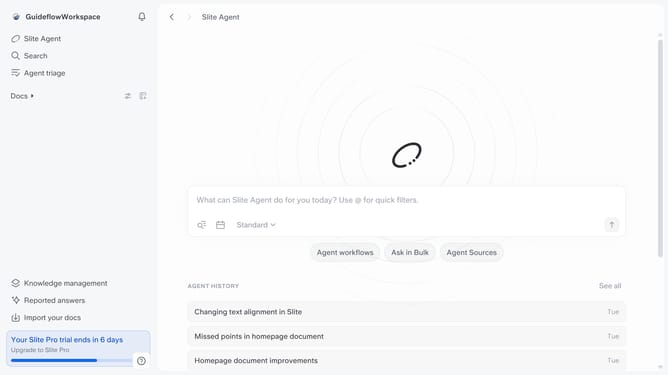
- First click on "Docs" in the left sidebar
- Then click on the doc name that you want to open
- Then click on the sketch in the document
- Next, click on the "Edit" icon
- Click on the rectangle shape to show available options
- Finally click on the square fill option in the right sidebar
Why should you How to change the rectangle fill style in a sketch in Slite
Slite is a collaborative documentation platform designed to streamline team communication and project management.
One standout feature in Slite is the ability to customize the rectangle fill style in sketches. This feature allows users to personalize diagrams, enhancing visual communication. Adjusting the fill style not only aids in differentiating elements but also improves clarity and focus in team presentations.
By tailoring sketches to your needs, you ensure that your team captures nuances effortlessly, fostering better collaboration and understanding among team members.
Last update