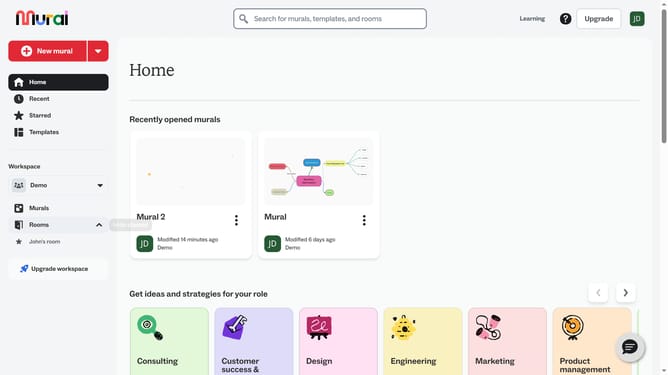
How to change icon colors in Mural
Here is how to change icon colors in mural
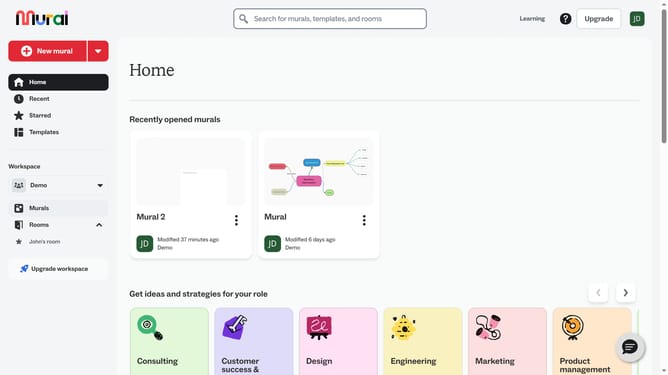
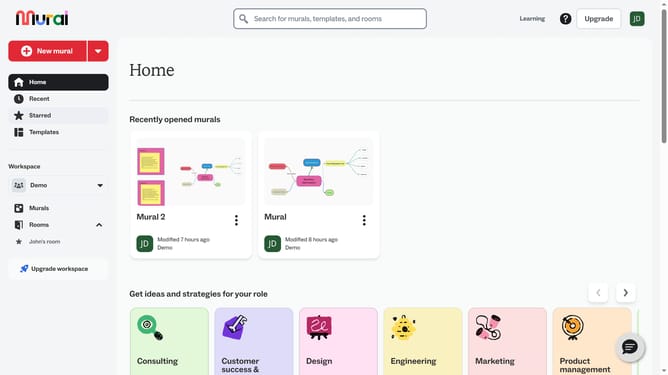
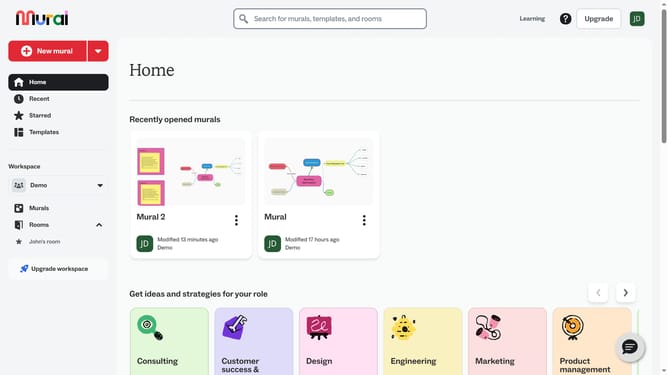
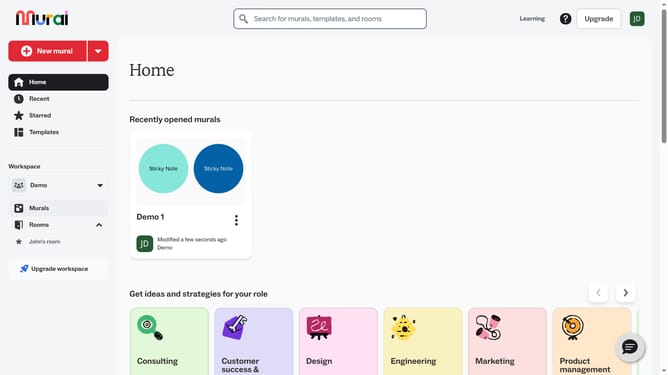
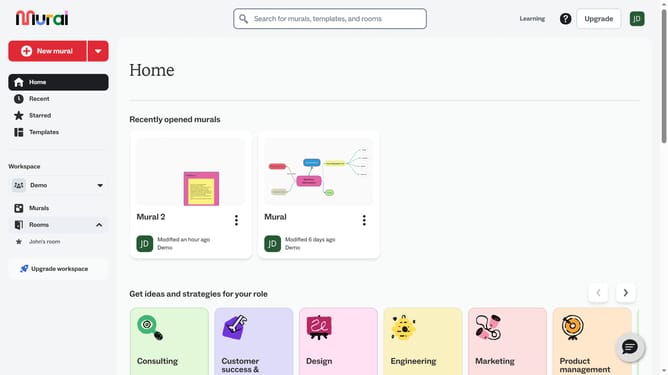
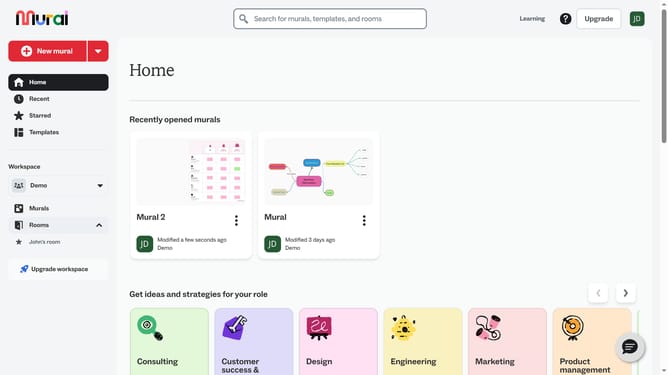
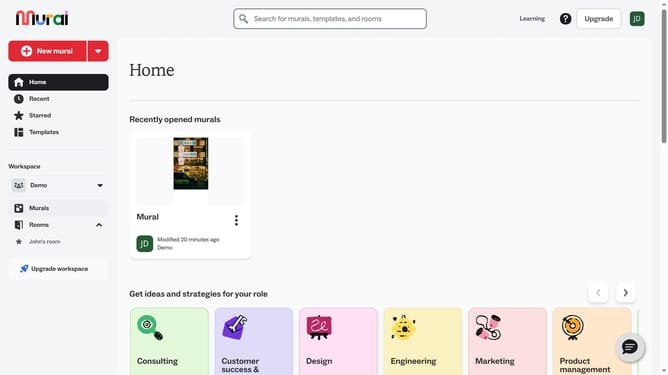
- First click on the "Murals" item in the left sidebar navigation menu
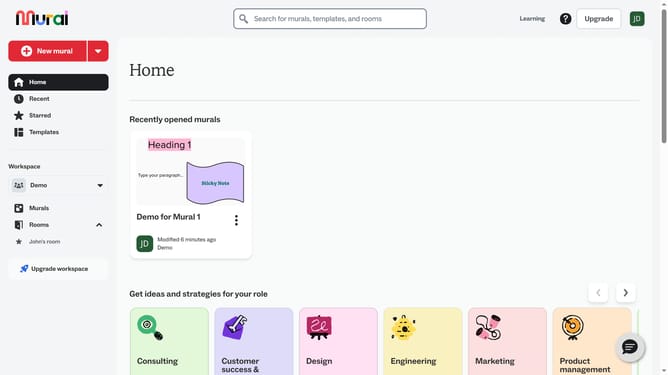
- Then click on the mural where the icon is located
- Next click on the icon on the canvas to select it
- Then click on the color picker button in the floating toolbar above the selected element
- Finally choose a new color from the color palette from the color palette dropdown menu
Why should you change icon colors in Mural
Mural is a dynamic digital workspace designed to enhance team collaboration and creativity.
Changing icon colors in Mural allows users to customize and visually prioritize information efficiently.
This feature enhances the visual appeal and organization of your digital space, enabling teams to quickly differentiate categories or highlight important elements.
By facilitating clearer communication through visual cues, changing icon colors makes collaborative brainstorming sessions more productive and engaging.
Last update