Zoom
Zoom is a unified communications platform for video, phone, chat, and webinars. It helps teams connect, collaborate, and boost productivity with powerful, intuitive tools.
Website
Industry
Collaboration
Share this article:

How to change a task's visibility settings in Zoom

Here is how to change a task's visibility settings in zoom

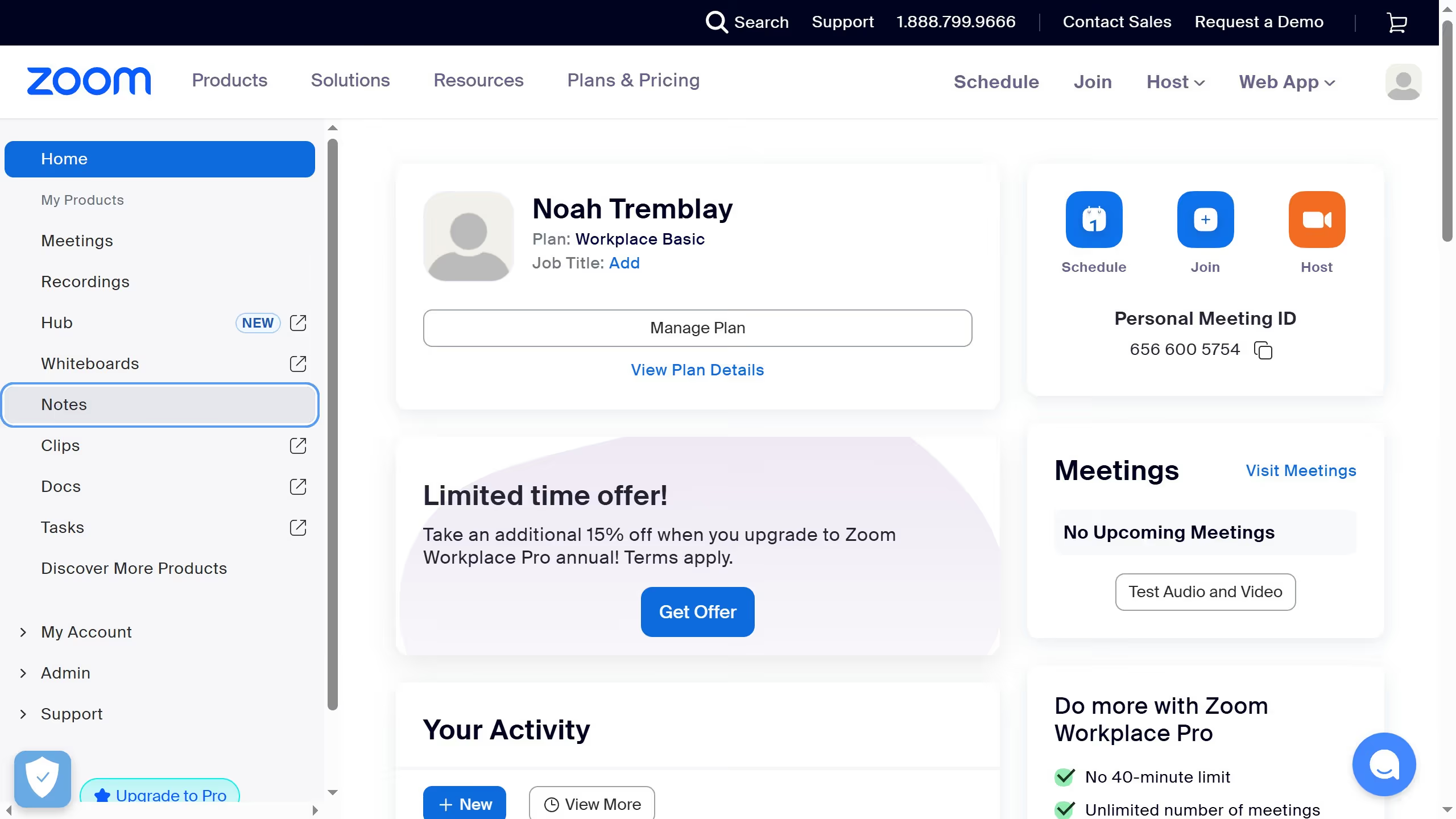
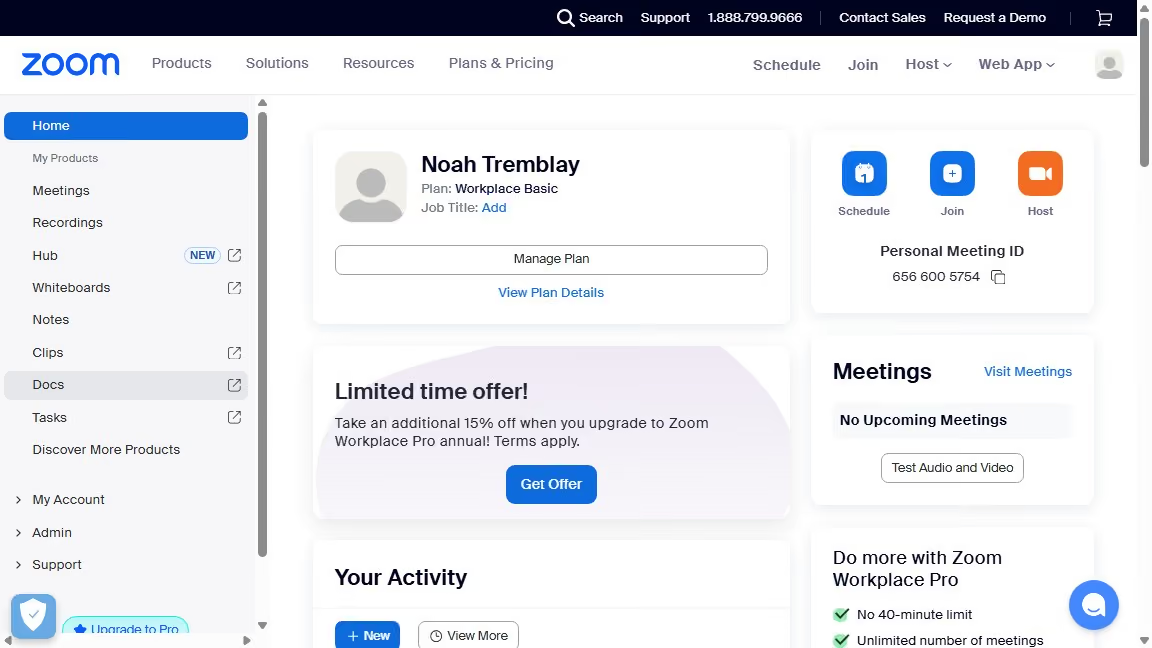
  1. First click on the "Tasks" item in the left sidebar menu
  2. Then click on "My tasks" item in the left sidebar submenu
  3. Next select the task you want to update from the task list
  4. In the task details panel, click on the "Visibility" dropdown menu
  5. Finally choose your preferred visibility setting such as "Only assignees and collaborators" or "Anyone at your company"

Create your own interactive guide with Guideflow

Why should you change a task's visibility settings in Zoom

Zoom is a dynamic tool that revolutionizes the way we connect for meetings, webinars, and collaborative tasks.

Adjusting a task's visibility settings in Zoom can significantly enhance your workflow efficiency by allowing you to customize who can view and access specific tasks.

This feature is beneficial for maintaining privacy, ensuring sensitive information is only seen by the right people, and boosting team productivity by tailoring tasks to relevant team members.

Using this function fosters a focused and secure environment, enhancing collaboration and organization.


Last update
February 3, 2026
Cursor MariaA cursor points to a button labeled "James."

Create your first demo in less than 30 seconds.