How to automatically archive an announcement banner in Confluence
Here is how to automatically archive an announcement banner in confluence
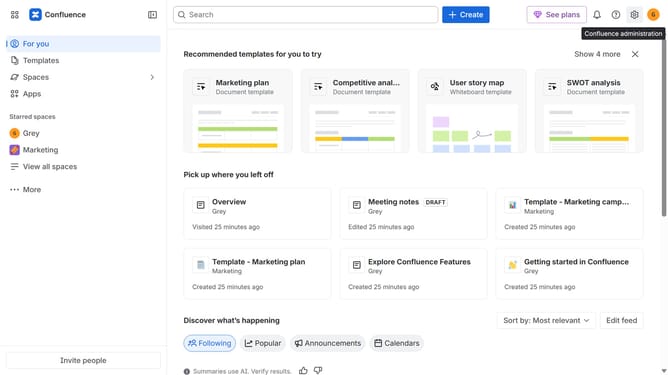
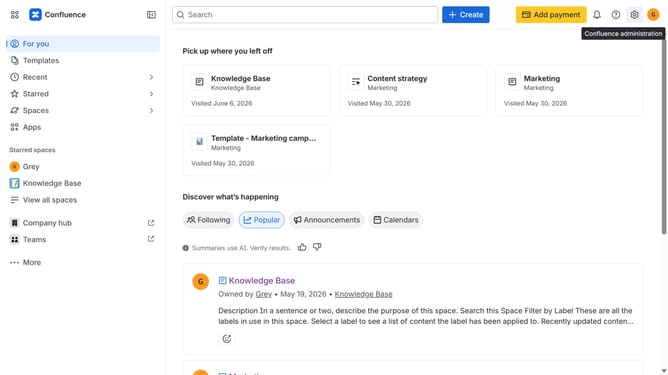
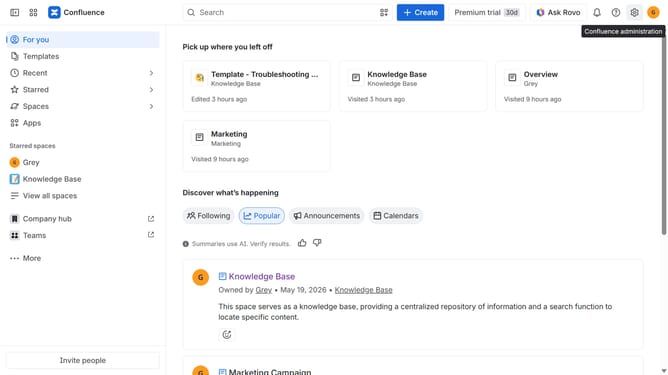
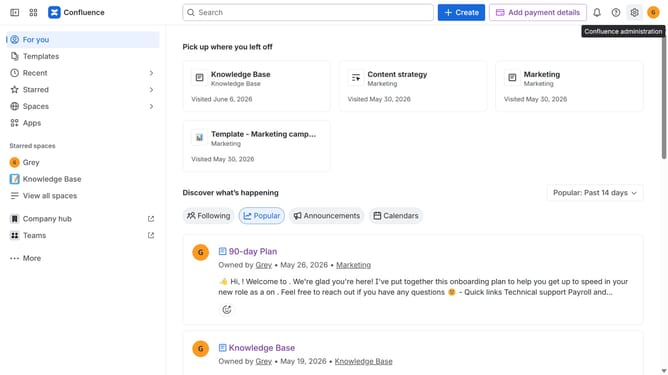
- First click on the gear icon in the header to open Confluence administration
- In the sidebar, click on "Announcements"
- Next, click on the "Create Announcement" button
- In the "Announcement title" field, enter a title for the announcement banner
- After that, enter the message you want to display in the "Message" field
- Next, configure the other banner settings as needed
- Scroll down to the "Schedule" section
- In the "Start date" field, select the date and time when the banner should become visible (You can leave empty)
- In the "End date" field, select the date and time when the announcement should no longer be active
- Next, choose your time zone
- Finally, click on the "Publish" button
Why should you automatically archive an announcement banner in Confluence
Confluence is a powerful collaboration tool designed to streamline team communication and project coordination.
Automatically archiving an announcement banner in Confluence ensures that communication remains relevant by neatly organizing past messages without manual intervention.
This feature enhances workspace efficiency by reducing clutter, allowing team members to focus on current updates while still maintaining a record of important past information.
Overall, it keeps the digital workspace clean, organized, and fully optimized for productivity.
Last update