How to disable the 4 Ls Retrospective blueprint in Confluence
Here is how to disable the 4 ls retrospective blueprint in confluence
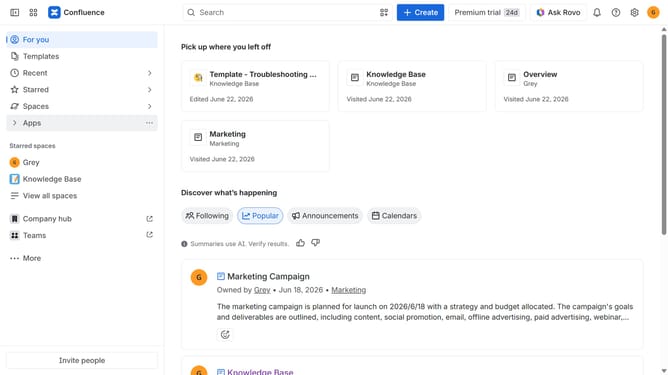
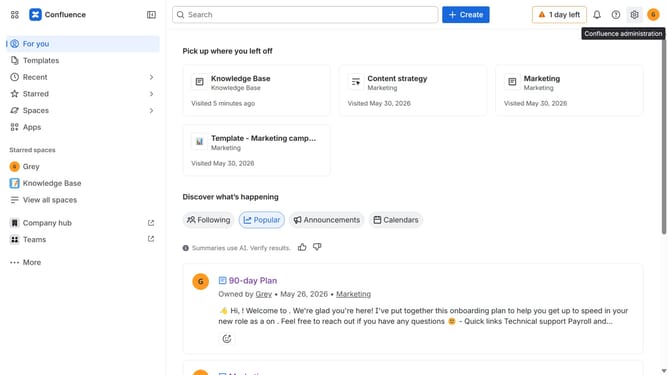
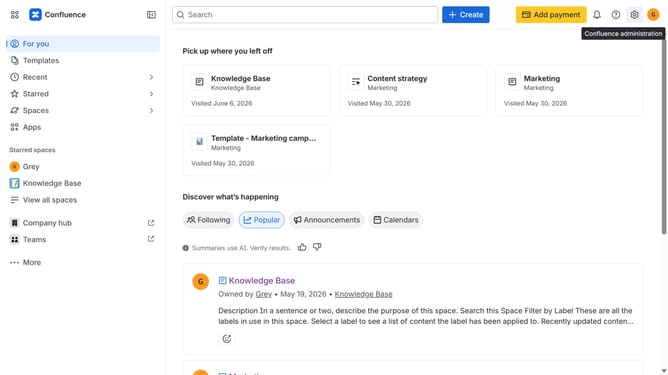
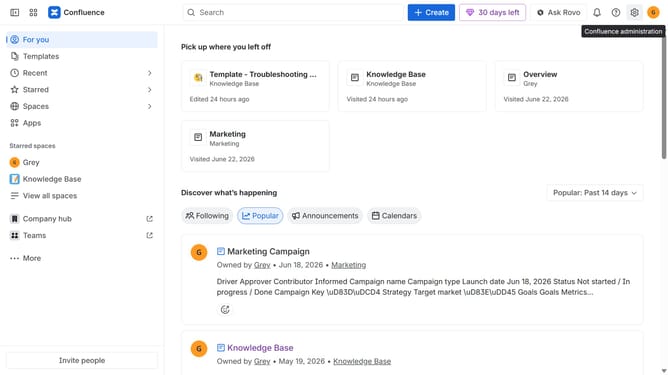
- First click on the gear icon in the top right header
- Click on "Configuration" in the left sidebar under Settings
- Next, select "Global templates and blueprints"
- After that, locate the "Global blueprints" section
- Then locate the "4 Ls Retrospective" blueprint in the Global blueprints list
- Finally, turn off the toggle next to the blueprint to disable it
Why should you disable the 4 Ls Retrospective blueprint in Confluence
Confluence is a powerful collaboration tool designed to help teams orchestrate their workspaces with ease.
Disabling the 4 Ls Retrospective blueprint in Confluence allows teams to streamline their workflow by eliminating templates that may no longer fit their evolving processes.
This feature provides flexibility, helping teams stay agile and focused by tailoring the workspace environment to their specific needs
Through customizing Confluence, organizations can maintain clarity and efficiency across projects, ensuring every tool serves its purpose effectively.
Last update