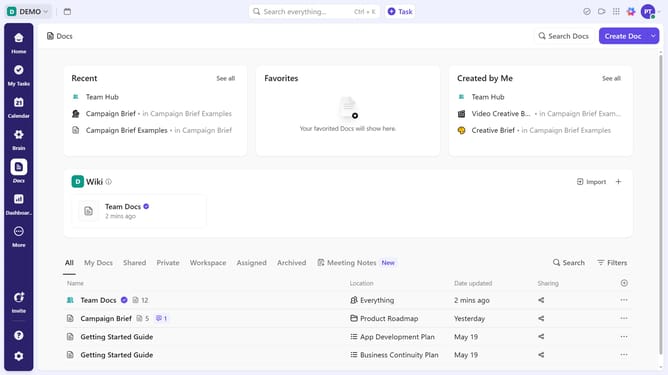
How to assign a checklist item in ClickUp
Here is how to assign a checklist item in clickup
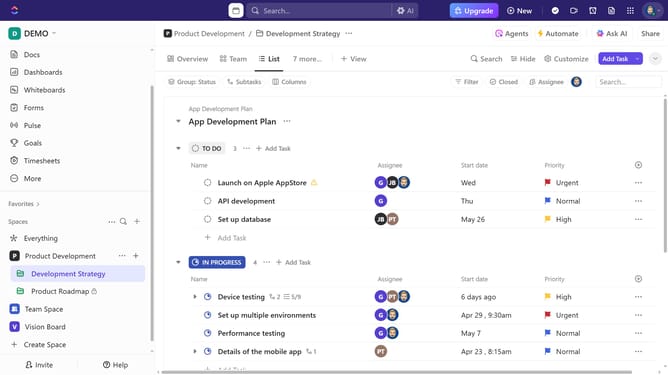
- First in the task list, find and click on the task containing the checklist
- Then in the task details view, scroll down to the "Checklists" section
- Locate the specific item you want to assign
- Next click on the "..." menu button next to it
- Then select "Assign to" option from the dropdown menu
- Alternatively, click on the assign icon next to the checklist item
- Finally select the team member you want to assign the checklist item to
Why should you assign a checklist item in ClickUp
ClickUp is an all-in-one productivity platform designed to streamline work and boost collaboration.
One of its standout features is the ability to assign checklist items, transforming them into actionable tasks. By leveraging this, teams can break down complex projects into manageable steps.
Assigning specific tasks ensures accountability and clarity, fostering a more organized workflow and enhancing team efficiency. This feature supports seamless task delegation, which is vital for meeting deadlines and achieving project goals.
Last update